

Before you can use vehicles as stock locations, you must have Stock Management enabled on your account. If this feature is not already enabled, please contact our Support Team who will be happy to help with this!
You will also need to make sure that your vehicles have been added to the system. If you haven't done this yet, please follow our guide: How to Add Fleet Vehicles
What Are Stock Locations?
A Stock Location is any physical place where you store stock that you want to track within WorkPal. This could be:
A warehouse
A stock room
A storage unit
A vehicle or van from your fleet
Please note: Stock locations and shelves can only be created from the desktop version of WorkPal.
Creating a New Stock Location
To create a new stock location: click the WP Logo > Preferences > Stock > Add
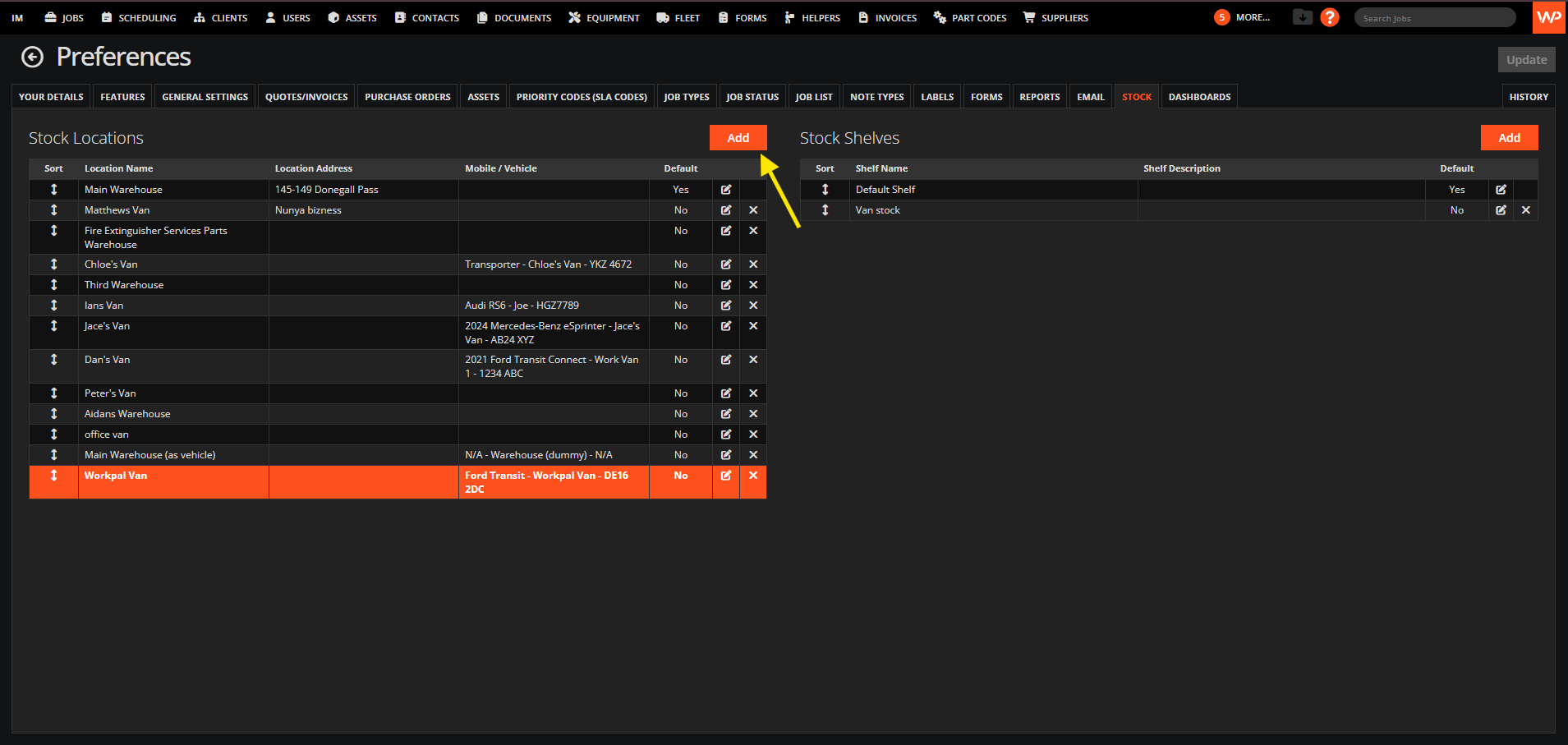
When creating a location, you can choose either:
Fixed Location - such as a warehouse or storeroom
Vehicle - any vehicle that has been added to your fleet
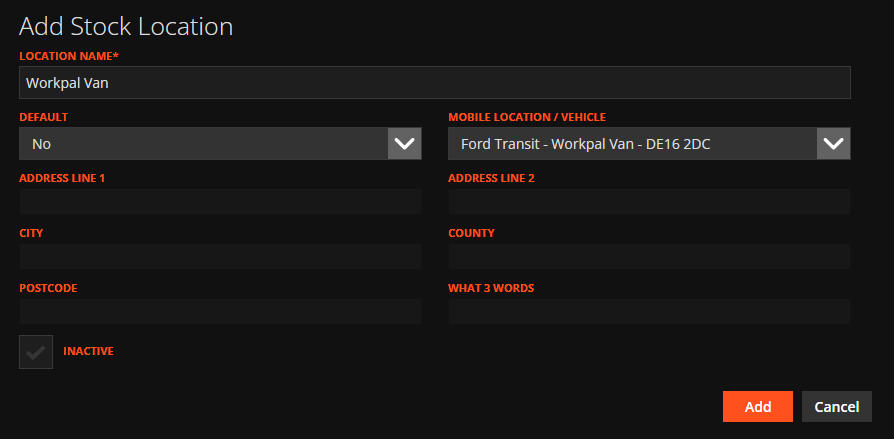
Once a location is created, a default shelf will automatically be added. This can be changed later after additional shelves have been created.
Managing Shelves
To manage the shelves within a stock location, navigate to the location and select the options available on the right-hand side.
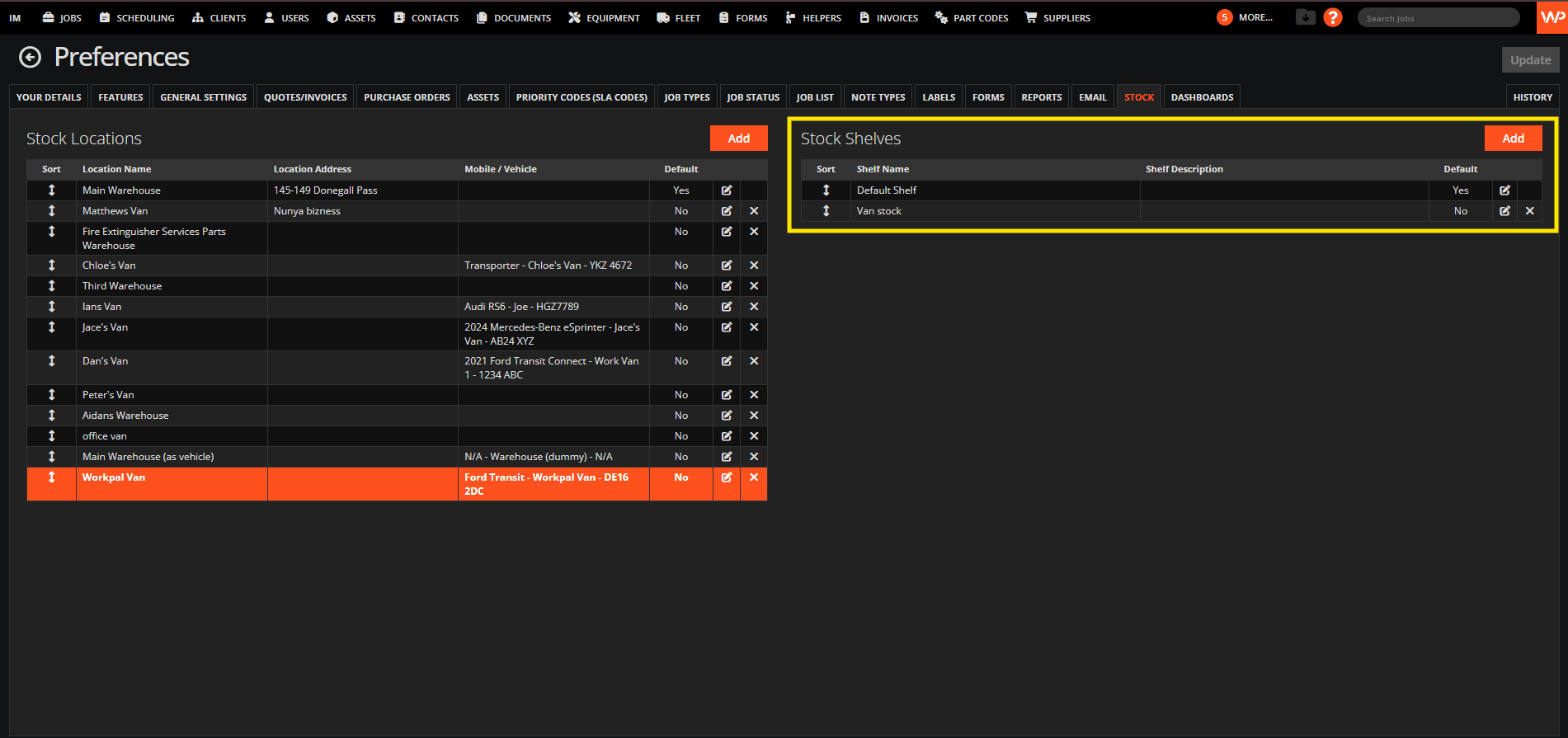
From here, you can either edit existing shelves or add new ones.
Now that you have everything created, you can now add stock to this location. You can follow our article on how to add stock do this.
Need a Hand?
If you're experiencing any issues setting up Vehicles as Stock Locations in WorkPal, such as assigning stock to vehicles, transferring stock, managing vehicle inventory, or viewing stock levels, our Support Team is here to help.
📞 028 9344 5660
📧 support@workpal.app
🌐 www.workpal.app