

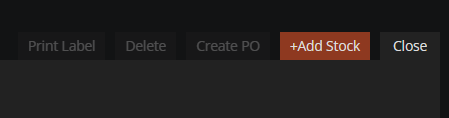
Navigate to the STOCK tab. Select '+Add Stock' from the top right corner.
Select the relevant Part Code and Category and advise WorkPal where they will be stored in terms of Stock Location and Shelf.
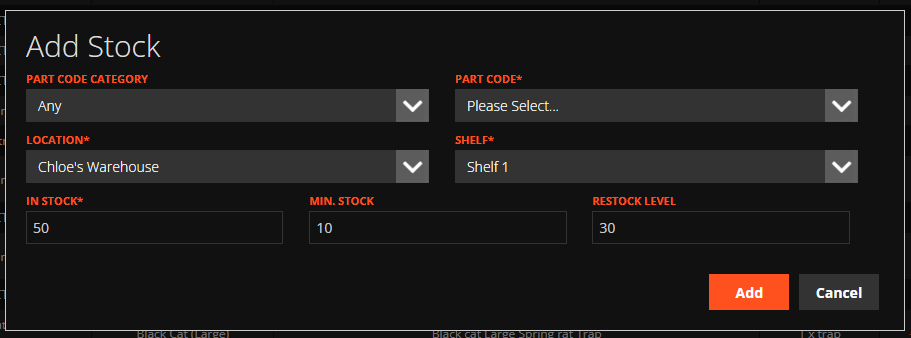
Quantity (Number) - No of items currently in Stock (for this Shelf at this Location specifically)
Minimum Stock Quantity (Number) - No. of items below which more will need to be ordered (this will tie into Purchase Orders and Reports/Alerts)
Restock Level (Number) - Once Minimum Stock Quantity is reached, this is the quantity that should be ordered to reach the desired Restock Level (e.g. Restock Level is 50. If Stock Quantity reaches 4 and Minimum Stock Quantity is 5, WorkPal will know to order 46 items to get Stock levels back to 50)
OR
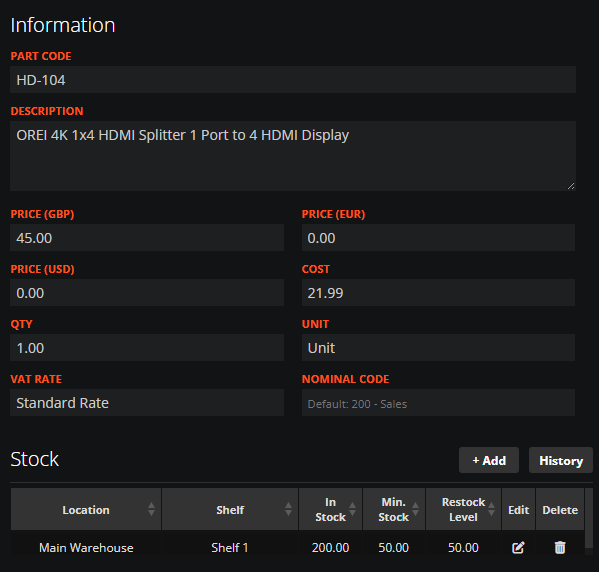
Navigate to 'Part Codes'
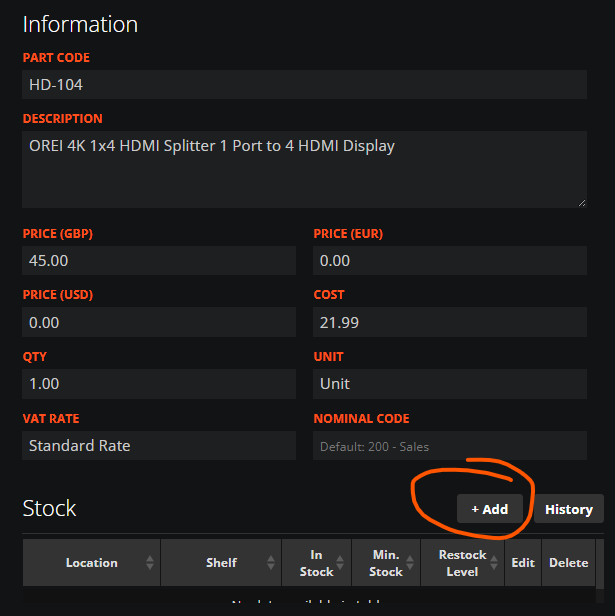
Select an individual part code, along the bottom of the screen you can view the stock of this part or select '+add' to
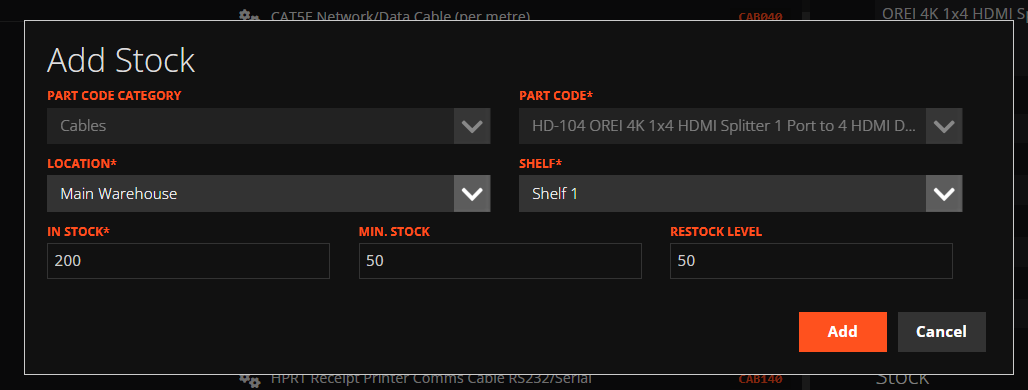
This will update the stock centre, which is visible from the part code screen and the stock tab.

We recommend that stock is added to the Warehouse and then transferred to vehicles and jobs, to maintain accurate historical records.
