

The Vehicle Check functionality includes our standard Vehicle Check Form that can be turned on from the Preferences Menu, under the General Settings tab.
We also have a new and updated version of the Vehicle check form that can be configured through the form builder like any other standard form. To enable the new version please reach out to our support team who can arrange this for you at no extra cost!

With this enabled, the Vehicle Check Form will be set to appear automatically to Users for them to fill in when they start a Shift. This requires the Shifts functionality to be turned on.
The Vehicle Check can also be set to appear on the Home Screen, so that Users can complete a Vehicle Check at any time.
Using the New Vehicle Check Form
To add a new vehicle check from the mobile app follow the instructions below:
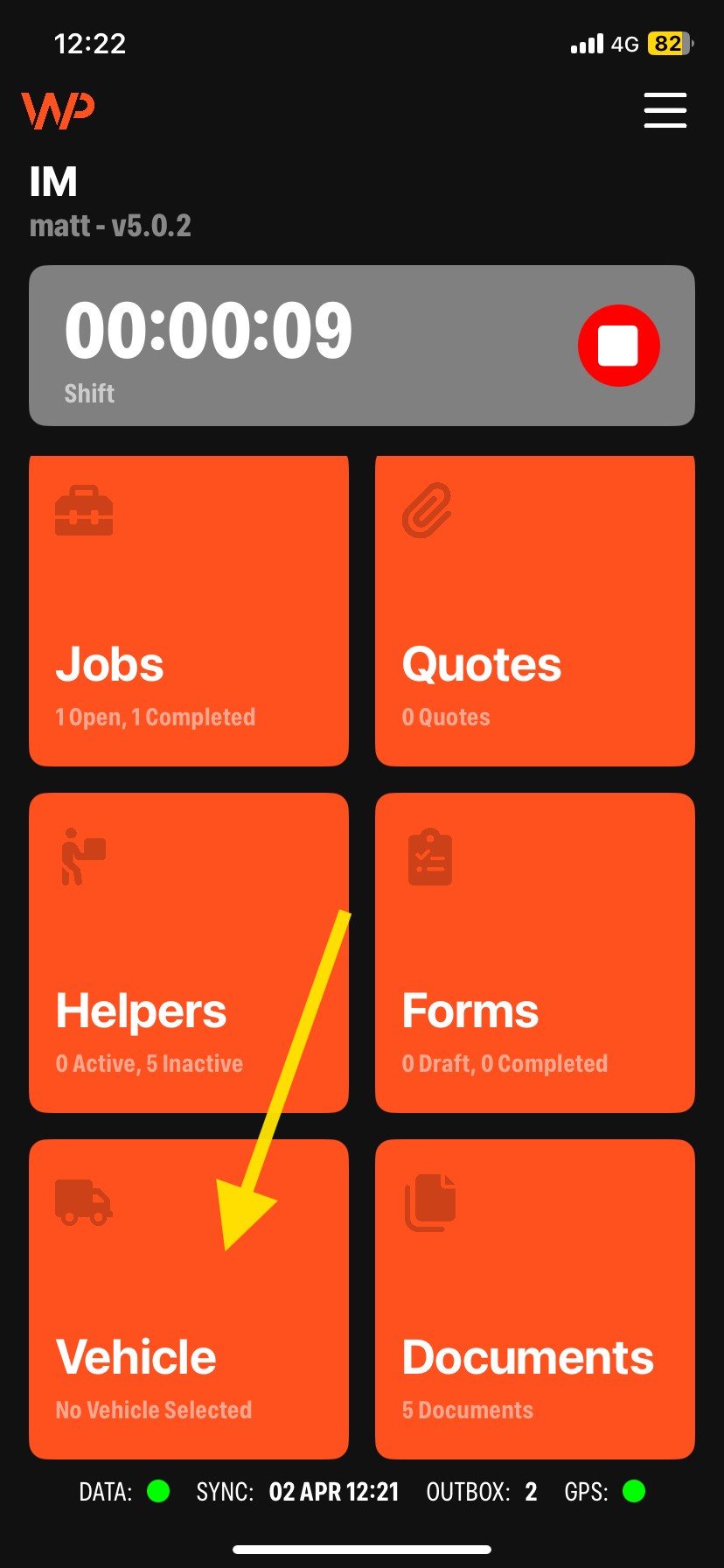
From the home screen of the app, click the Vehicle tab.
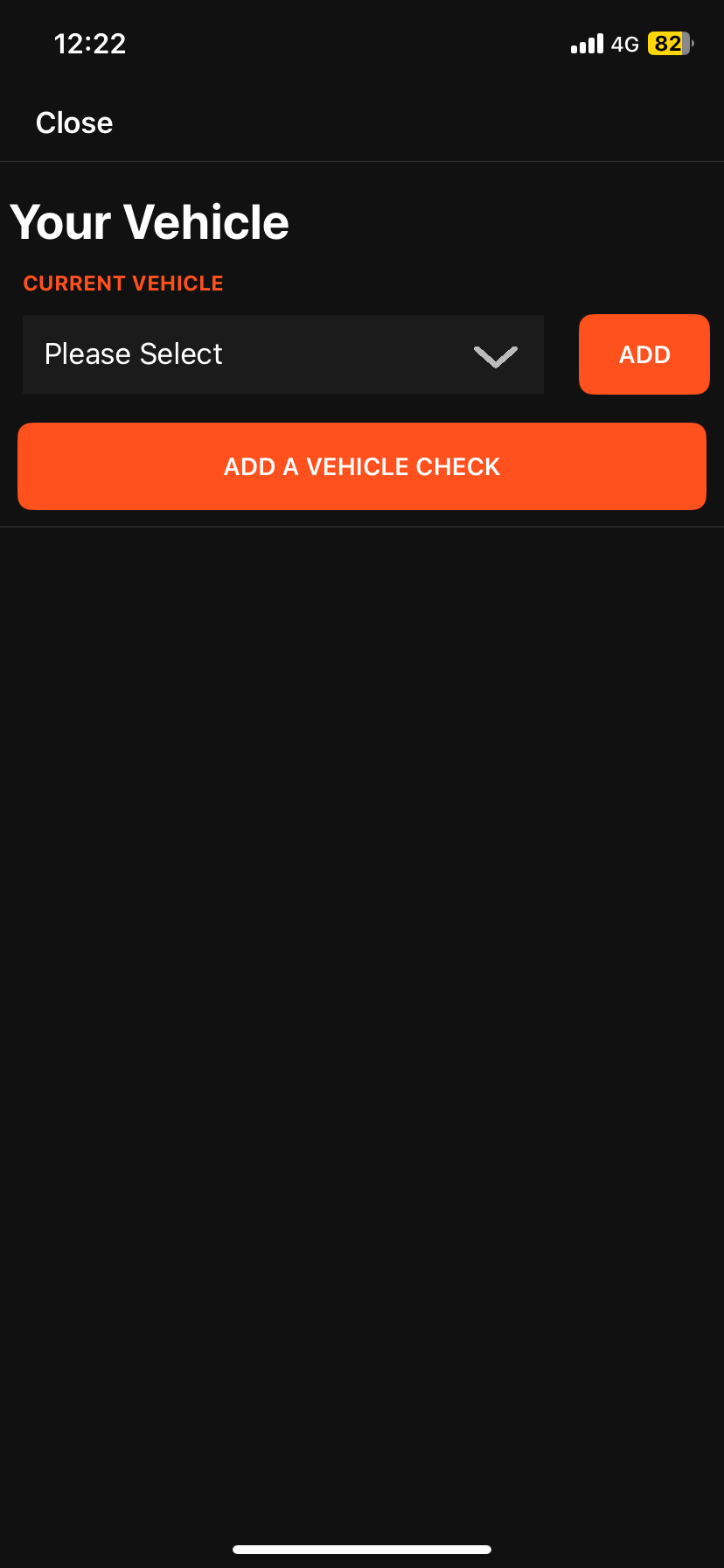
Select a vehicle from the dropdown, click "Add", then select "Add a Vehicle Check".
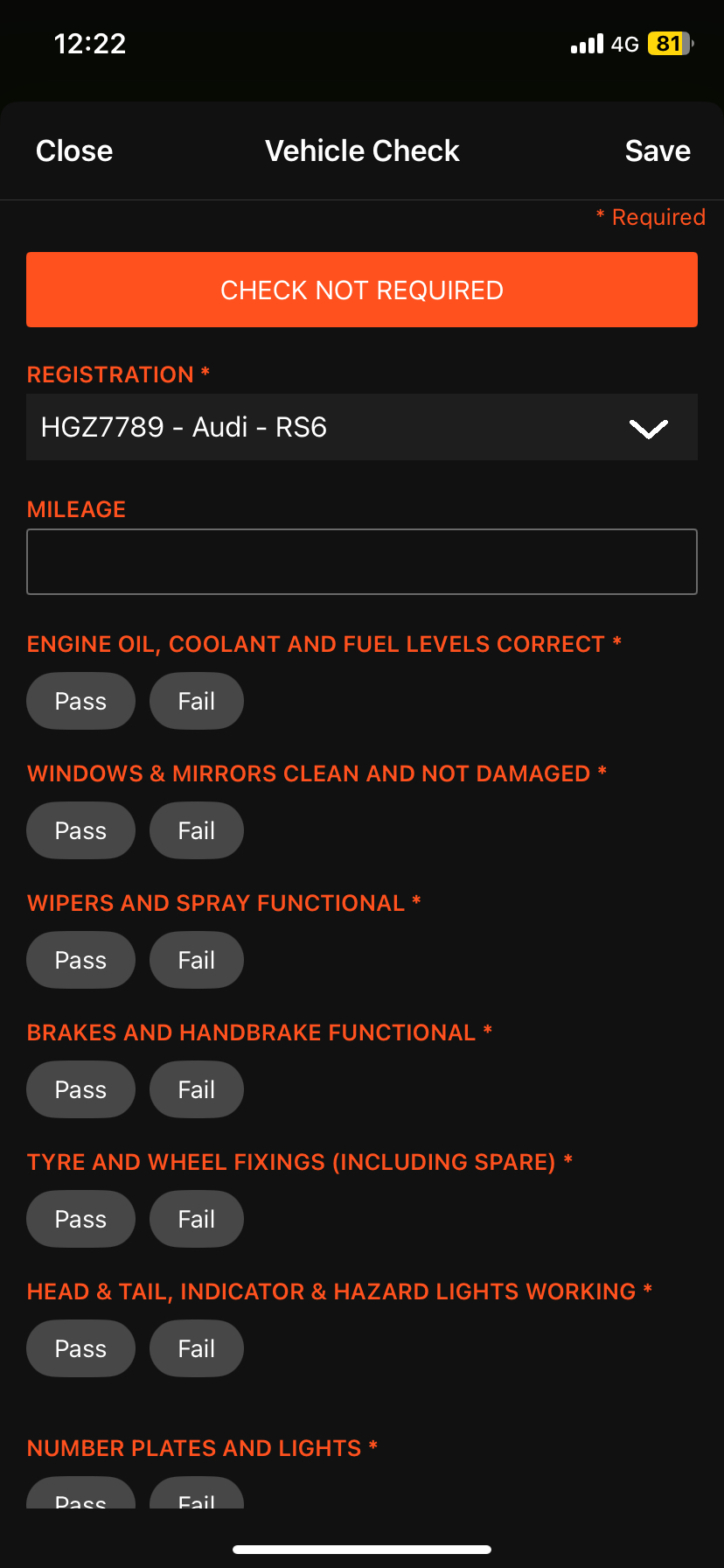
Fill out the form. Fields marked with an asterisk (*) are mandatory. The "Check Not Required" button can be removed if needed.
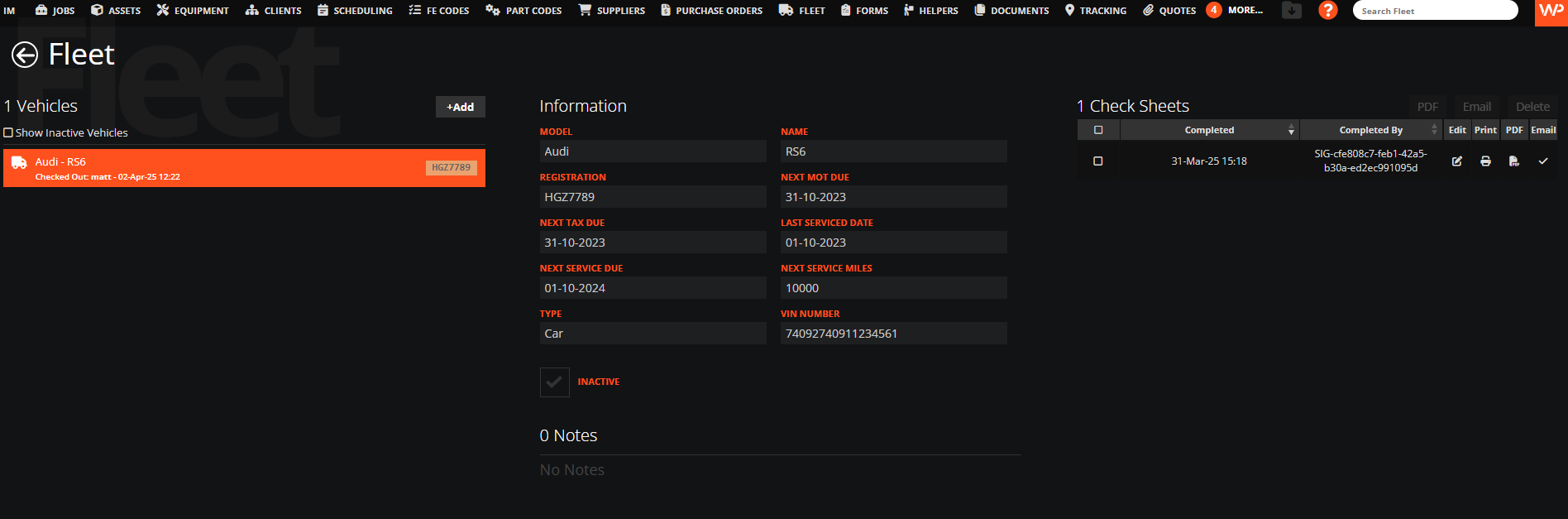
To view the complete history of vehicle checks for a specific vehicle, navigate to the "Fleet" tab on your desktop. Select the desired vehicle, then refer to the right-hand side of the page to access its full check history.
How to edit the Vehicle Check Form
To view or edit the Vehicle Check Form, follow these steps:
Click the WorkPal logo.
Go to Preferences > Forms.
Scroll to find the "Vehicle Check" form.
Click the paintbrush button to open the Form Builder, where you can make any changes needed.
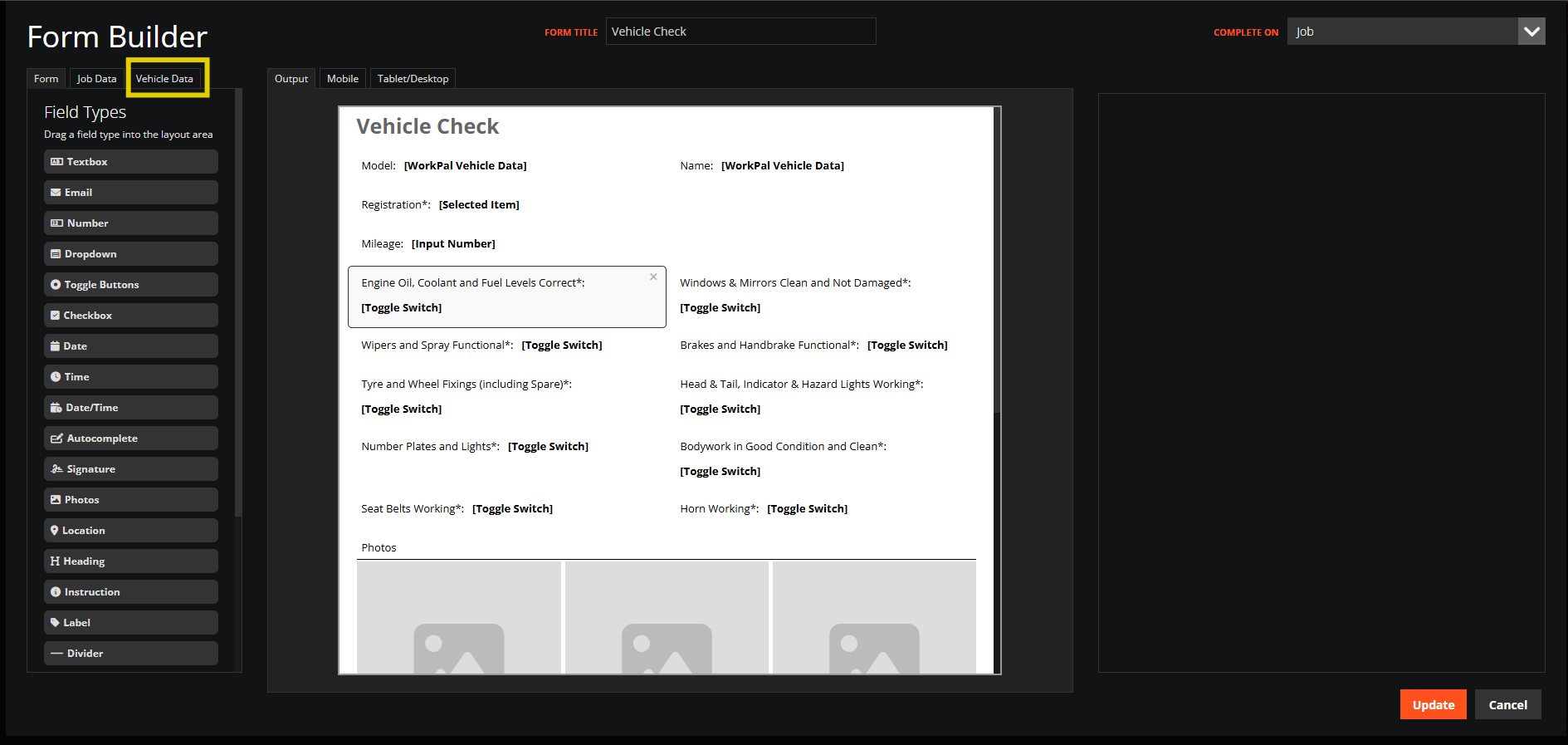
The Form Builder gives you full control over how the form looks and what information it collects, so you can tailor it to suit your workflow.
This also gives us the option to be able to add a "skip" option if the vehicle check is not required. This can be toggled by going to the preferences>forms and then scrolling to find the form and clicking the button beside the paintbrush icon.
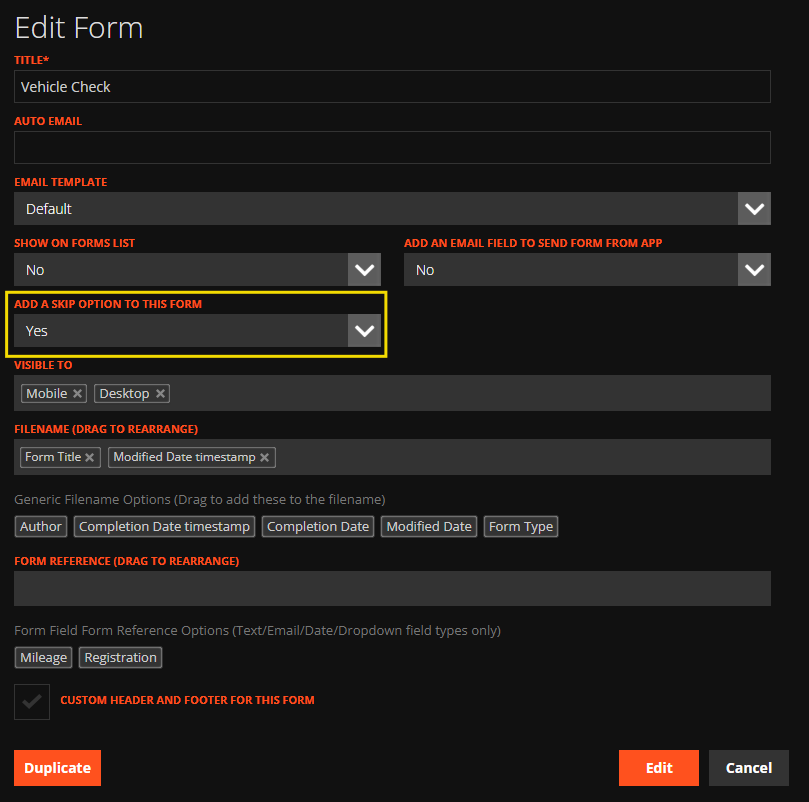
If you can not see this form on your install please get in contact with us and we will get it put on for you.