

Adding Suppliers to WorkPal
You can add suppliers in one of two ways:
Option 1: Manually Add Suppliers via the Interface
Navigate to the Suppliers section within WorkPal.
Click “Add New Supplier”.

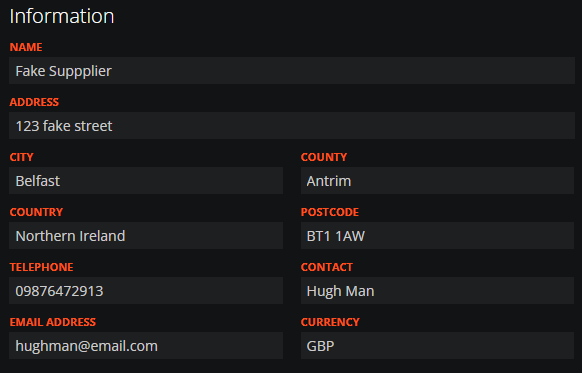
Fill in the relevant details such as:
Supplier name
Contact information
Categories (if applicable)
Notes or terms
This method is ideal for adding suppliers individually or as they are needed.
Option 2: Bulk Import Using Excel
If you have an existing list of suppliers, you can import them in bulk using WorkPal’s Data Import feature:
Go to Settings → Data Import.
Download the Supplier Import Template.
Fill in the template with your supplier data.
Re-upload the completed file into the system.
💡 Ensure the data follows the format outlined in the template to avoid upload errors and that all fields marked with an asterix are completed.
Navigating the Suppliers Section in WorkPal
The Suppliers section in WorkPal has a familiar layout—designed to match the Clients page—making it easy to manage and organise your supplier records efficiently.
Organising Suppliers by Category
To keep your suppliers structured and easy to manage, you can group them into Categories—for example: Electrical, Plumbing, or Consumables.
To move a supplier into a different category, use the “Move Supplier” button.
This allows you to update your supplier list as your business grows or changes.
Attaching Documents to Suppliers
Each supplier can have relevant documents stored against their profile—such as terms of service, certificates, or contracts.
To manage documents:
Click the “Documents” button beside the supplier’s name.
You can then:
Add new documents
View existing ones
Remove outdated files
Keeping documents attached to suppliers ensures all related information is easily accessible for purchasing, compliance, or audit purposes.
To learn how to batch import multiple Suppliers, please see the Data Import guide here: Importing Data
Need a Hand?
If you're experiencing any issues creating, updating, linking, or managing Suppliers in WorkPal, our Support Team is here to help.
📞 028 9344 5660
📧 support@workpal.app
🌐 www.workpal.app