

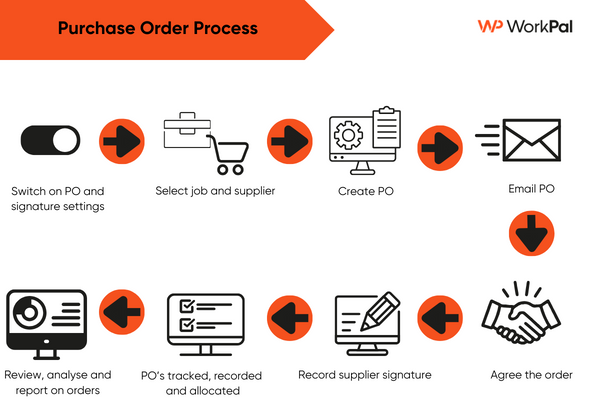
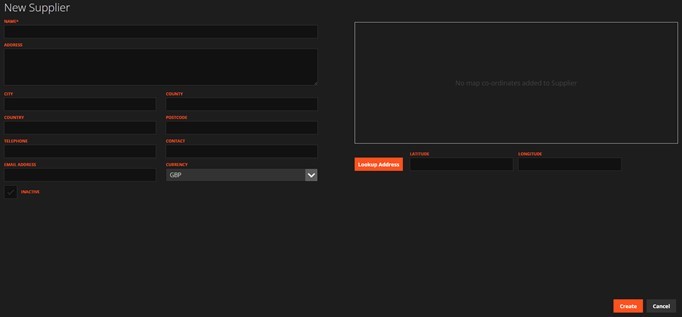
You can start by adding a list of your Suppliers to the Suppliers page, or they can be add to an excel
template from the Data Import feature.

The Suppliers layout is the same as the Clients page. You can organise with Categories.

To learn how to batch import multiple Suppliers, please see the Data Import guide here: Importing Data
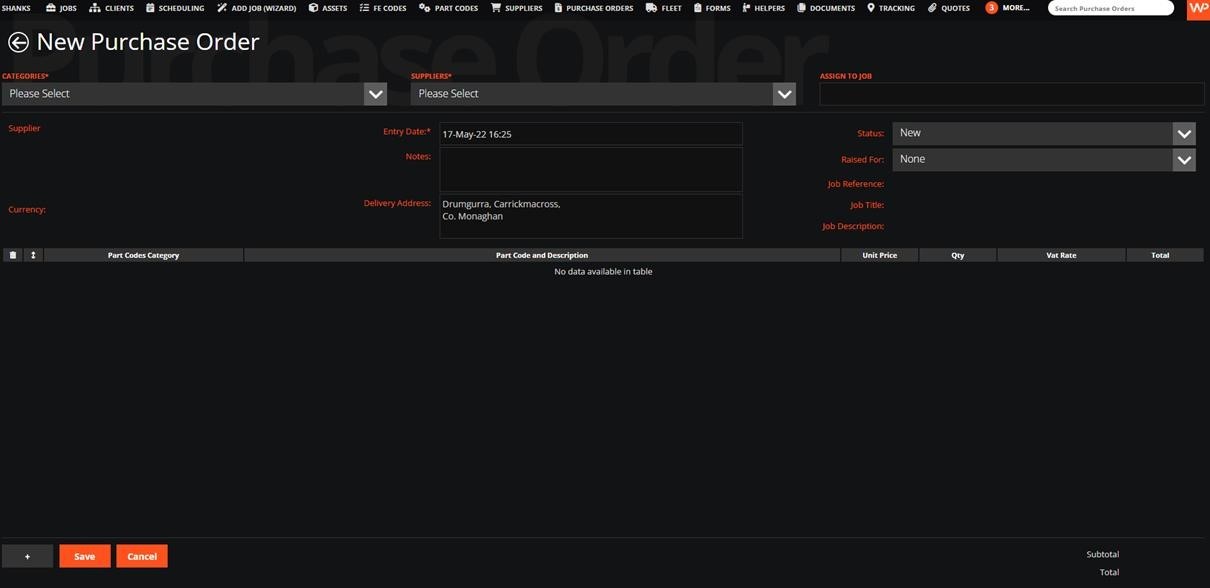
Once you’ve added your Suppliers, you can add a Purchase Order from the Purchase Orders page:

Select the Supplier, and assign to a job if required.
Add the items.
You can then email or print the PDF from back on the Purchase Orders page.
Purchase Orders can be sent to Suppliers in an email with a link to Sign-off/Approve. This functionality can be turned on or off in the Purchase Order tab in the Preferences Menu. For more information this topic, please see our guide on Signoffs.

How the email appears:
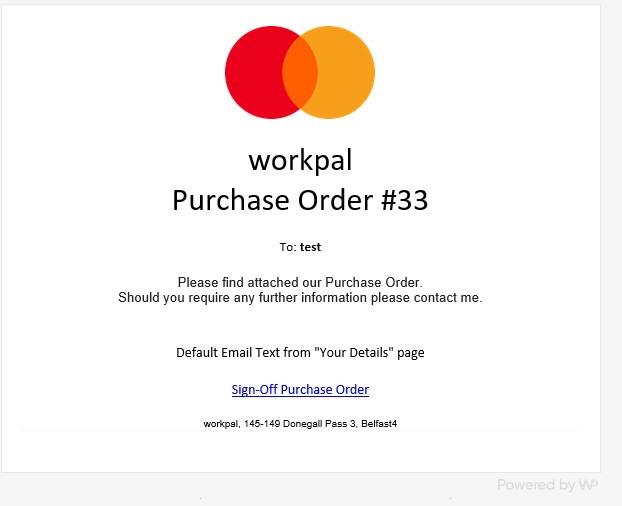
This template can be customised from the Email tab in the Preferences.
How the Sign Off Page appears:
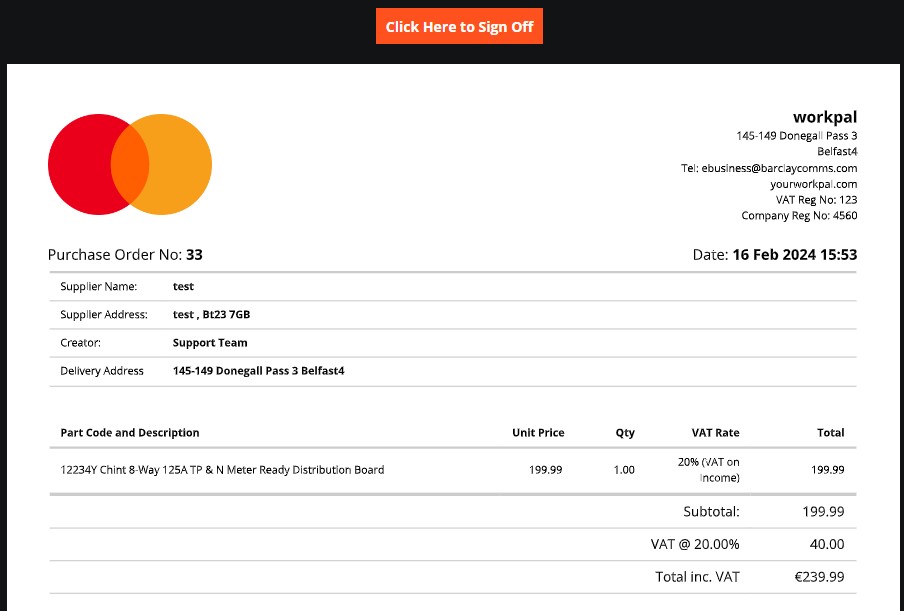
When a Purchase Order has been signed off, it will have this column ticked on the Purchase Order list page:

For more options on Purchase Orders, please see our guide on the Purchase Orders Preferences.
Need a Hand?
If you're experiencing any issues creating, approving, receiving, or managing Purchase Orders in WorkPal, our Support Team is here to help.
📞 028 9344 5660
📧 support@workpal.app
🌐 www.workpal.app