

Quotes can now also be created on Android Mobile devices with support for iOS devices being added soon. This functionality can be turned on or off in the "Quotes/Invoices" tab in the Preferences Menu.
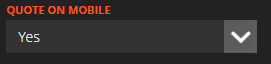
Note: Quotes created on Mobile devices will be available to the Desktop Users. Quotes created on Desktop will NOT be available to Mobile Users.
Creating A Quote On Mobile
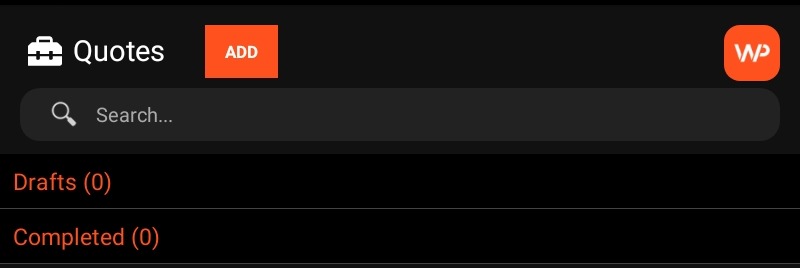
To begin creating a new Quote on Mobile, select the "Quotes" menu item from the WorkPal app Home Screen.

You will be presented with the Quotes list. Tap the "Add" button to create a new Quote.
On the "Add Quote" screen, choose a Client Group, Client and Site for the Quote.
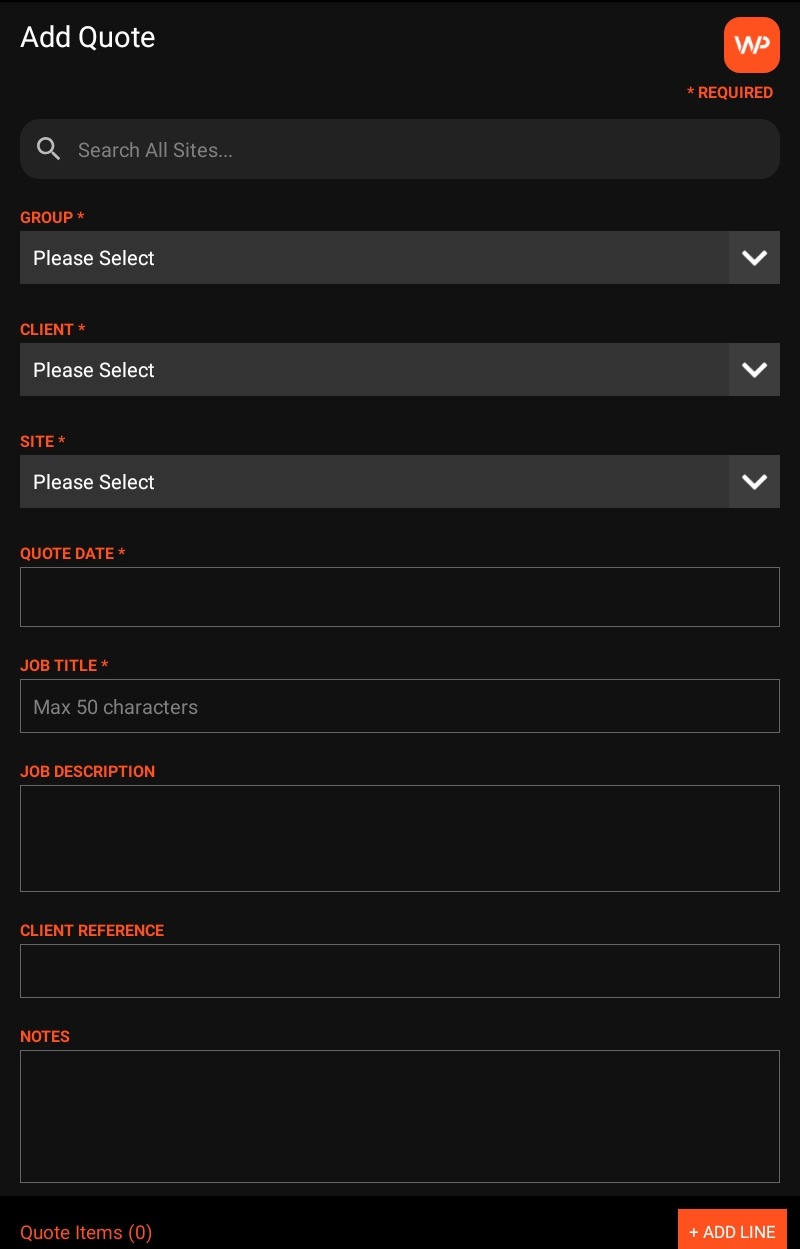
Note: Client Groups, Clients and Sites must be created by a Desktop User as they cannot be created from the WorkPal app. Please see our recommended workflow for creating Quotes for Clients that have not been added to your system yet.
Adding Line Items to the Quote
Once you have entered information for the Quote, tap "Add Line" to add line items.
The "Type" field will allow you to choose between FE Code groups and Part Code groups.
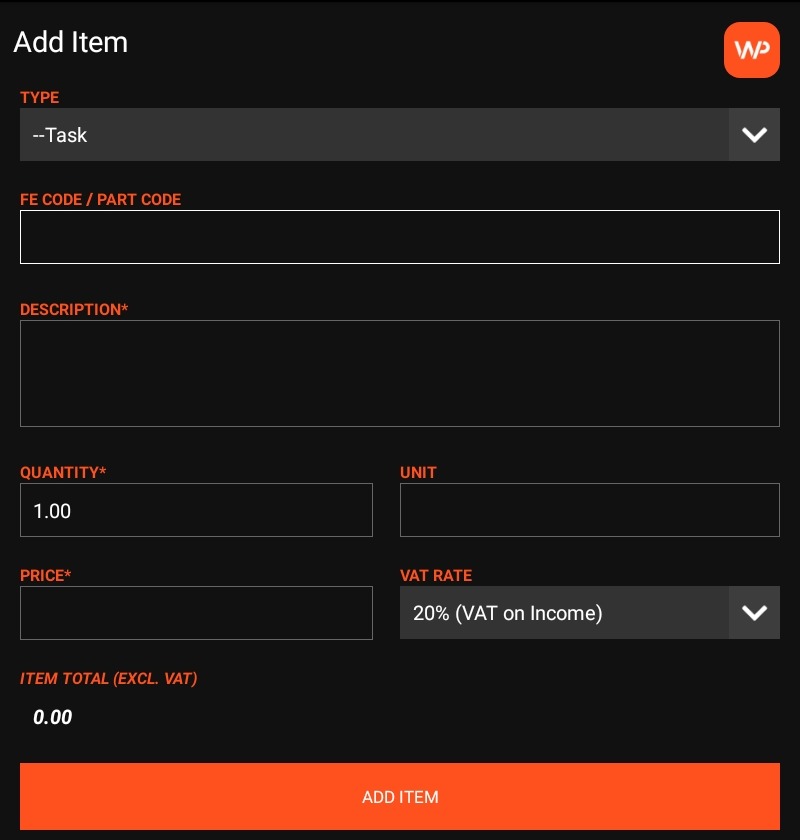
The FE Code / Part Code field will allow you to quickly select an FE Code or Part Code that exists on your WorkPal system. Start typing in this field to see suggested FE Codes / Part Codes.
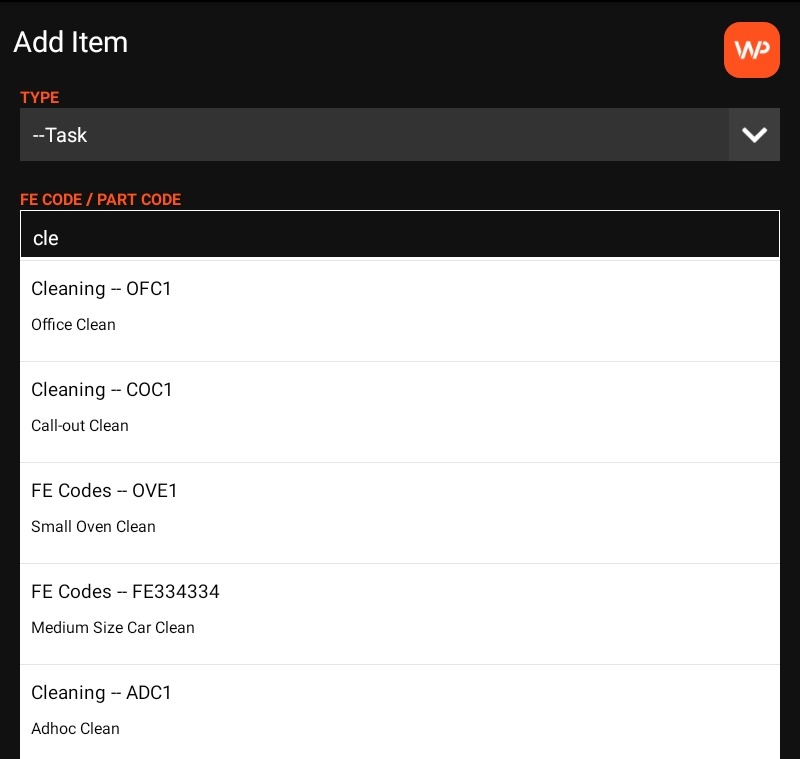
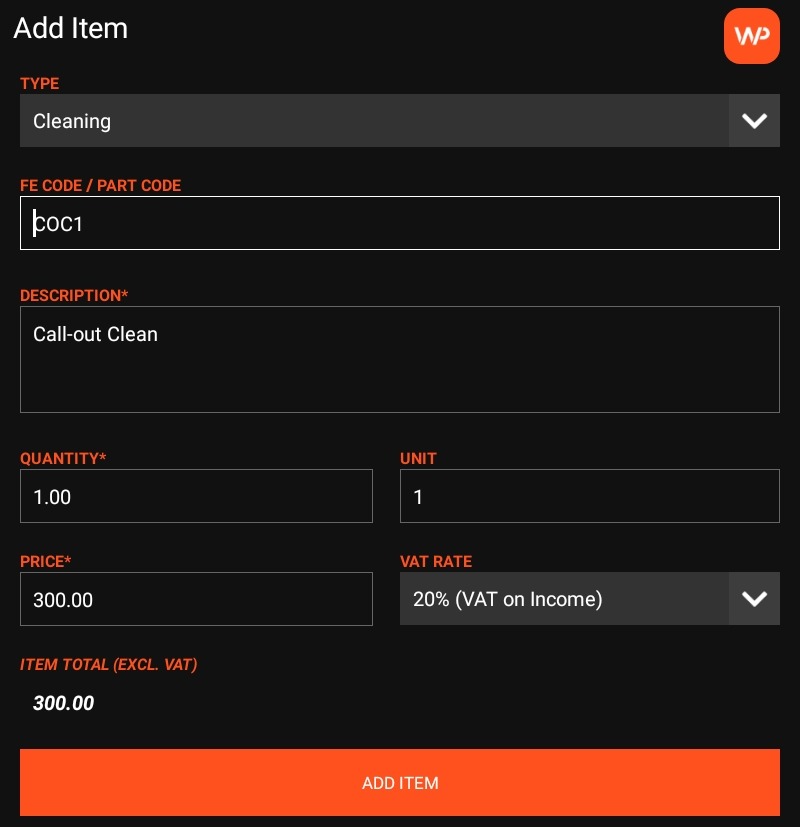
Once an existing FE Code or Part Code has been selected, the relevant Type, Description and Price for this item will be populated automatically.
When the line item has been added, it will be listed at the bottom with totals generated for the entire Quote.
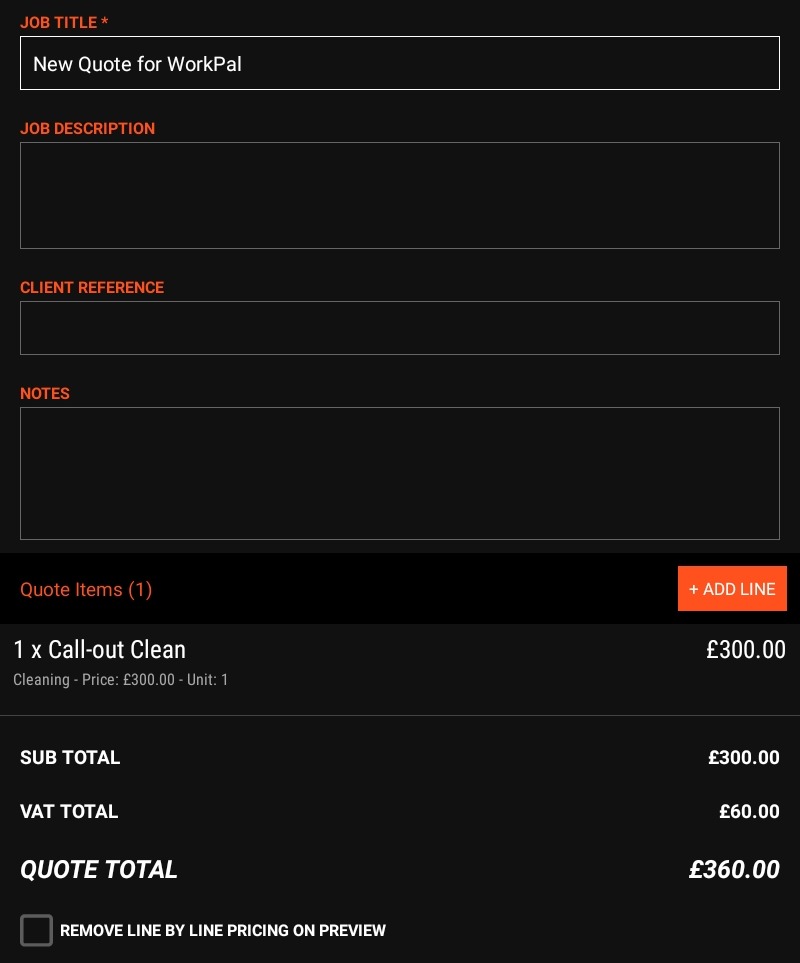
Click the "Save Quote" button at the bottom of the Quote once you are finished. If changes have been made to any details on the Quote, this button will read as "Update Quote".

Previewing the Quote
The "Save and Preview" button at the bottom will also save the Quote before opening a preview.

The Quote preview:
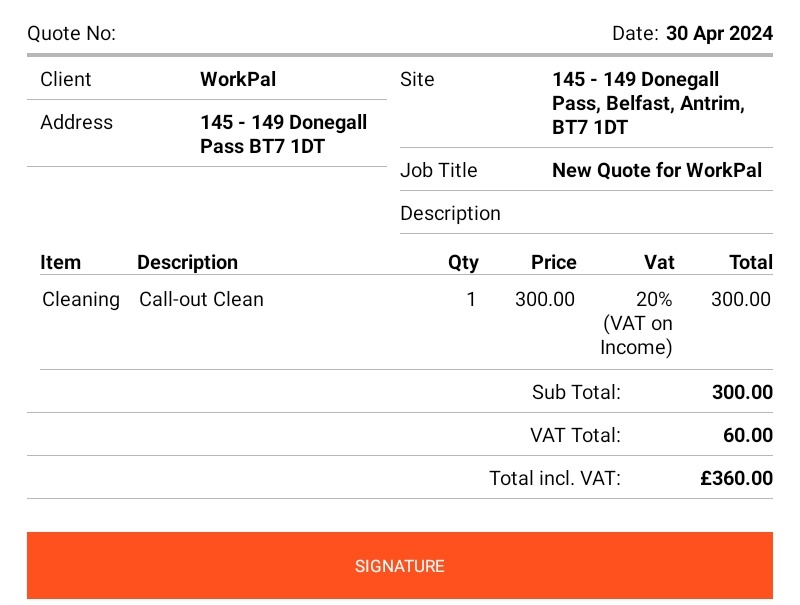
The preview screen also allows the Signatures to be added.
Emailing the Quote
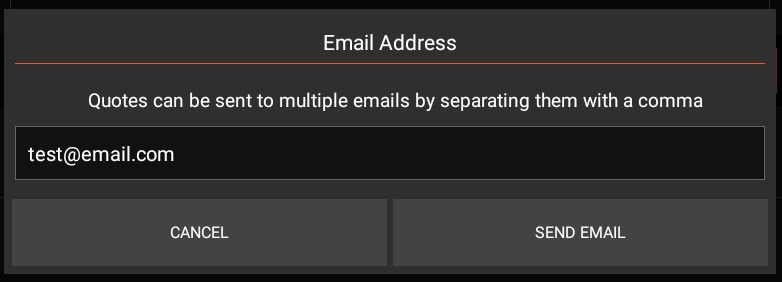
The "Save and Email" button allows you to send the Quote to a chosen recipient.

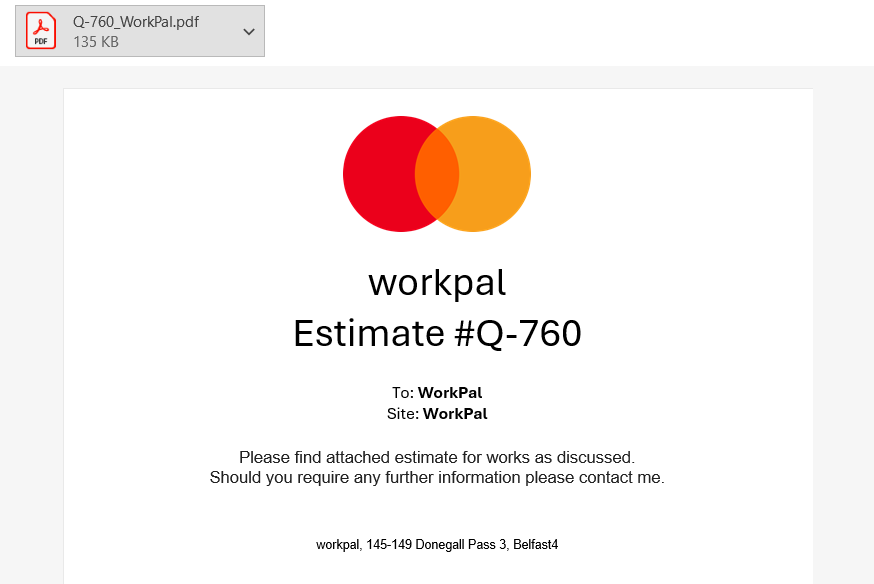
The recipient will receive an email with your companies branding, similar to that shown below:
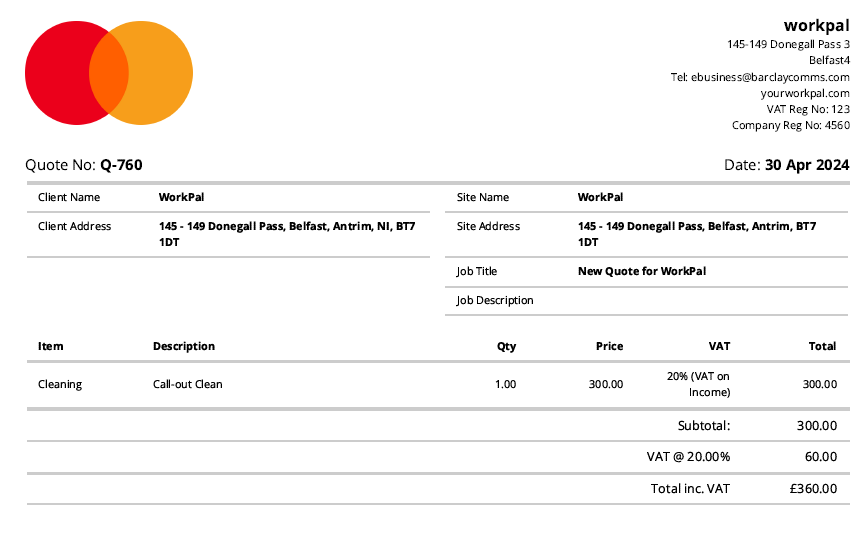
When opening the attachment, they will see the Quote presented in a document form as below:
Finishing Up
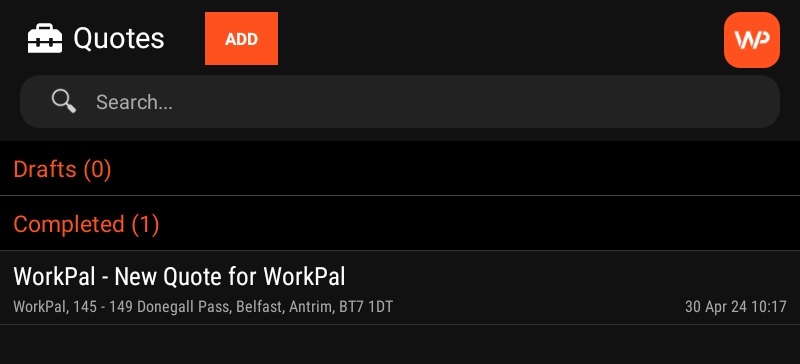
Once saved, the app will return to the Quotes list, showing your completed Quote.
Need a Hand?
If you're experiencing any issues creating, editing, sending, accepting, or managing Quotes on Mobile in WorkPal, our Support Team is here to help.
📞 028 9344 5660
📧 support@workpal.app
🌐 www.workpal.ap