

For businesses that frequently undertake jobs requiring the same routine from an engineer while on-site, you'll likely want a standardised list of tasks to quote for before starting the work. To streamline this process, we recommend setting up a "Template" within WorkPal.
Initial Setup
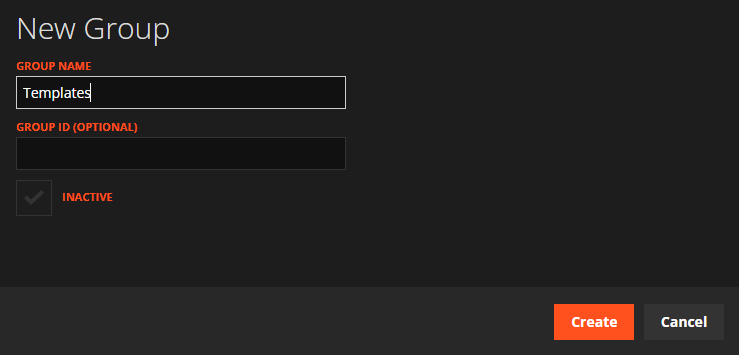
To begin, you'll need to create a "dummy" Client Group, Client, and Site. This is because WorkPal requires all quotes to be assigned to these categories.
Here's how to do it:
Navigate to the Clients section of WorkPal on your desktop and select "Add Group."
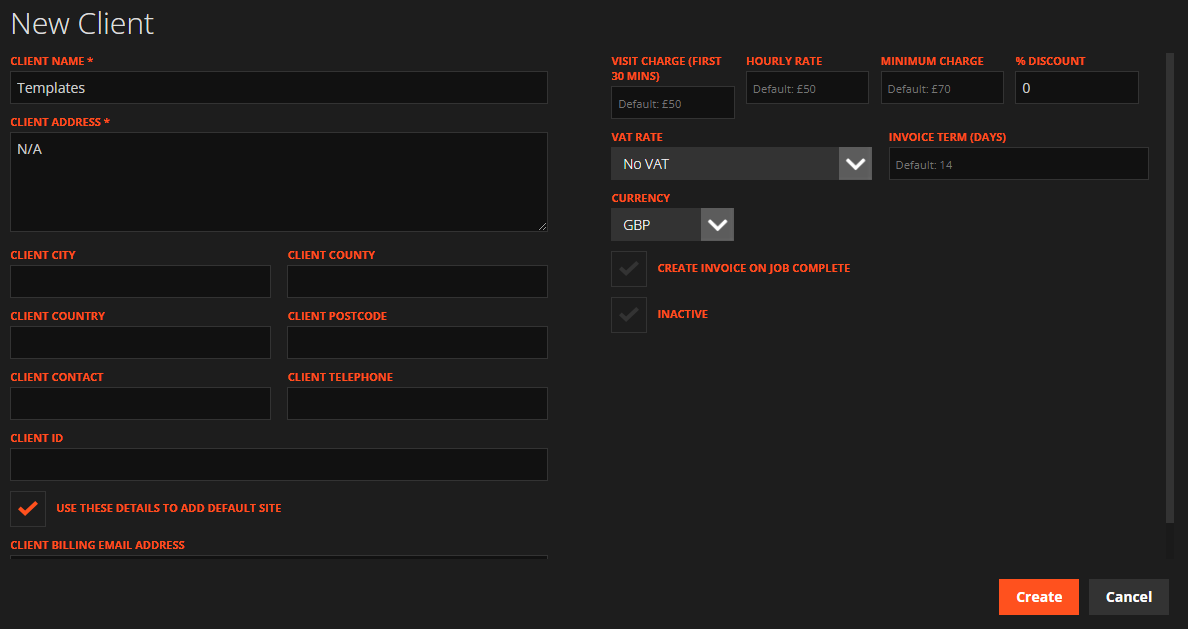
Note that the "Use these details to add Default Site" box has been checked. This will create a Site for the "dummy" Client automatically without you needing to do so.

Creating the Template
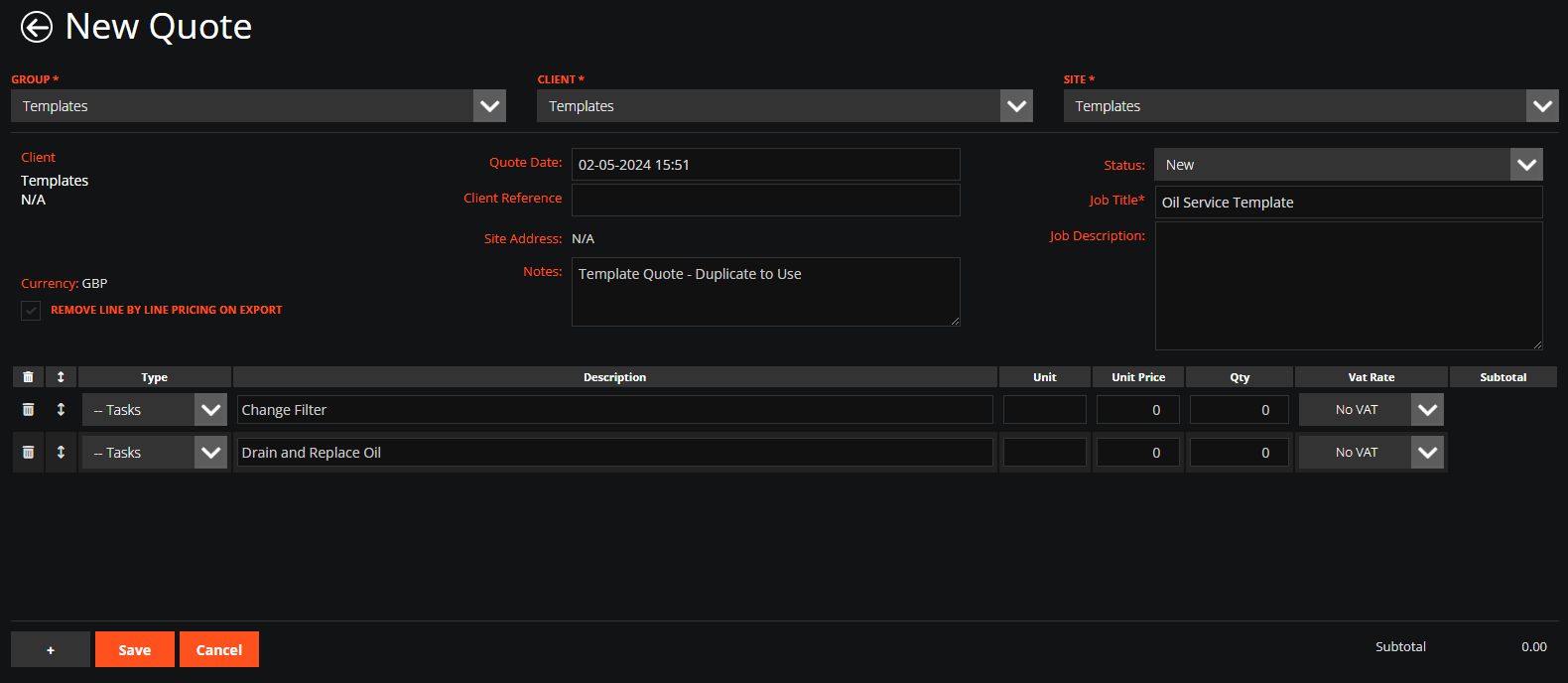
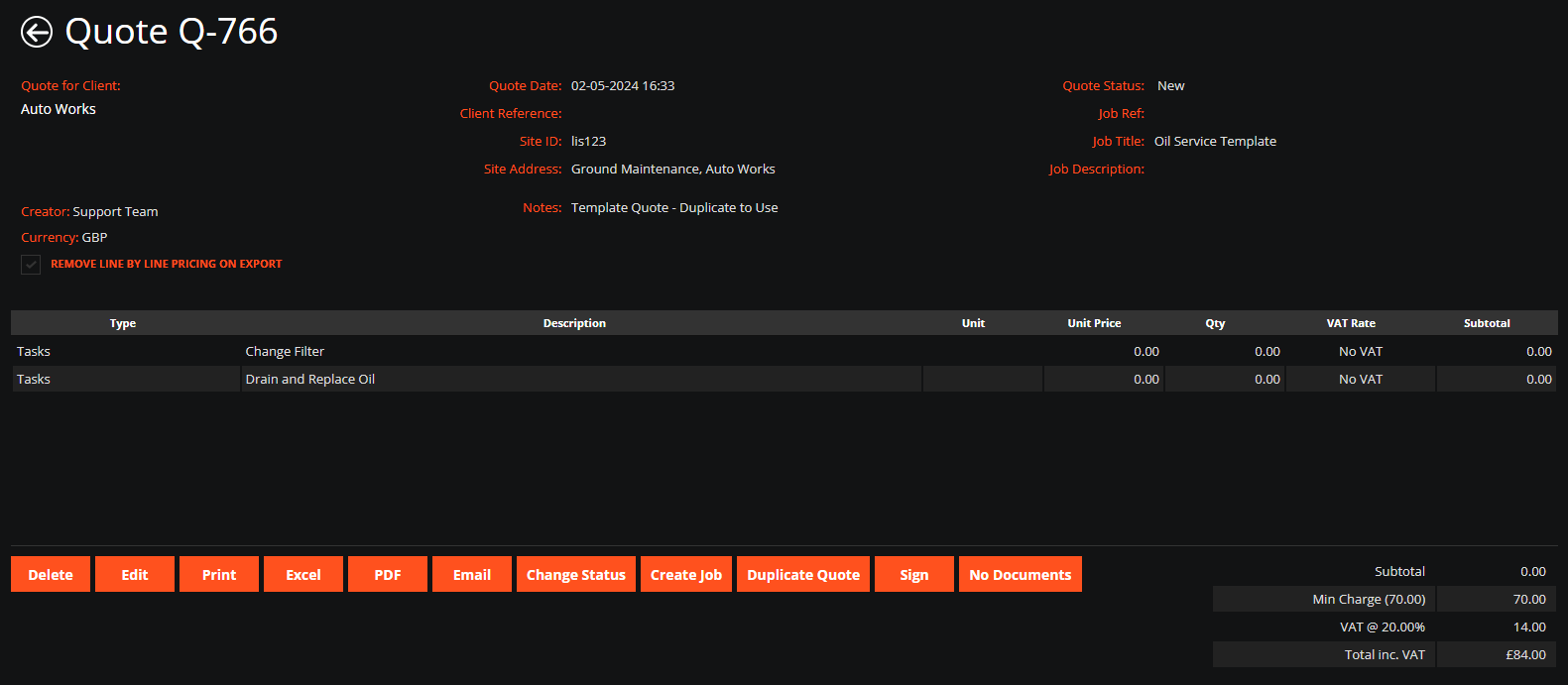
You can now create a new Quote and assign it to the previously created dummy Client Group, Client and Site, adding the necessary information and line items to the Template before saving:
Creating a Quote from the Template
When you need to create a new Quote using the Template, search for "template" in the search box at the top right of WorkPal on Desktop:

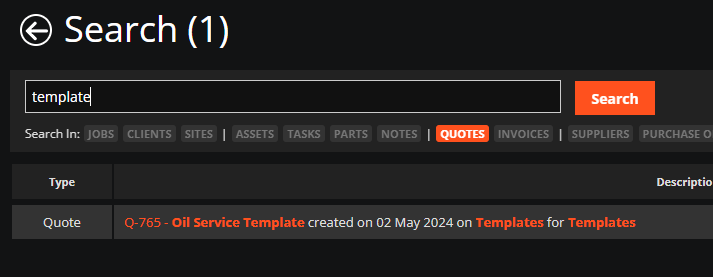
Open this Quote and select the "Duplicate Quote" button at the bottom of the screen:

Here you can assign the new Quote to the correct Client, make any changes necessary before clicking "Save":

The new Quote is now created, assigned to the correct Client and has all line items carried over from the Template:
Need a Hand?
If you're experiencing any issues creating, editing, or using Quote Templates for routine or recurring work, our Support Team is here to help.
📞 028 9344 5660
📧 support@workpal.app
🌐 www.workpal.app