

Desktop Quotes
To create a new Quote, start by selecting the Quotes tile:

Select the +Add Quote button at the top right of the page.
Select the Contract Group, Client and Site from the drop-down menus.
Enter a Job Title and Job Description for the Job that will be connected to the quote.
Use the + button (Bottom left) to add the quote items.
Select the item Type you are quoting for.
Enter the item Description, Unit (measurement) Unit Price and Quantity.
When all the necessary items are added click Save.
Mobile Quotes
Quotes can now also be created on Android Mobile devices with support for iOS devices being added soon. This functionality can be turned on or off in the "Quotes/Invoices" tab in the Preferences Menu.
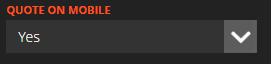
Note: Quotes created on Mobile devices will be available to the Desktop Users. Quotes created on Desktop will NOT be available to Mobile Users.
For more options related to Quotes, please see our guide on Quotes Preferences.
Attaching Documents to Quotes:
When you have created a Quote, you may have additional Documents or materials you want to send to the customer along with the Quote. This can be achieved by selecting the "No Documents" button at the bottom of the Quote page:

This will open the Document Upload page. Use the "Browse" button to select a file to attach to the Quote and ensure you enter a title before selecting “Upload”:

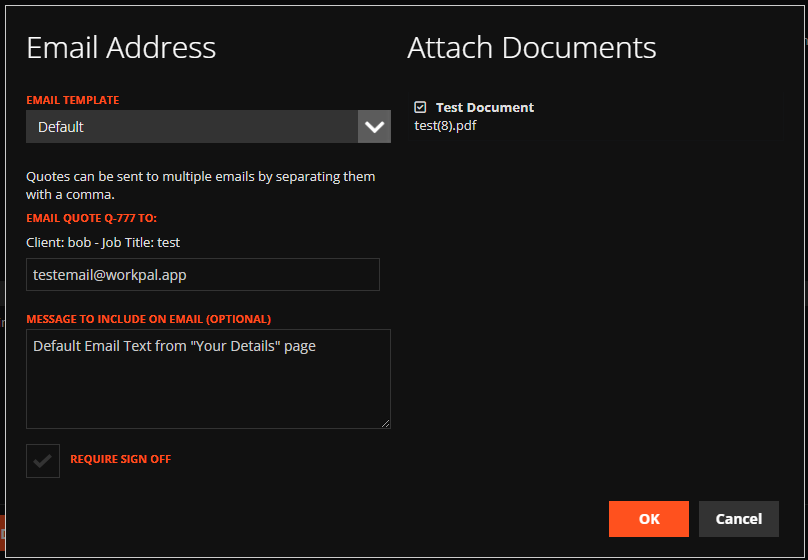
Now when returning to the Quote and selecting the “Email” button at the bottom of the screen, you will be presented with a dialog box like below. Simply tick the check boxes beside any attachments you would like to be sent with the Quote:
Need a Hand?
If you're experiencing any issues creating, editing, sending, or managing Quotes in WorkPal, our Support Team is here to help.
📞 028 9344 5660
📧 support@workpal.app
🌐 www.workpal.app