

Part Codes, refer to codes entered into your system to allow the faster entry of Parts data when filling out Invoices or Quotes.
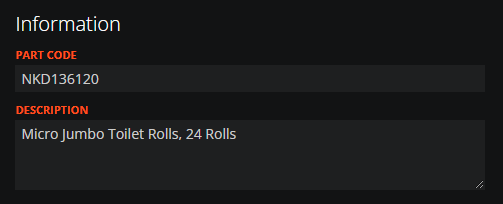
Here is an example of an Part Code. Part Codes can be grouped. These groups will appear as "Types" when filling out Invoices or Quotes. This code is in the group: "Toilet Rolls, Tissues and Hand Towels".
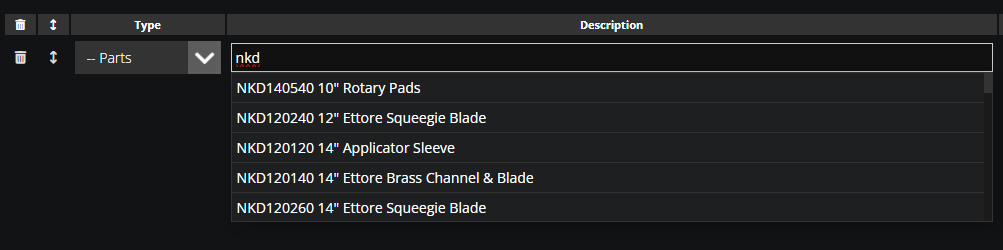
Now when creating a Quote or Invoice, we can easily auto-fill all of the text from the Description by typing the Part Code. The dropdown field at the left side acts as a filter. With "--Parts" selected, you will be able to access all Part Codes.
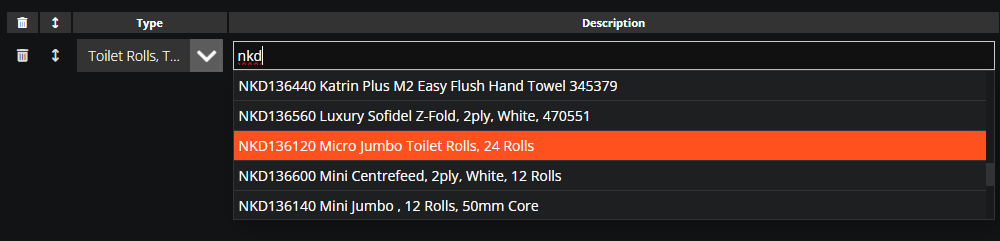
To narrow down the auto-filled results list when we begin typing, its possible to change this dropdown field. As this Part Code exists in the group "Toilet Rolls, Tissues and Hand Towels", it is still possible to select this Part Code.
To learn how to batch import multiple Part Codes, please see the Data Import guide here: Importing Data
Need a Hand?
If you're experiencing any issues creating, configuring, assigning, or using Part Codes in WorkPal, our Support Team is here to help.
📞 028 9344 5660
📧 support@workpal.app
🌐 www.workpal.app