

WorkPal allows you to attribute Nominal Codes to individual line items within your invoices. These are the codes that are used in a chart of accounts to record income and expenditure. Accounting software, such as Sage, Xero, QuickBooks, etc. come with a standard set of codes and most people don't change them. However, codes can be customised and are commonly four digits in length.
To activate this feature, go to the Features tab within your Preferences page, and ensure the Nominal Codes dropdown is set to on.

Once switched on, you can manually add a list of any necessary Nominal Codes to be used, from the Quotes/Invoices Tab.

If you have WorkPal integrated with an accountancy package (Xero, QuickBooks Online, or Sage Online) you can pull through the Nominal Codes that are already in place, rather than adding them manually. With your accountancy package connected, go to the Quotes/Invoices tab of your preferences and select Get VAT Rates & Nominal Codes. This process will also pull through the VAT rates set up within your accountancy package.
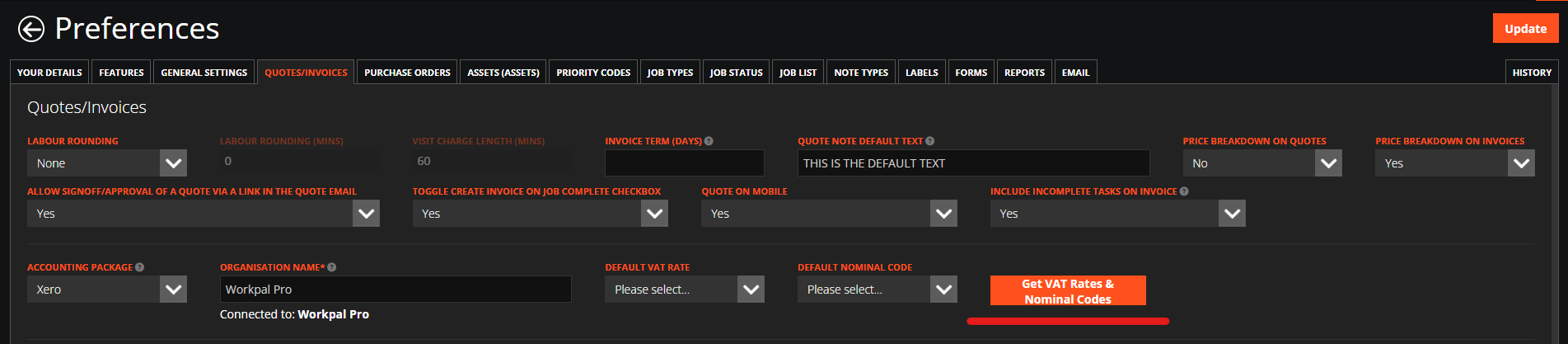
Please note, if using Xero, The Nominal Codes will only pull through to WorkPal if the "Type" is set to "Revenue".
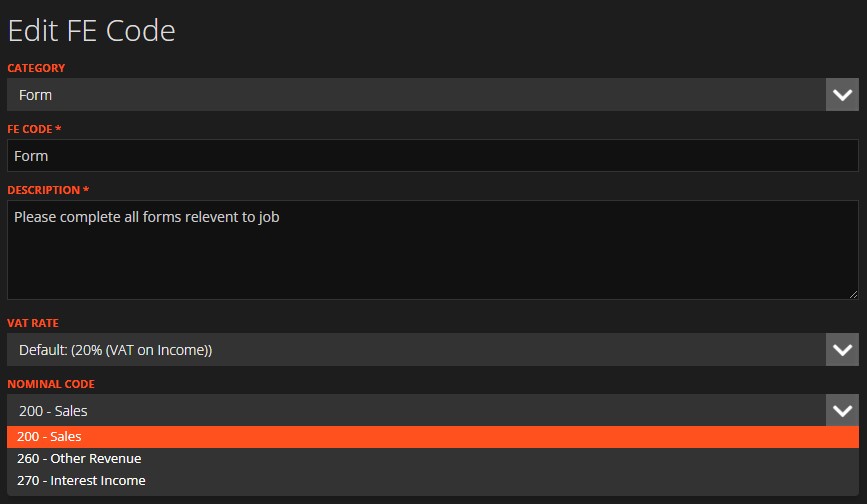
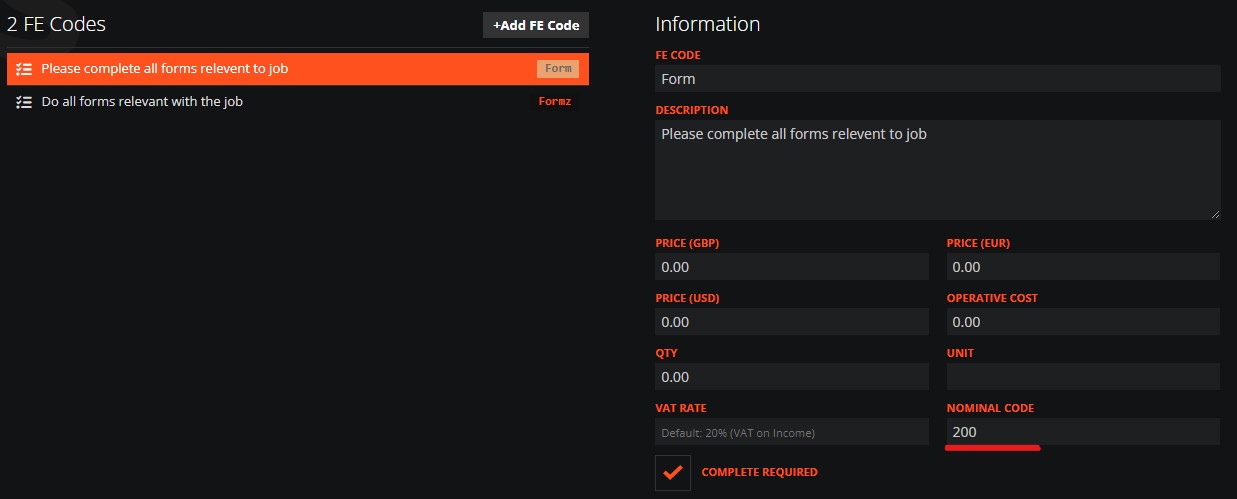
You can then select the correct Nominal Codes for each of your FE Codes / Part Codes by editing them.
Need a Hand?
If you're experiencing any issues creating, managing, assigning, or using Nominal Codes in WorkPal, our Support Team is here to help.
📞 028 9344 5660
📧 support@workpal.app
🌐 www.workpal.app