

In WorkPal the "Remote Sign Off" feature enables field engineers to obtain customer approval effortlessly and contactless upon job completion. This ensures customers feel informed and reassured, knowing their job has been completed to their satisfaction.
In addition to job sign-offs, WorkPal also offers the option to sign off forms remotely, providing a seamless way to complete necessary documentation without delays. All captured data is securely stored online and synced with the desktop application in real time, ensuring transparency, accuracy, and compliance.
By simplifying approvals, reducing paperwork, and enhancing efficiency, the Remote Sign Off feature strengthens customer trust and allows teams to focus on delivering exceptional service.
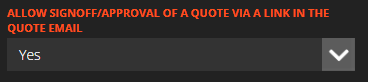
Quotes and Job sheets can be sent to customers in an email with a link to "Sign-off/Approve". This functionality can be turned on or off in the "Quotes/Invoices" tab in the Preferences Menu.
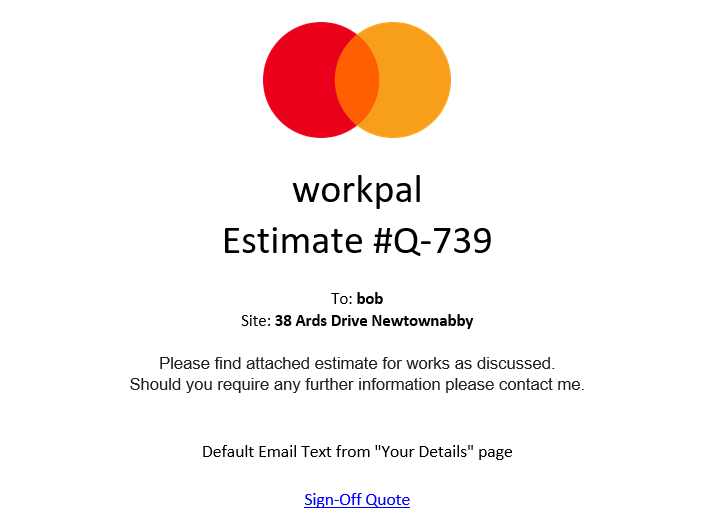
How the email appears:
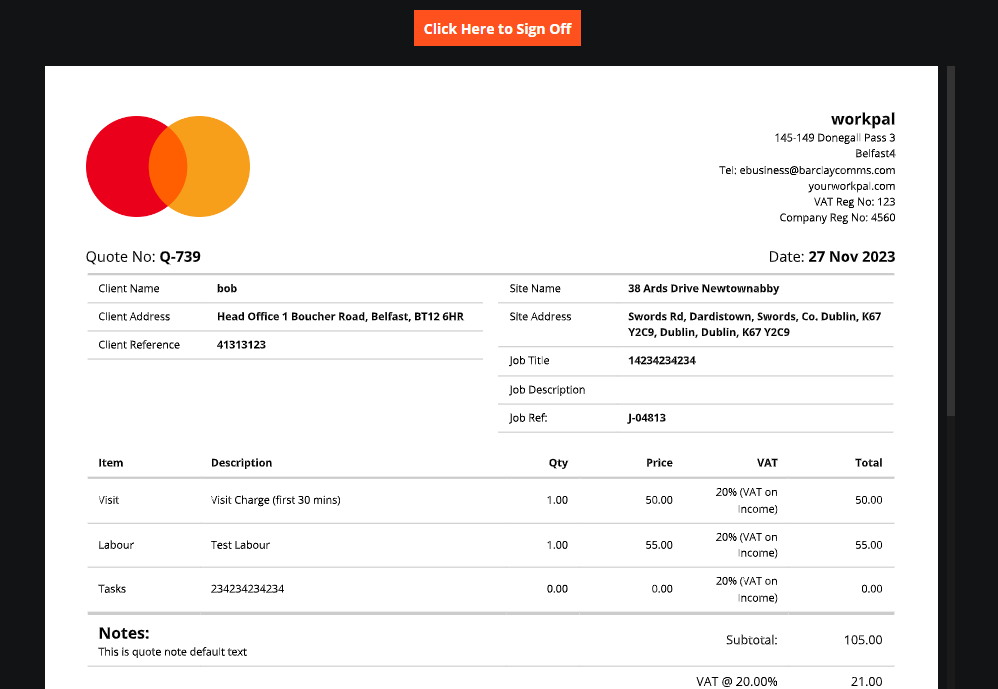
How the Sign Off Page appears:
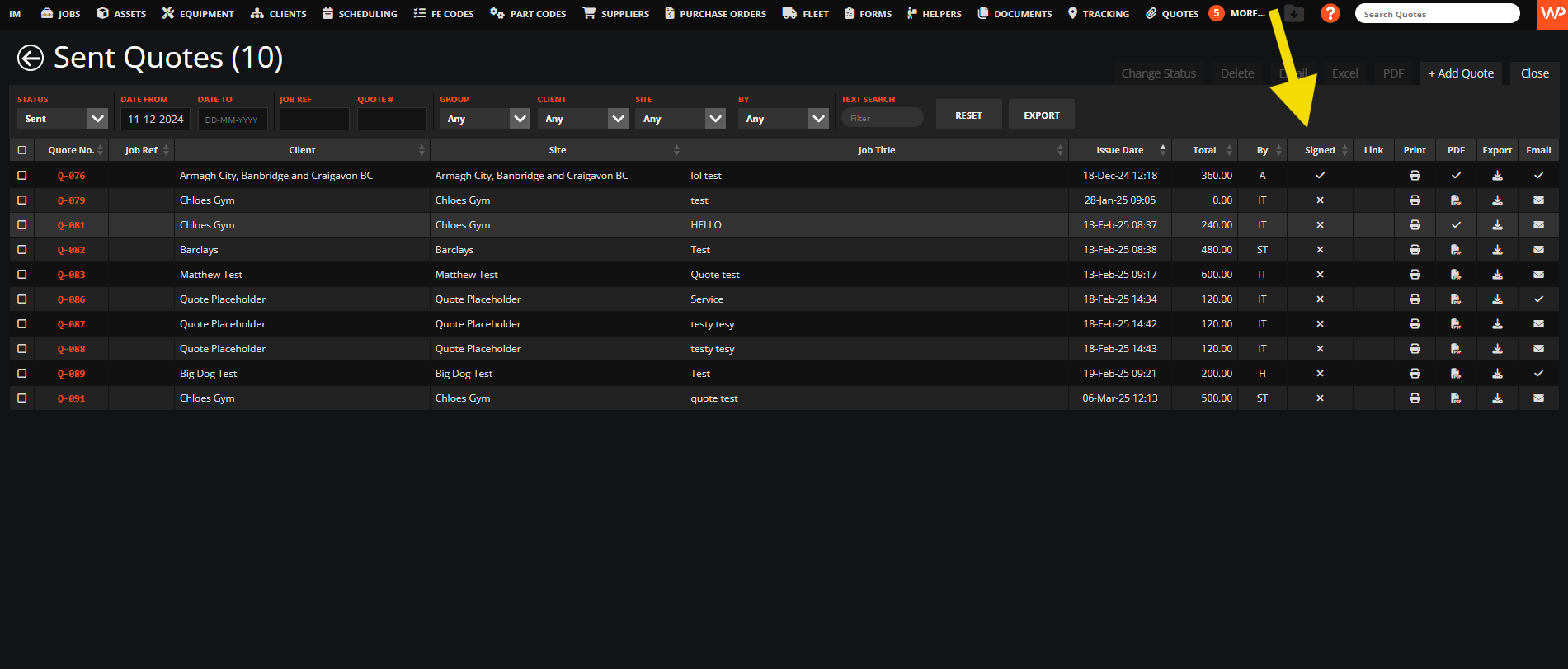
When a Quote or Job sheet has been signed off, it will have this column ticked on the Quotes page:
It can also be found on the "signatures" section at the bottom of the job page shown in the screenshot below;
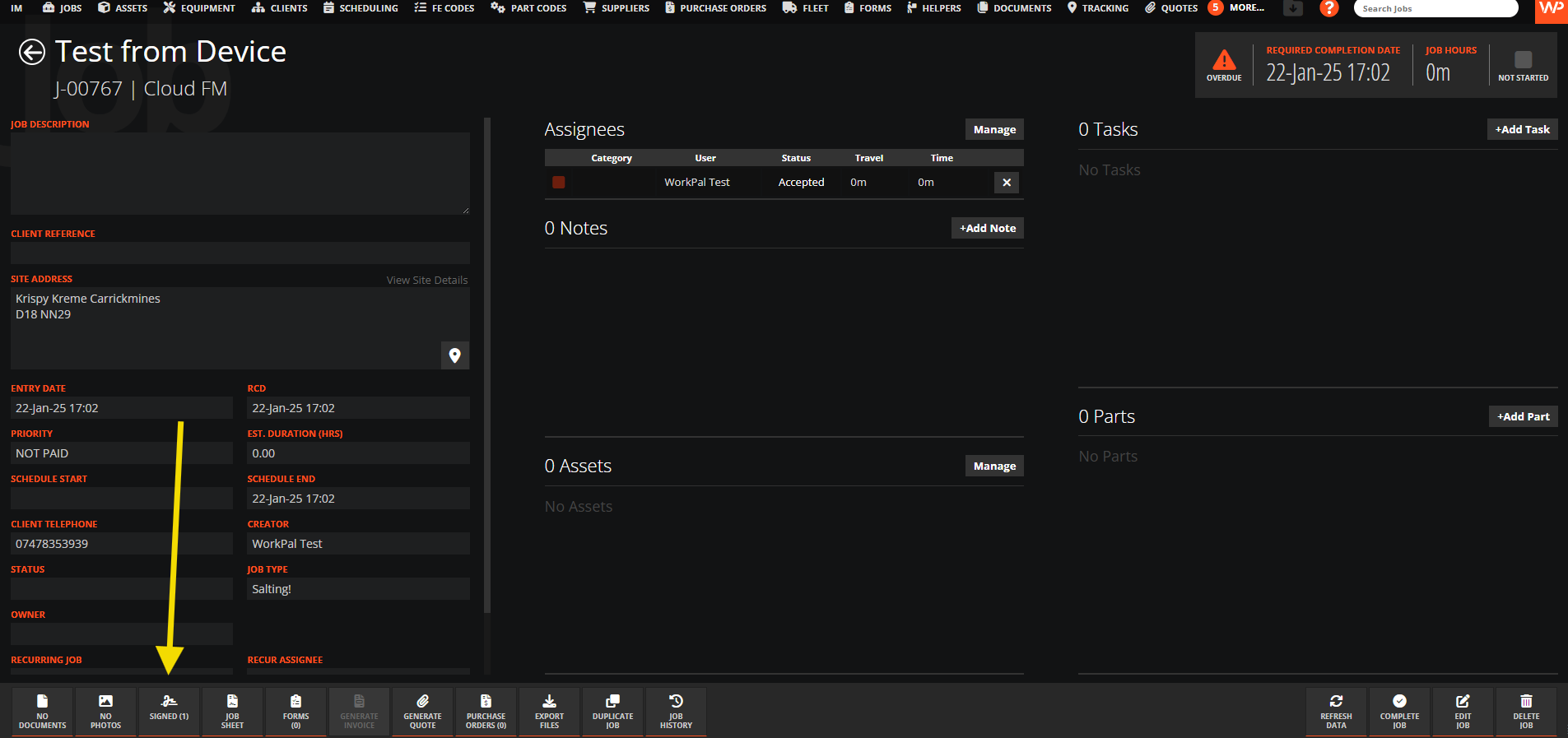
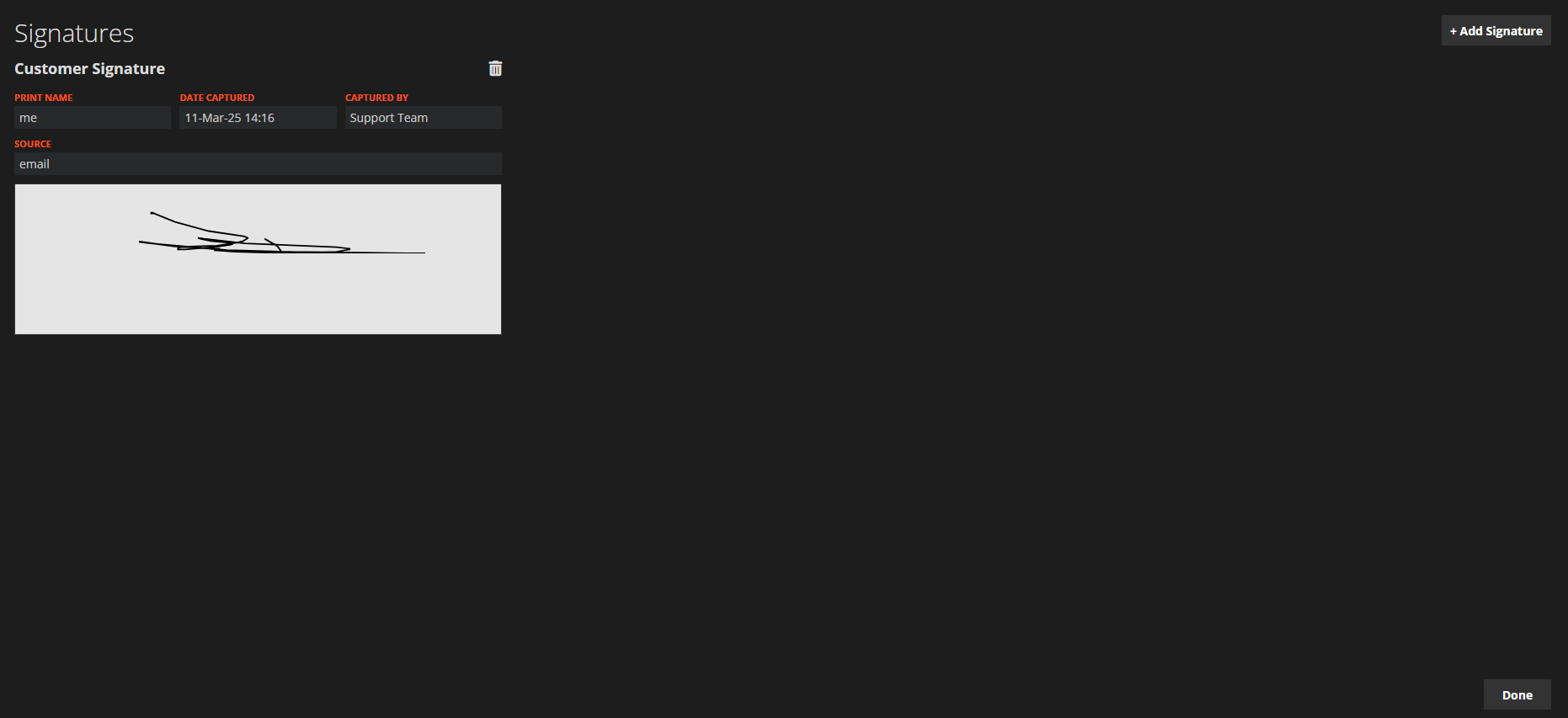
Once you click on this you will be able to view the signature from the Job sheet/Quote.
Need a Hand?
If you're experiencing any issues using Remote Sign Off in WorkPal, such as sending sign-off requests, collecting signatures, or confirming completed work remotely, our Support Team is here to help.
📞 028 9344 5660
📧 support@workpal.app
🌐 www.workpal.app