

📸 Adding Images to a Job
We’ve improved how you add images to jobs by introducing a new Add Image From Gallery button, making the process faster and more intuitive.
🔄 What’s Changed?
Previously, adding an image from your gallery required a tap-and-hold action on the camera icon to bring up a prompt to choose between taking a photo or selecting an existing image.
✅ Now, this has been simplified:
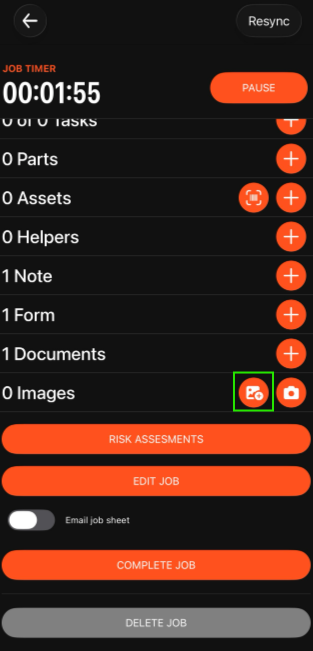
➕ Add Image from Gallery button (highlighted in green below) – NEW: instantly opens your device gallery
📷 Camera button – continues to let you take a new photo
No more tap-and-hold required.
🔍 Where to Find It
This improvement is available anywhere in the app where images can be added, including within jobs and other image upload areas.
Wherever image uploads are supported, you’ll now see both the Add Image from Gallery and Camera buttons.
⚡ How to Add an Image from Your Gallery
Navigate to a screen where images can be added (e.g. a job)
Scroll to the Images section
Tap the ➕ Add Image from Gallery button
Select one or more images from your device
The images will then be attached
📷 How to Take a New Photo
If you want to capture a new image as you go:
Tap the Camera button 📷
Capture your photo
The image is added directly
Need a Hand?
If you're experiencing any issues using the new Add Image from Gallery feature, such as accessing your device's photo library, selecting images, or uploading images to WorkPal, our Support Team is here to help.
📞 028 9344 5660
📧 support@workpal.app
🌐 www.workpal.app