

To help the WorkPal Support Team investigate and resolve your issue as quickly as possible, please provide as much detail as you can when letting us know of any issues.
1. Send a Debug Report (Recommended)
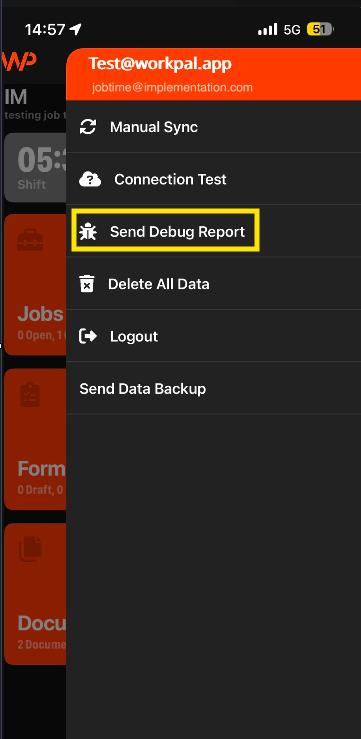
If you are using the mobile app, sending a debug report transmits critical technical diagnostics straight to our team:
Tap the three lines (menu icon) at the top right of your screen.
Select the Send Debug Report button.
2. Essential Information
Please include these details in your Emails or calls to the support team:
Job Number: The specific job affected.
Form Reference Number: The exact digital form causing an issue.
User Affected: Which specific user or field operative experienced the problem?
Description of the Issue: What exactly happened? (e.g., the screen froze, you were suddenly
logged out, or a field wouldn't save).
3. Steps to Reproduce
Walk us through what you were doing right before the issue occurred. For example:
Opened Form XYZ inside a specific job.
Updated a field or captured a photo.
Clicked the "Submit" or "Close Job" button.
Received an error message.
4. Evidence
Visual evidence speeds up troubleshooting significantly:
Screen recordings: Highly recommended! A short video is often much more useful than multiple screenshots for intermittent or difficult to explain bugs.
Screenshots: Clear images showing the exact error or visual glitch.
Error messages: The exact text of any error message displayed on your screen.
5. Additional Details
Date & Time: The exact time the problem occurred.
Environment: The device, operating system, or browser you were using (e.g., iPhone 15, Android tablet, Google Chrome, Edge).
Users affected: Is this affecting just one user or multiple users? Can it be reproduced every time?
Recent Changes: Did this start happening right after a recent app update or device software change?
Need a Hand?
If you're unsure how to report an issue, what information to include, or how to provide the details our team needs to investigate effectively, our Support Team is here to help.
📞 028 9344 5660
📧 support@workpal.app
🌐 www.workpal.app