Introduction
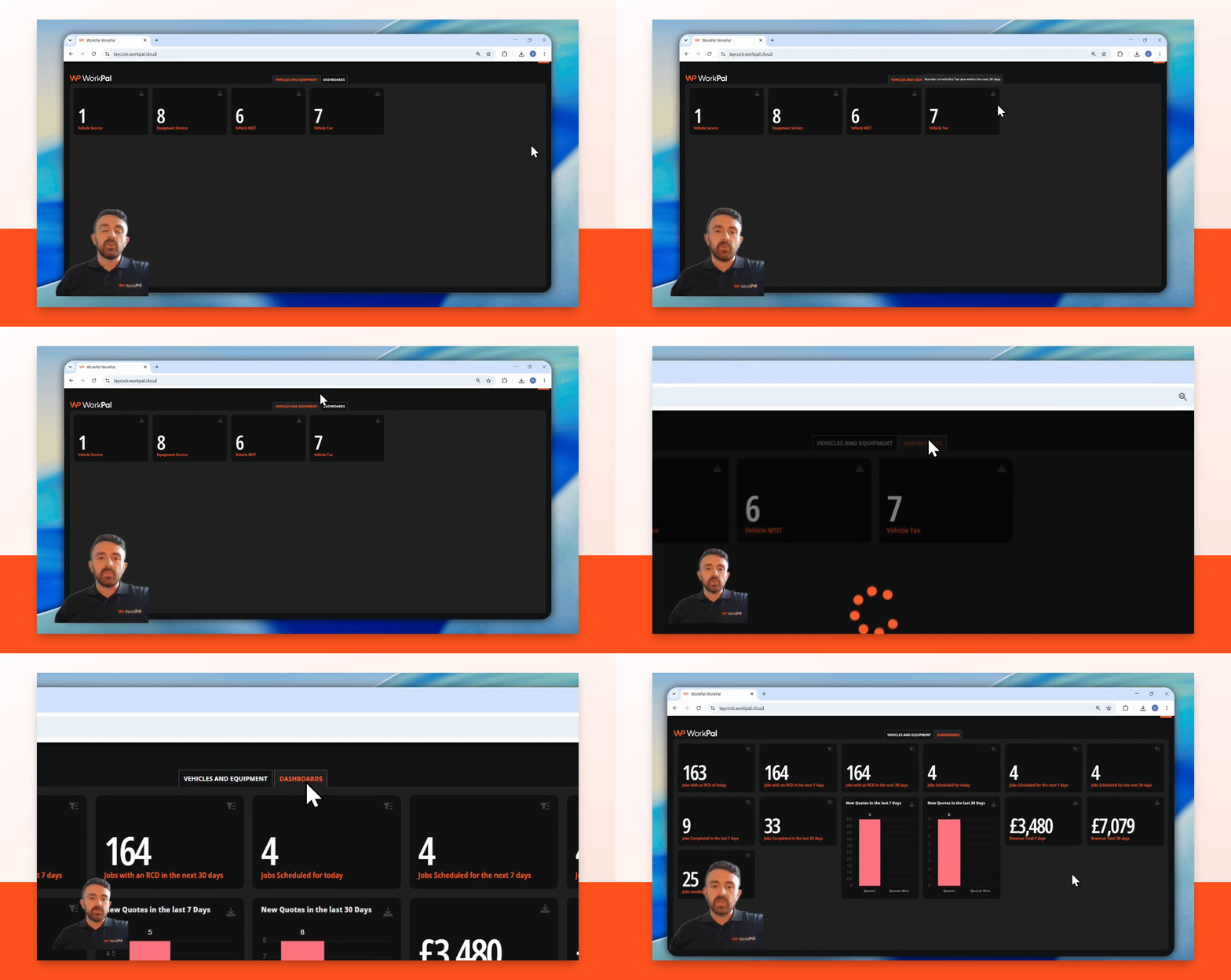
This article introduces the new dashboards feature in WorkPal. Dashboards provide an overview of your vehicles, equipment, jobs, revenue, and quotes, helping you manage your business more efficiently.
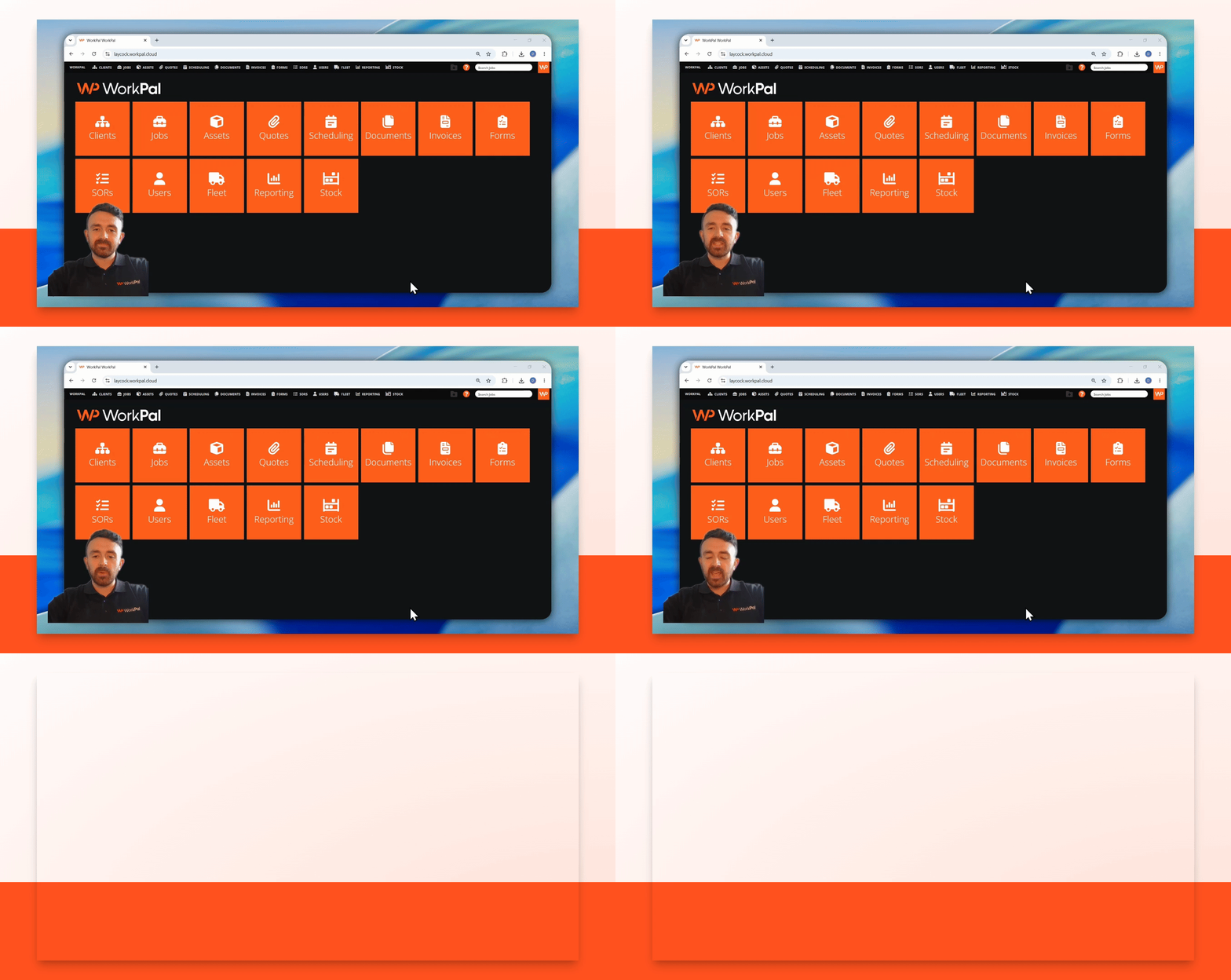
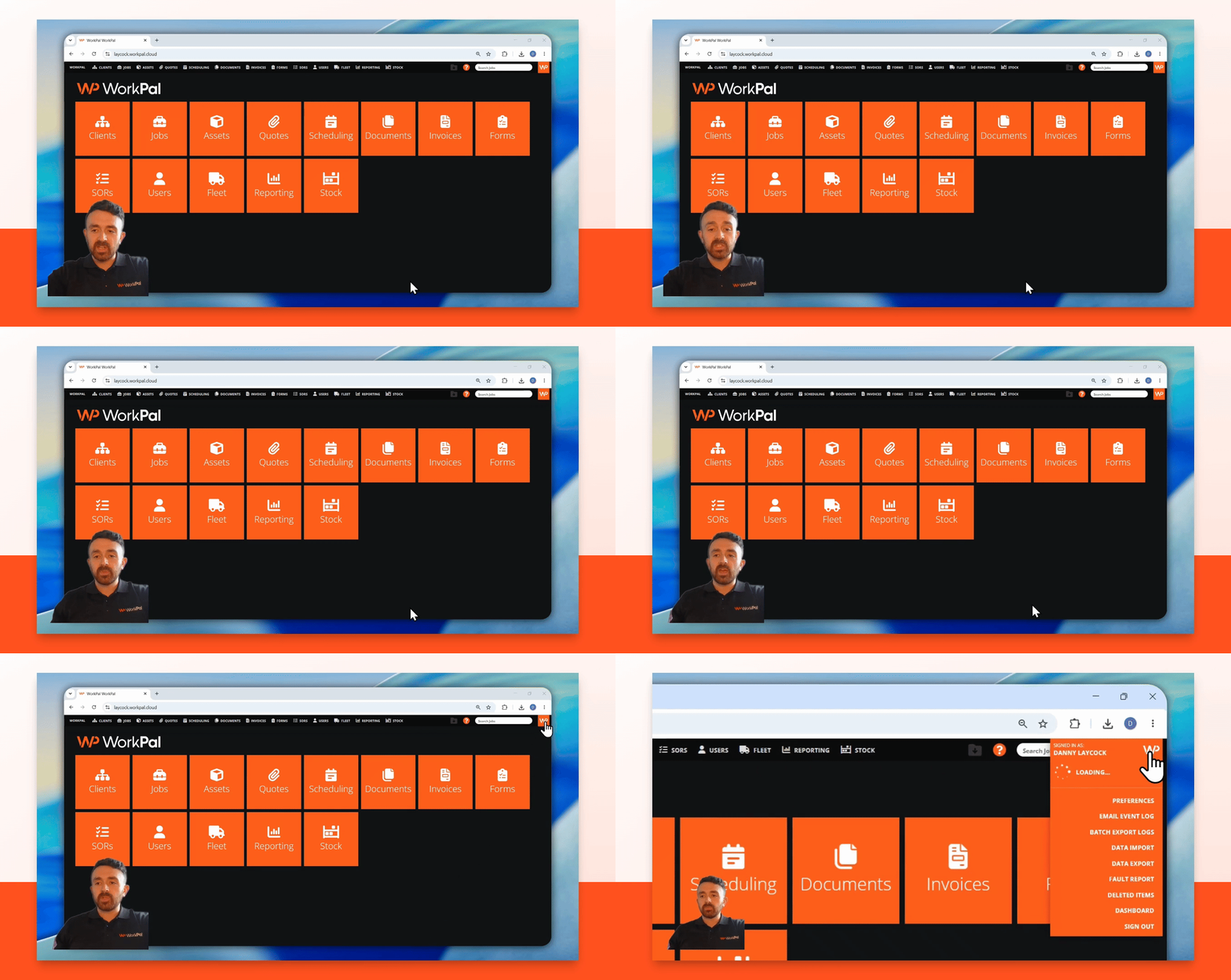
Step 1: Navigate to Dashboards
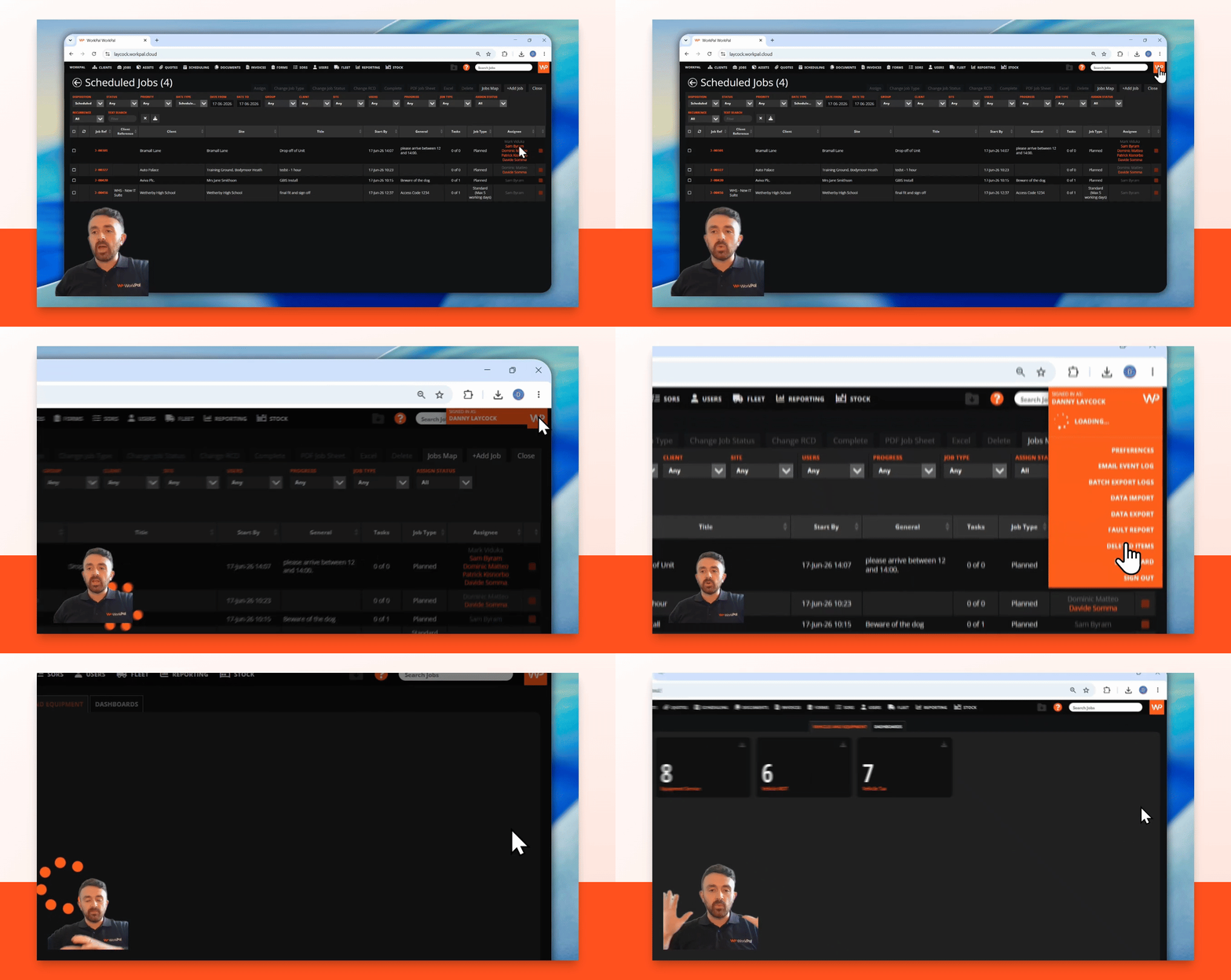
Go to the WorkPal logo at the top of the screen. Click Dashboard from the dropdown menu to access your dashboard screen.
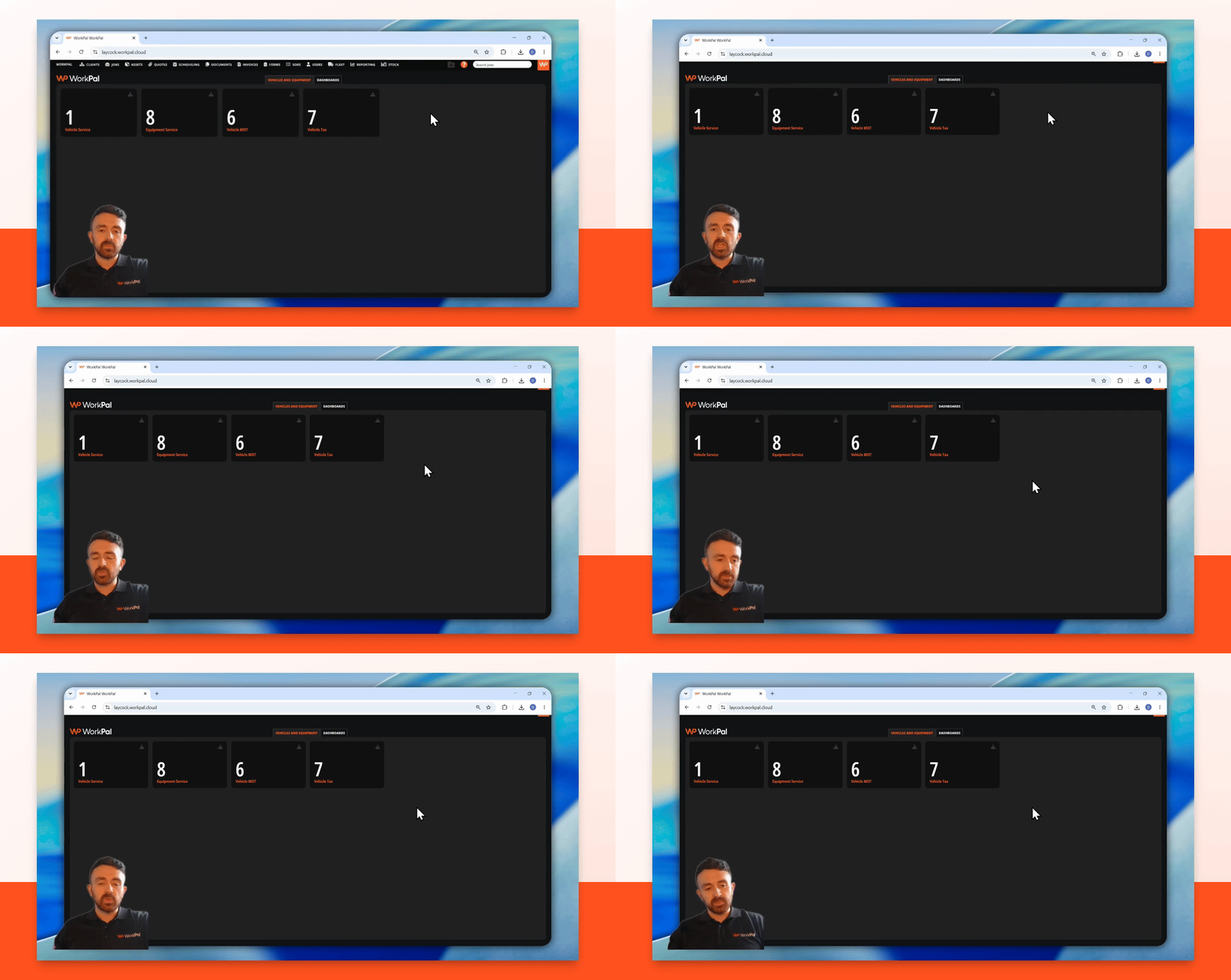
Step 2: Review your Dashboards
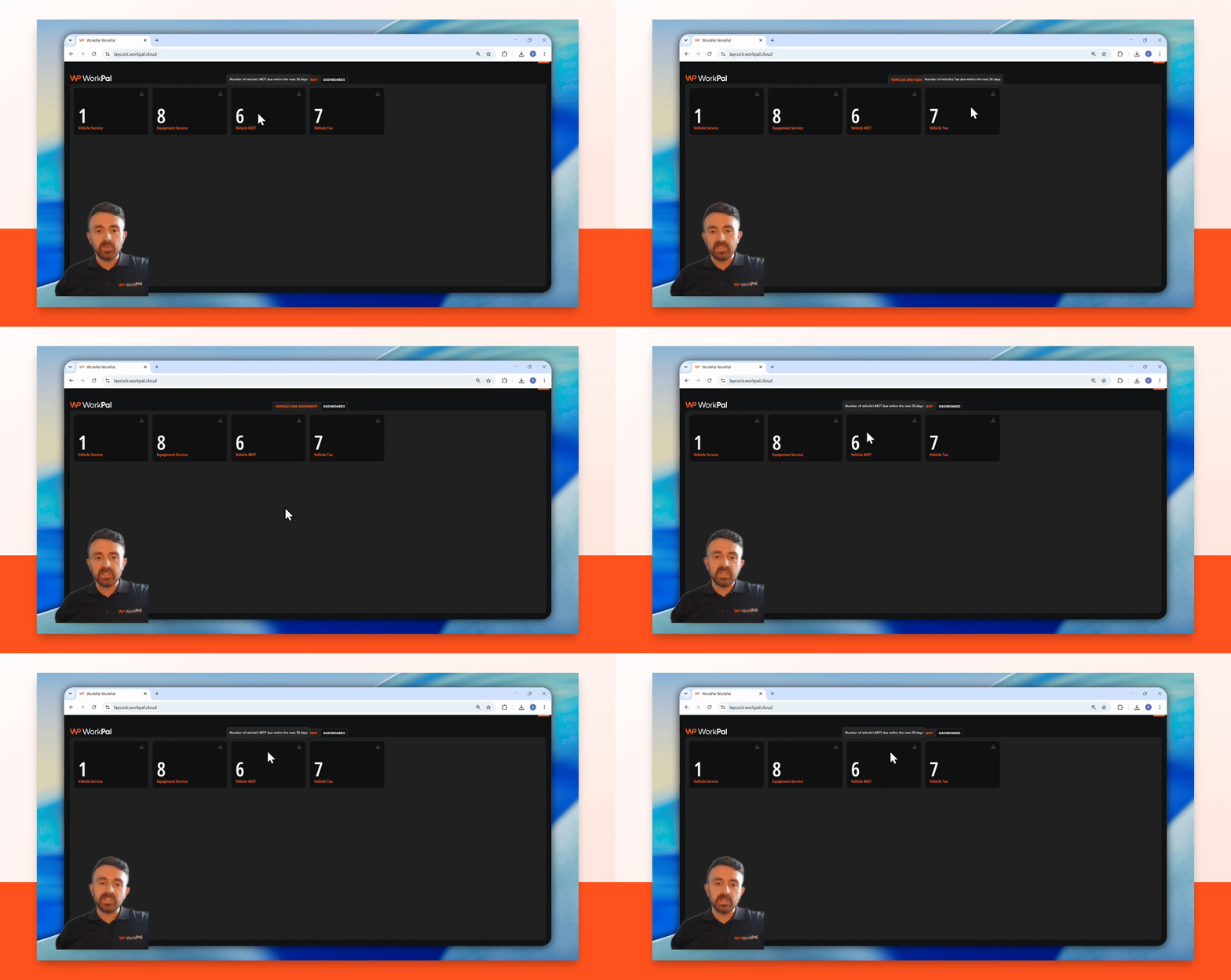
Dashboards are configurable, and you can have multiple dashboards for different needs. For example, you might have dashboards for vehicles and equipment, showing details such as which vehicles or equipment are due for service within the next 30 days, MOT, or tax status.
Step 3: Export Dashboard Data
To export data from any dashboard tile, click the export icon on the tile. This will generate a CSV file containing the relevant data, such as which vehicles are due for service and when.
Step 4: View Job and Revenue Overviews
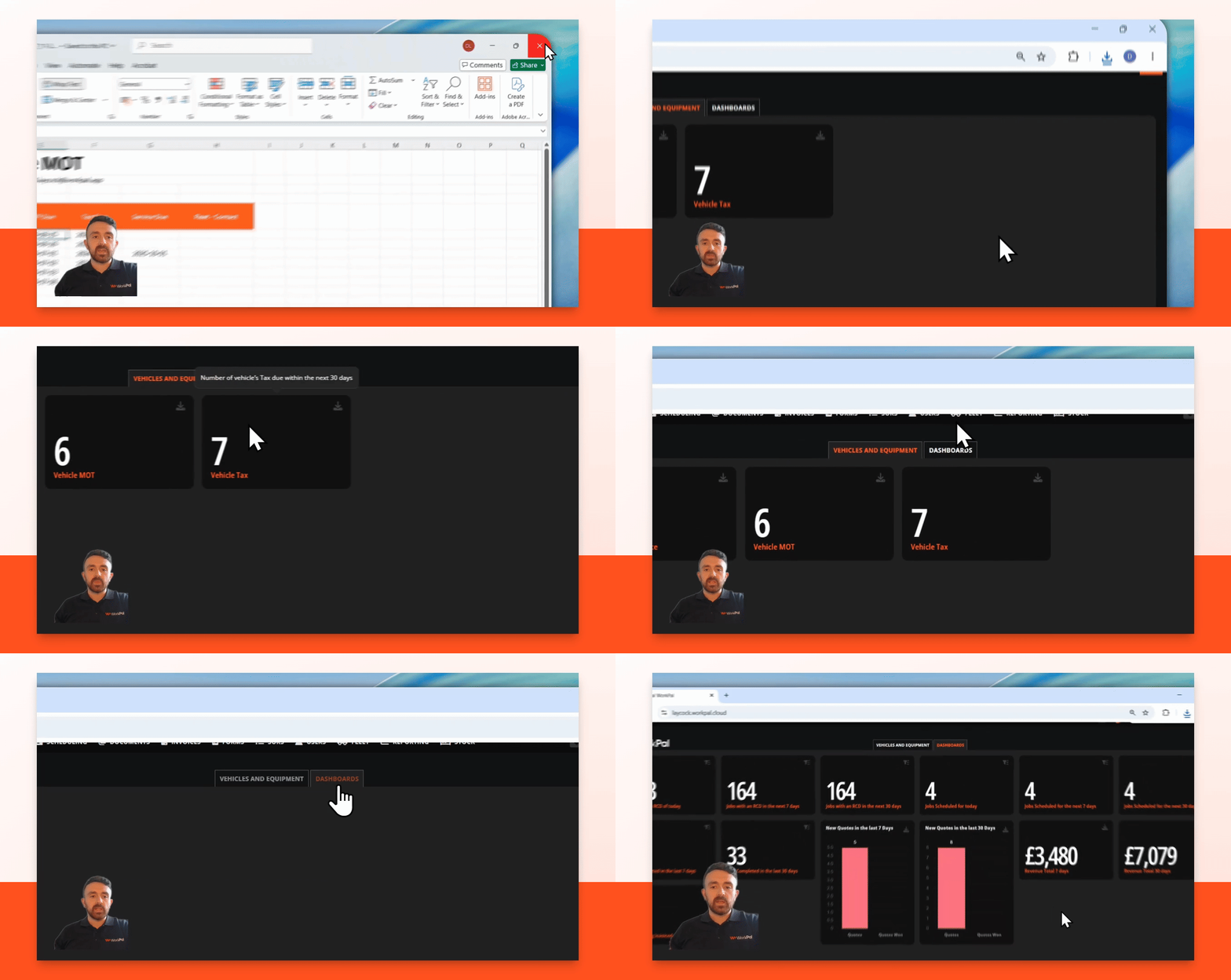
Click Dashboards again to see an overview screen with jobs, revenue, and quotes. You can view details such as quotes sent and won in the last 7 or 30 days, upcoming jobs, and planned revenue.
Step 5: Filter and View Scheduled Jobs
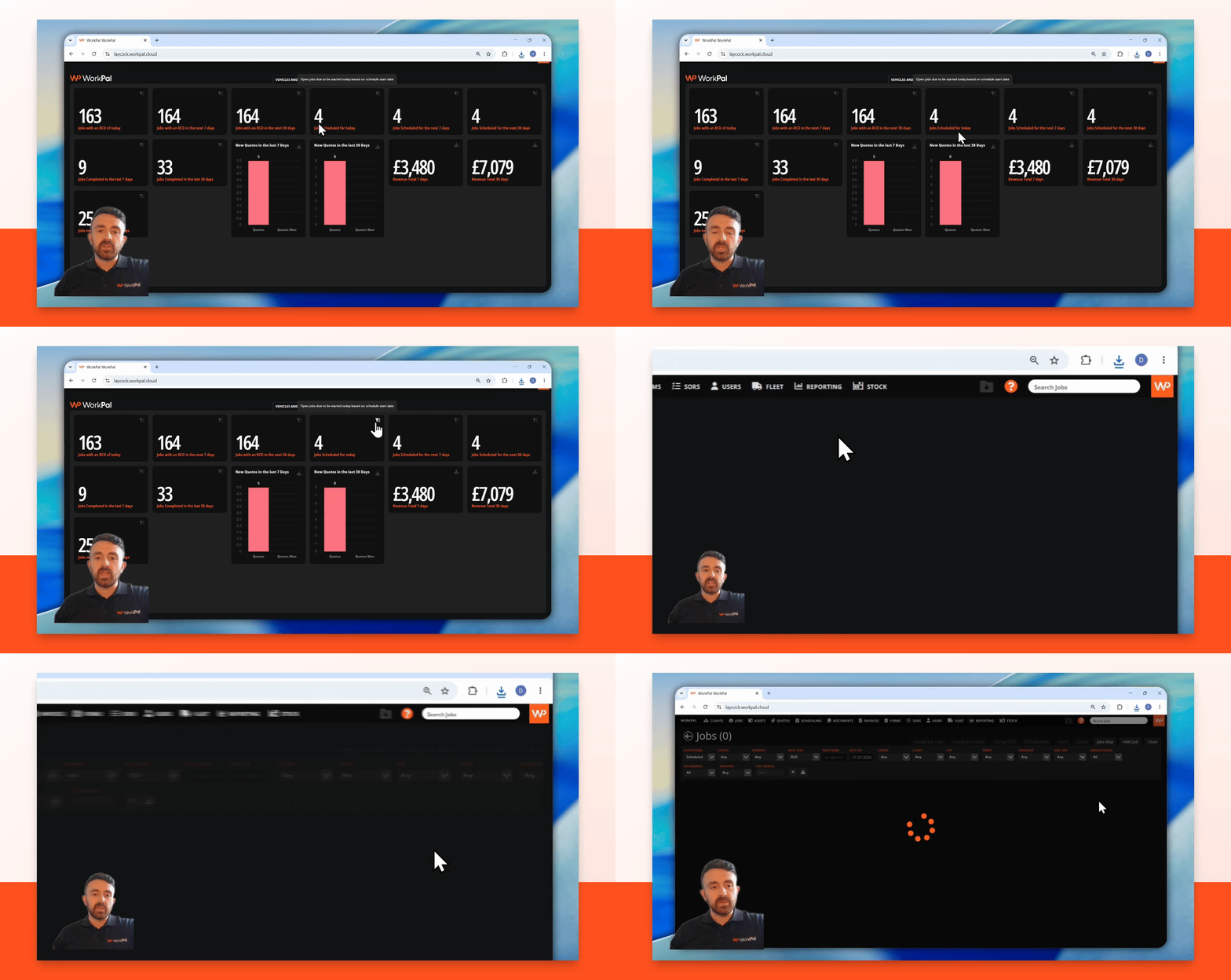
Click the filter button on the jobs tile to go directly to the jobs list view. This will show only scheduled jobs, making it easy to see what is planned for today.
Step 6: Get a Business Overview
Use dashboards to quickly see a comprehensive overview of your business at a glance. This helps you stay informed about current operations and upcoming tasks.
Conclusion
You've learned how to access, configure, and use dashboards in WorkPal to monitor vehicles, equipment, jobs, and revenue. We encourage you to share your favourite dashboard with us. If you have any questions please feel free to reach out to us using the below channels!
Email - Support@workpal.app
Phone- 028 9027 1777