

Overview
The WorkPal mobile app connects your field team directly to the office, allowing jobs, updates, and documentation to flow in real time. When used correctly, it becomes a reliable part of your daily routine and reduces the need for follow-up or duplicated admin.
This guide will help you get started, understand how the app works, and avoid the most common issues that can interrupt your workflow.
Installing the App
Getting set up is straightforward. On iPhone or iPad, open the App Store, search for WorkPal, and install the app.
If it is already installed, check for updates and make sure you are running the latest version.
On Android, open the Google Play Store, search for WorkPal, and install it from there.
Keeping the app updated is important. Many issues we see come down to older versions still being in use.
Logging In
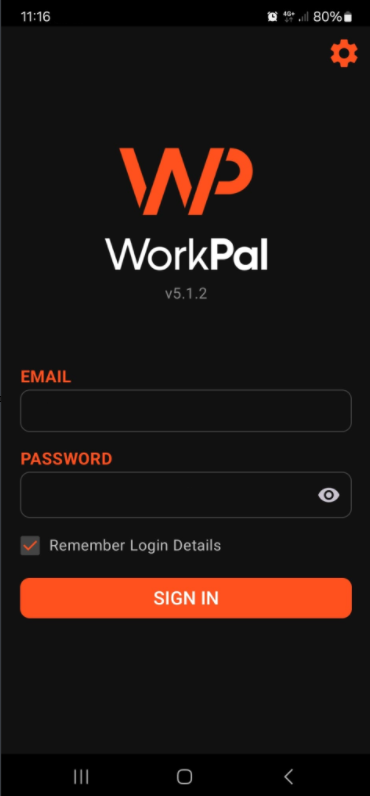
Your login details will be provided by your office or system administrator. Your username will look like an email address, although it does not need to be a real email account. Passwords are system-generated and can only be reset by a desktop administrator.
It is important that each user logs into one device only. Using the same login across multiple devices is one of the most common causes of syncing issues and can lead to missing or duplicated data.
Understanding Syncing
WorkPal syncs automatically in the background, keeping your device and the office system aligned without you needing to manage it.
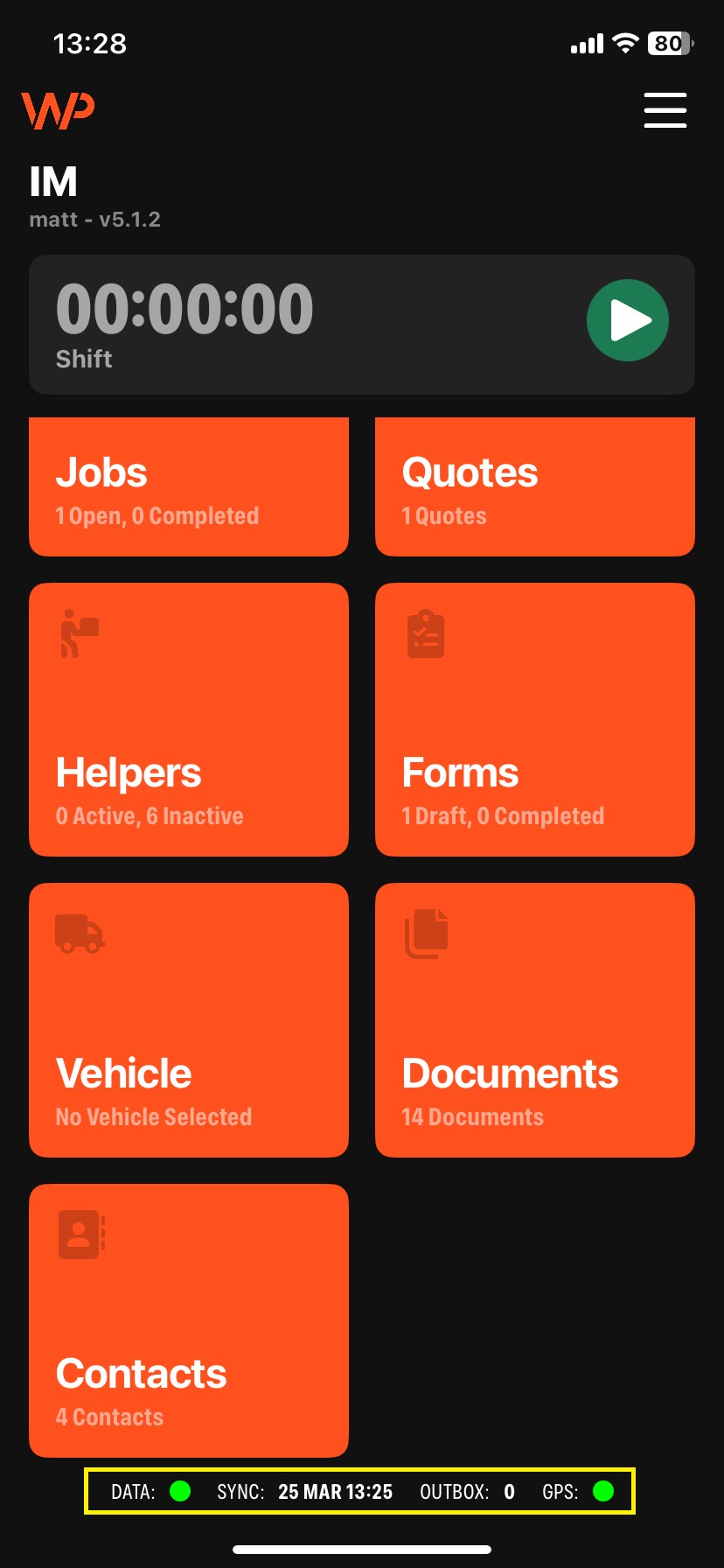
You will see a connection indicator along with an Outbox counter. These give you a quick view of what the app is doing:
The indicator confirms whether you are connected
The Outbox shows if anything is waiting to sync
When the Outbox is zero, everything is up to date
If your signal drops, your work is still safe. The app will store your updates and send them once the connection returns.
If needed, you can manually trigger a sync from the menu in the top right of the app.
The key thing to remember here is simple. If the Outbox is not zero, the app is still working. Closing it at that point can interrupt syncing and lead to missing information such as notes, photos, or forms.
A Typical Workday in WorkPal
WorkPal is designed to guide you through your day in a clear and structured way.
Before getting into the workflow, it helps to understand how jobs are organised within the app. Jobs are grouped by status so you can quickly see what needs attention:
Not Started
Jobs that have been assigned but not yet openedIn Progress
Jobs you have started working onPaused
Jobs that have been temporarily stoppedCompleted
Jobs that have been finished and submitted
This structure helps you stay organised and ensures nothing is missed as you move through your day.
Starting Your Day
At the start of your day, tap Start Shift from the home screen. This records your working time and enables location tracking.
Travelling to Site
Open the job – Tap the Jobs tile, then select the job you are heading to.
Get directions – Tap Directions to open your default maps app and navigate to the site.
Start travel time – Tap Start Travel Time to record the time spent travelling to the job.
Arrive on site – Tap Pause Travel Time when you arrive.
Start the job timer – Tap Start Job Timer to record the time spent on the job itself.
During the Job
Once on site, everything you need is in one place. During the job, you will typically:
View and add notes – Tap View Notes to read any instructions or context added by the office. Tap Add (+) to log your own notes.
Attach documents – Tap Add (+) in the Documents section to attach read-only PDF files such as safety certificates or site plans.
Complete forms – Tap Add (+) in the Forms section to complete any required forms. Tap View to review or finish a form already started.
Add photos – Tap Add (+) in the Images section to take a photo. Press and hold Add (+) to select one from your camera roll.
Capturing this information in real time is always best. It keeps records accurate and avoids having to revisit the job later.
Finishing the Job
When the work is complete, add your operative signature and, if required, capture a customer signature. Once everything is in place, complete the job. It will sync back to the office and be removed from your device after a short period.
Troubleshooting
If something does not behave as expected, there are a few checks that resolve most issues.
For location accuracy, make sure:
Location services are set to Always On
High accuracy mode is enabled
Mobile data and WiFi are both switched on
Battery saving mode is turned off
If the app feels slow or unresponsive, it is often related to syncing or connection quality. In most cases, allowing a bit of time for syncing to complete will resolve it. If not, logging out and back in or restarting your device will usually clear things.
Only force close the app if it is completely unresponsive and you are confident everything has already synced.
Avoiding Common Issues
Most problems can be prevented with a few simple habits:
Use one device per user
Keep the app updated
Allow syncing to complete before closing the app
Ensure a stable connection when completing jobs
Getting these right will prevent the majority of issues and keep everything running smoothly.
Need a Hand?
If you're experiencing any issues using the WorkPal Mobile App, whether that's logging in, syncing data, creating Jobs, completing paperwork, capturing signatures, uploading images, or using any other mobile features, our Support Team is here to help.
📞 028 9344 5660
📧 support@workpal.app
🌐 www.workpal.app