

This feature is available on both iOS and Android, making it easier for users in the field to quickly create the records they need without leaving the app.
Creating a New Client
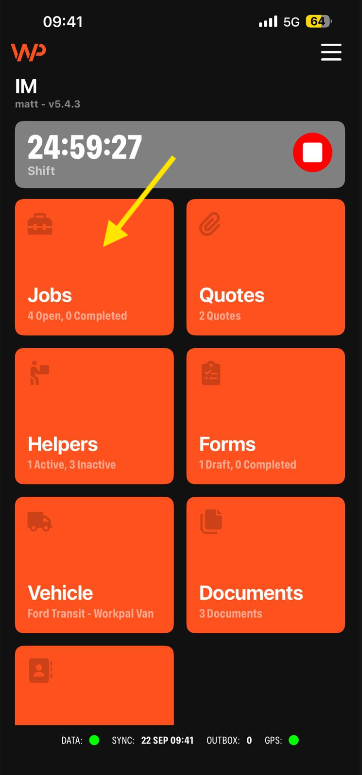
Step 1: Open the Jobs Screen
Navigate to the Jobs screen within the WorkPal mobile app.
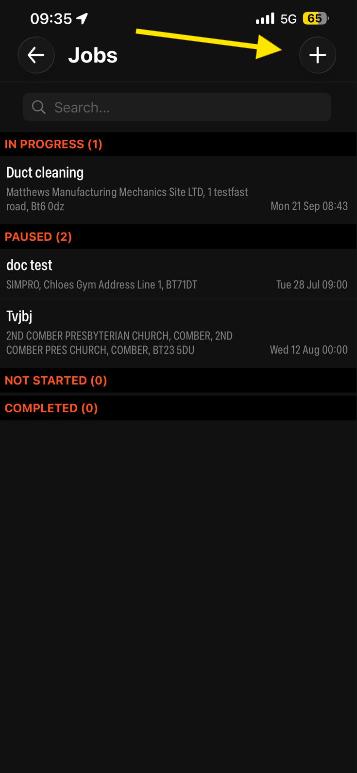
Step 2: Create a New Job
Tap the + icon to create a new Job.
Step 3: Select a Group
Before creating a Client, select the appropriate Group from the Group dropdown.
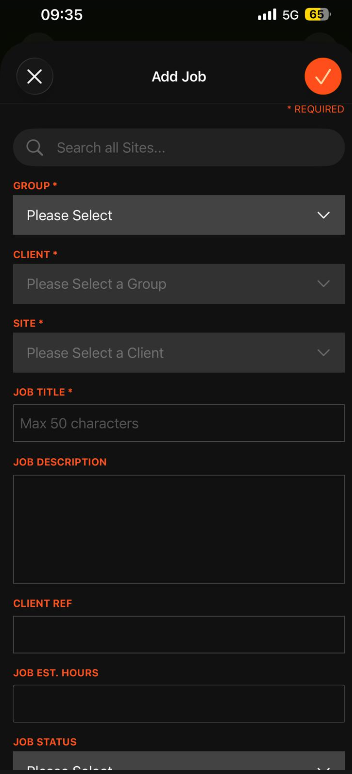
A Group must be selected before you can create a new Client.
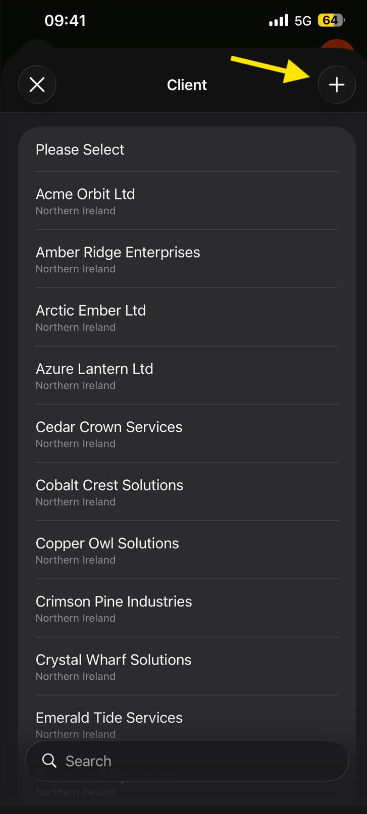
Step 4: Open the Client Dropdown
Tap the Client field to open the Client selection list.
You'll now see a new + icon in the top-right corner of the Client selection screen.
Step 5: Create the Client
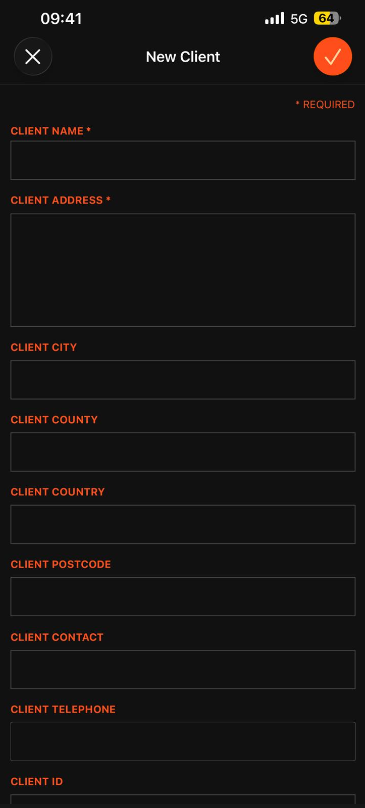
Complete the relevant information, including:
Client Name
Address Information
Contact Details
Any other mandatory fields configured within your WorkPal system
Step 6: Configure Financial Details (Optional)
If required, select the Financial Details option.
This allows you to configure client-specific charging information such as:
Visit Charges
Hourly Rates
Minimum Charges
Discounts
Other billing settings available within your WorkPal configuration
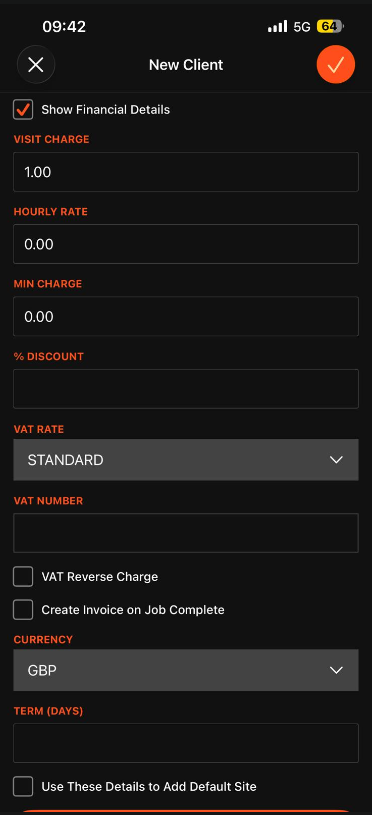
Financial details are optional and should only be completed if they form part of your companies billing process.
Step 7: Save the new client details
Once all required information has been entered, save the Client details by clicking the orange tick at the top right or the "create client" button at the bottom of the page.
The new Client will immediately become available for selection on the Job.
Creating a New Site
Once you've created or selected a Client, you can also create a new Site directly from the Job creation screen.
Tap the Site field.
Select the + icon in the top-right corner of the Site selection screen.
The Create Site page will open, allowing you to enter the relevant site information, such as the site name, address, contact details, and any other fields configured within your WorkPal system.
Once complete, save the Site record. The new Site will immediately become available for selection on the Job and can be used straight away.
The Site creation process works in the same way as Client creation, allowing you to add new records without leaving the Job creation workflow.
Need a Hand?
If you have any questions about creating Clients or Sites through the WorkPal mobile app, our Support Team is here to help.
📞 028 9344 5660
📧 support@workpal.com
🌐 www.workpal.app
Please provide screenshots and as much detail as possible when reporting an issue, as this will help us investigate and assist you more efficiently.