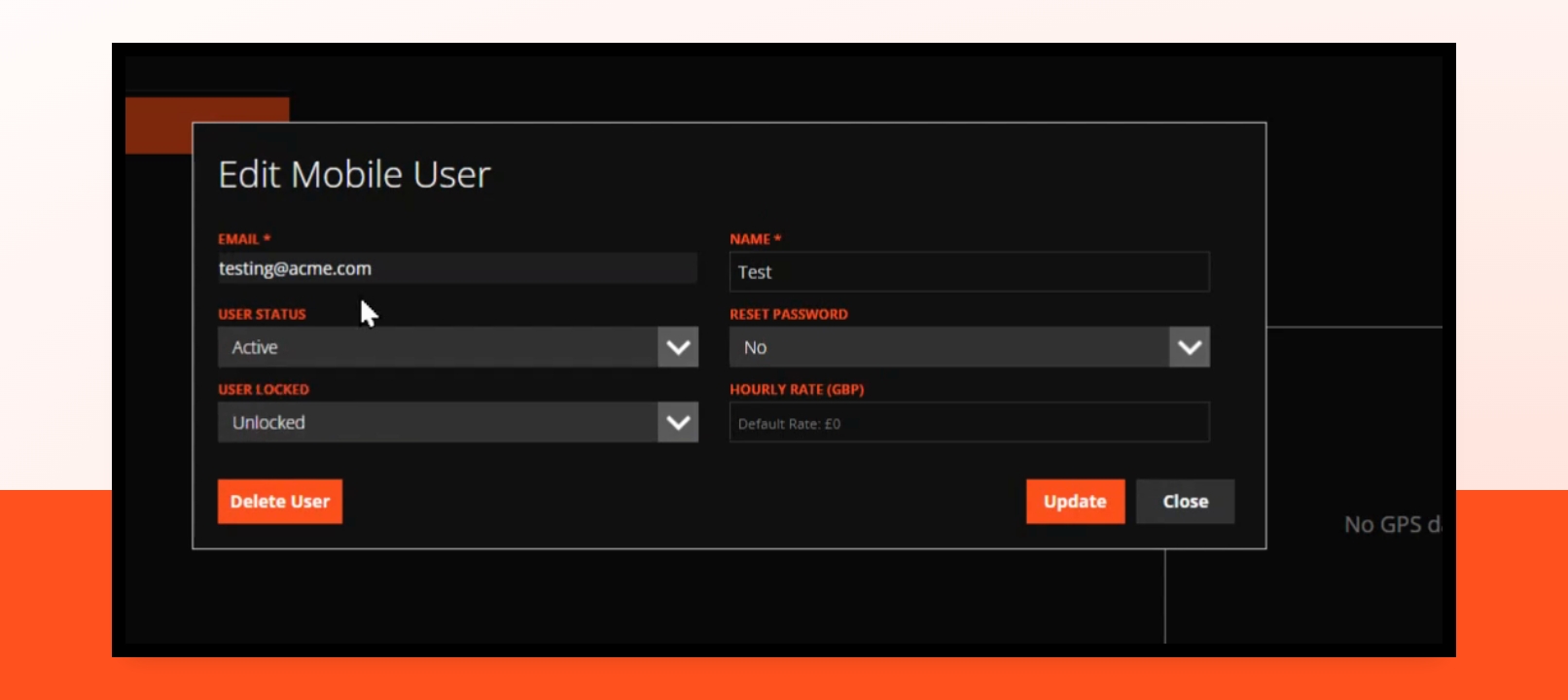
Below are the individual steps for adding and managing users.
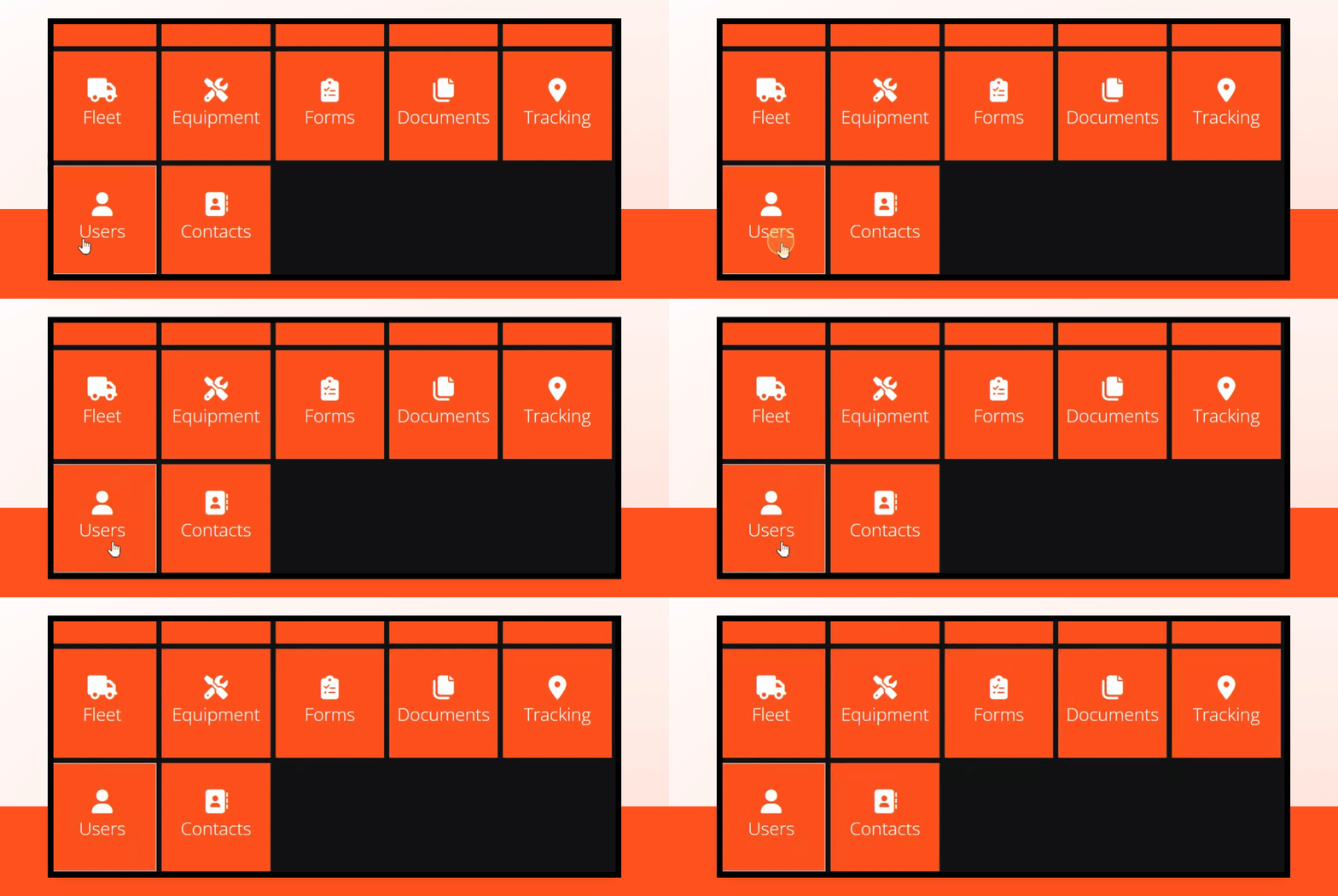
Step 1: click the users tab
This will take you to the users page.
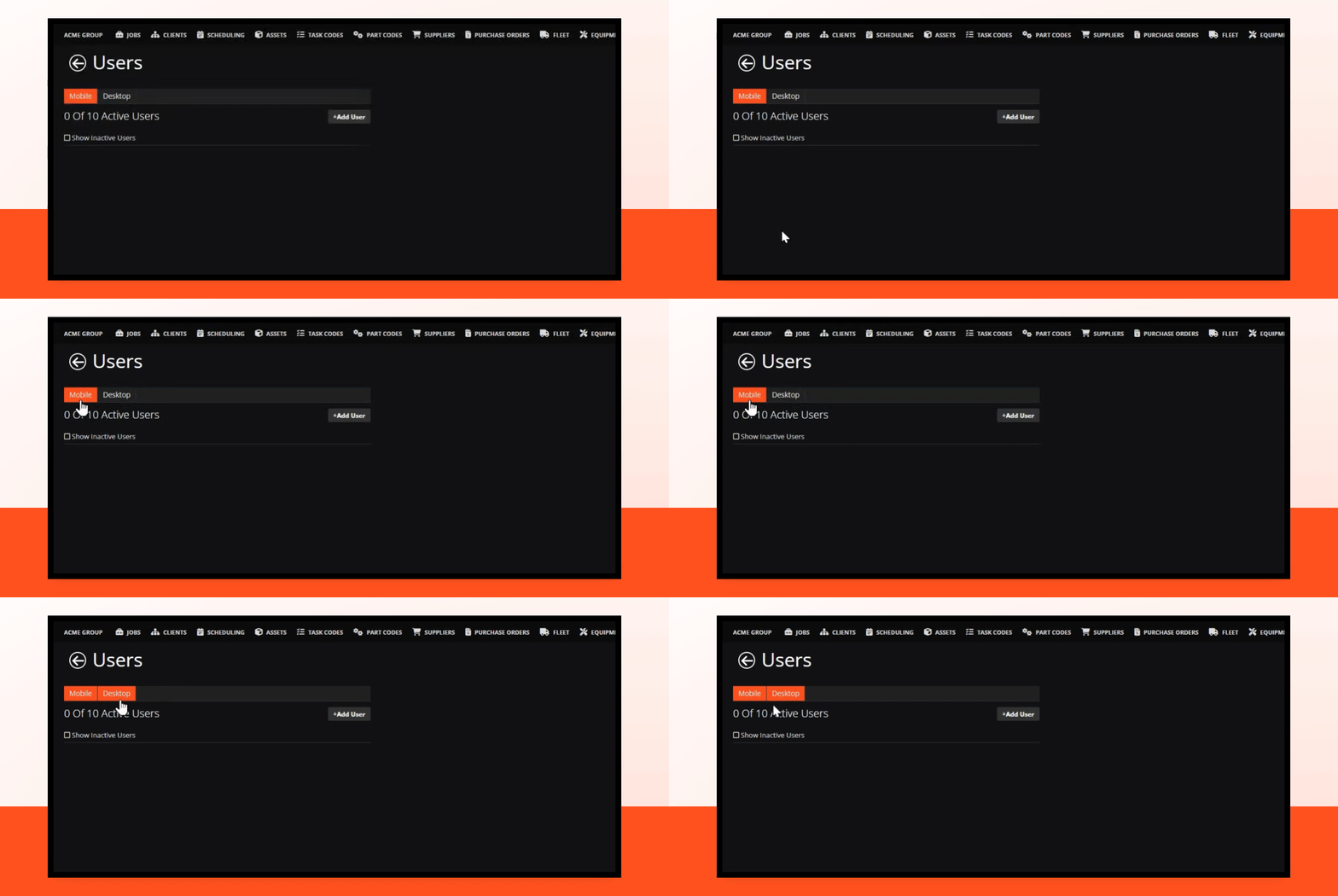
Step 2 - Select which type of user you want to create
Here, you can choose between the different license types you currently have. Mobile, desktop etc.
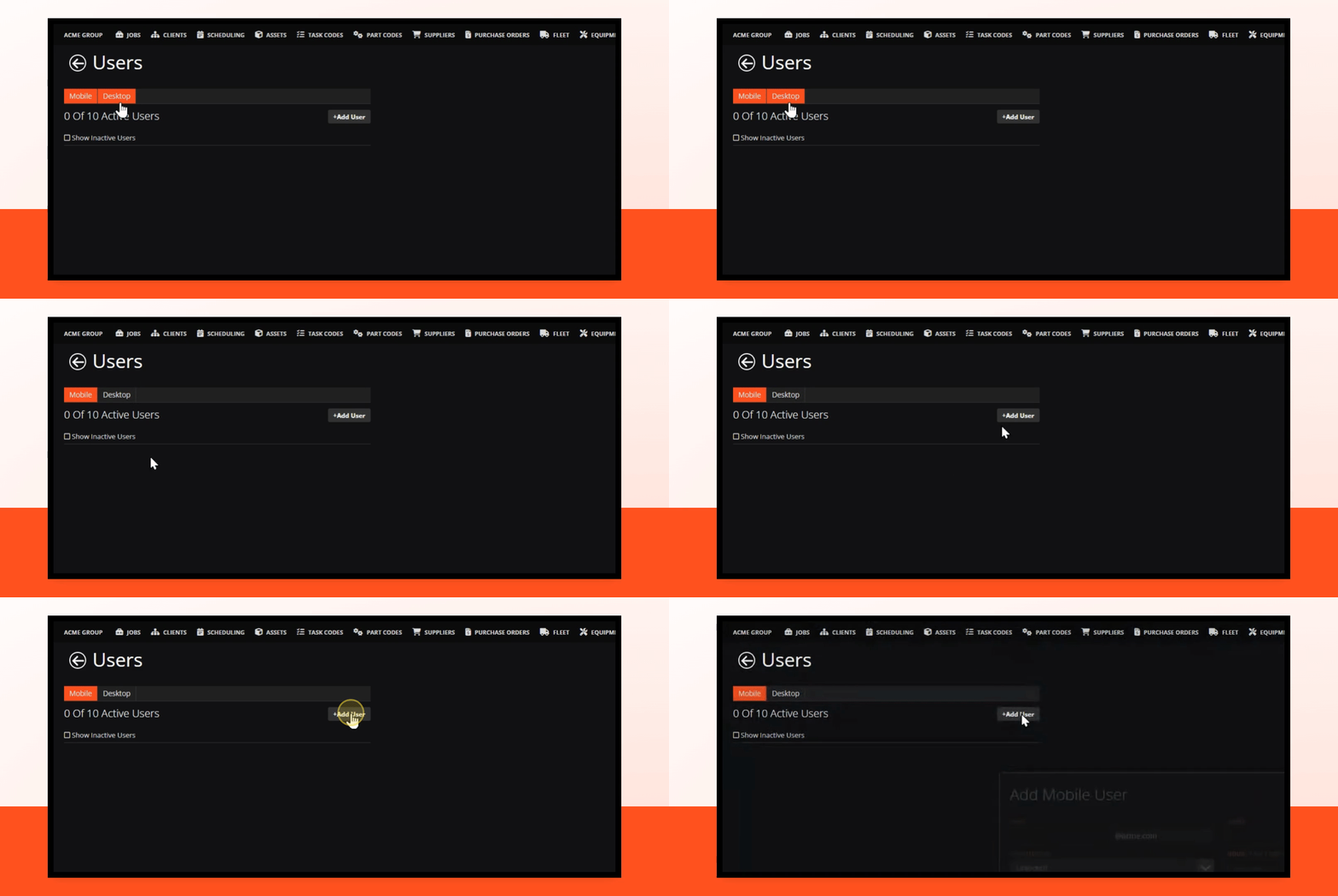
Step 3 - Click add user
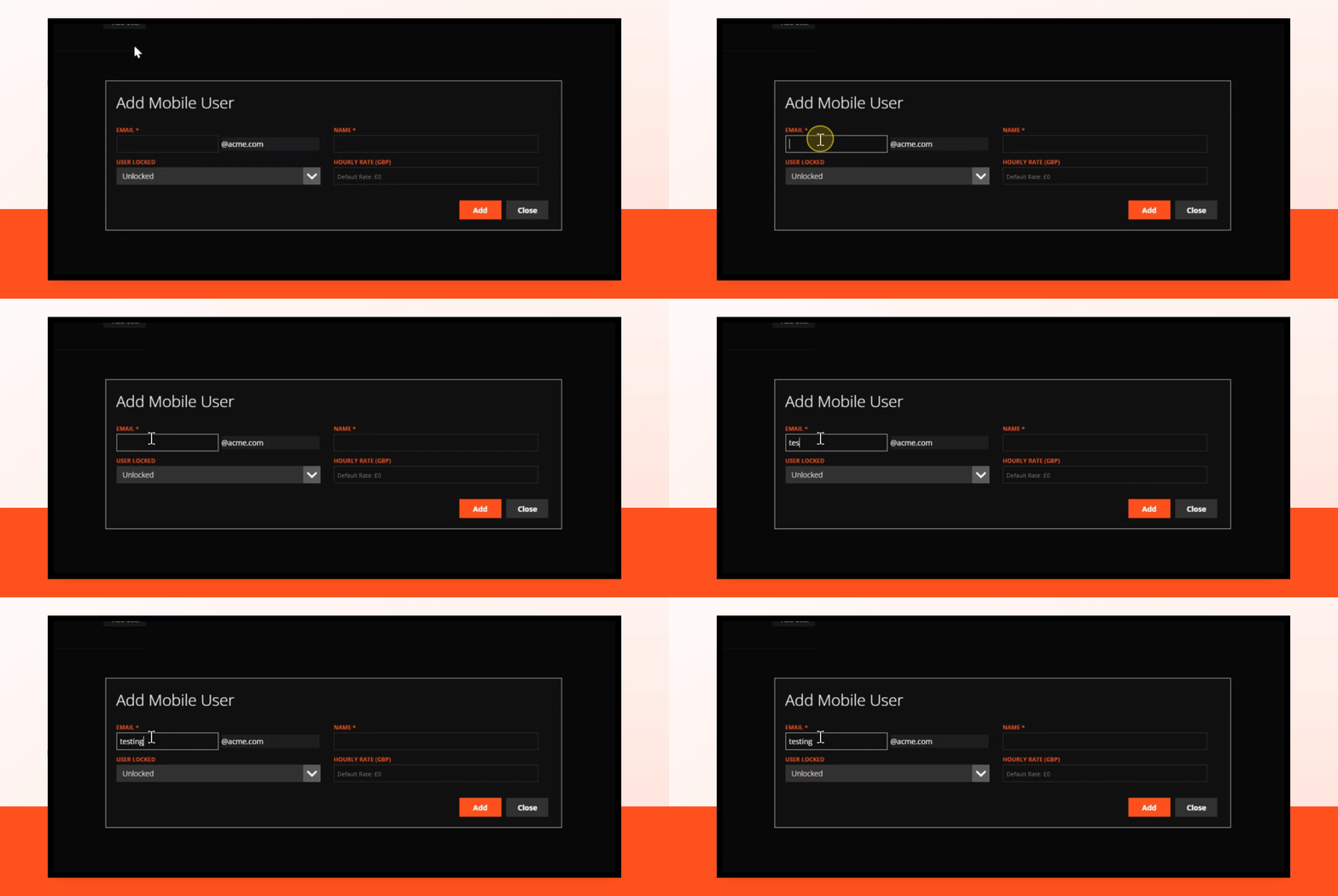
This will bring up a window to input your new users details.
Step 4 - Fill in the "email" field.
It's important to know, the "email" field acts as the username and doesn't need to match a real email address. If your user needs both mobile and desktop access, make sure the username is unique for each user "type".
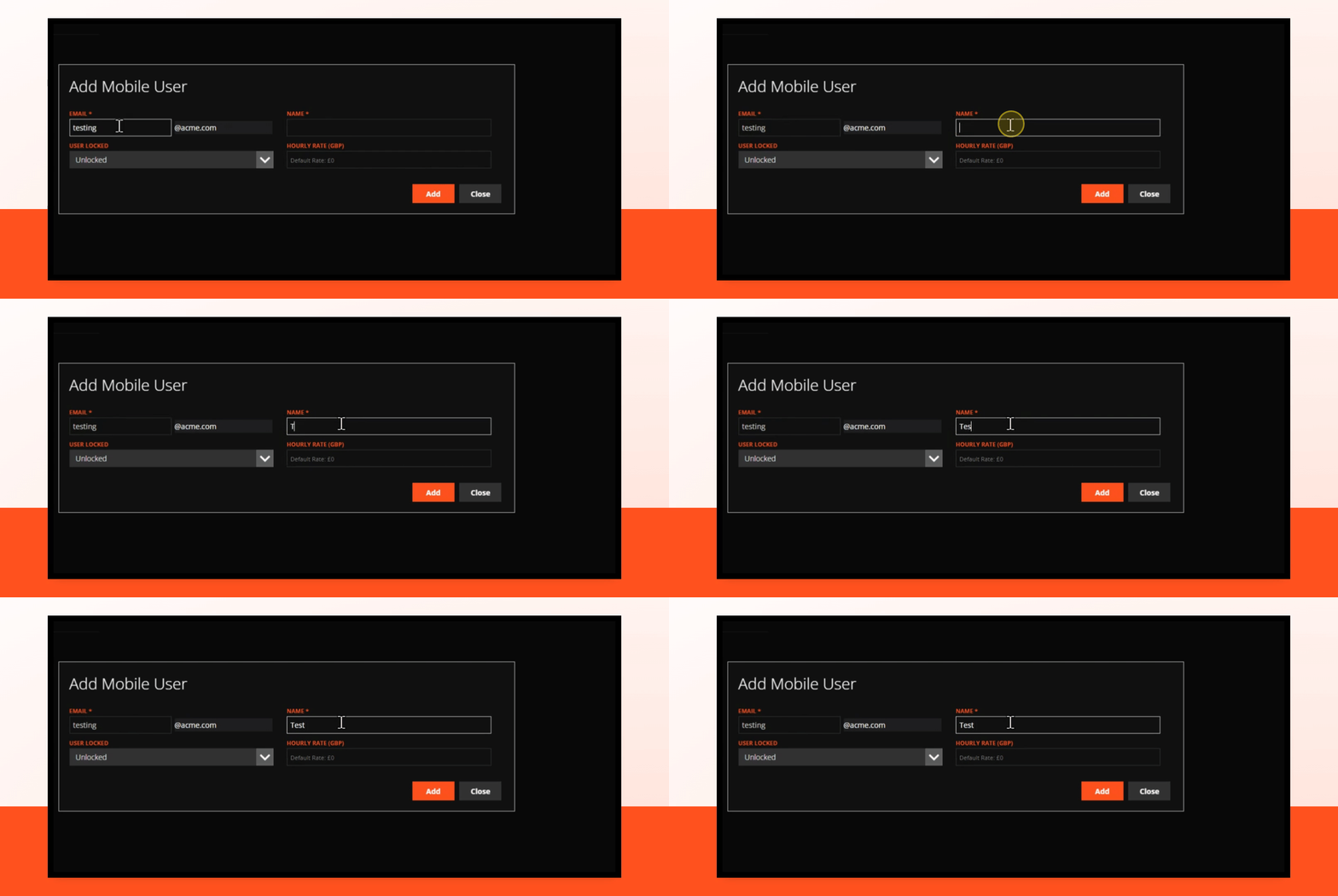
Step 4 - Fill in the users "name"
This is the field for your users name.
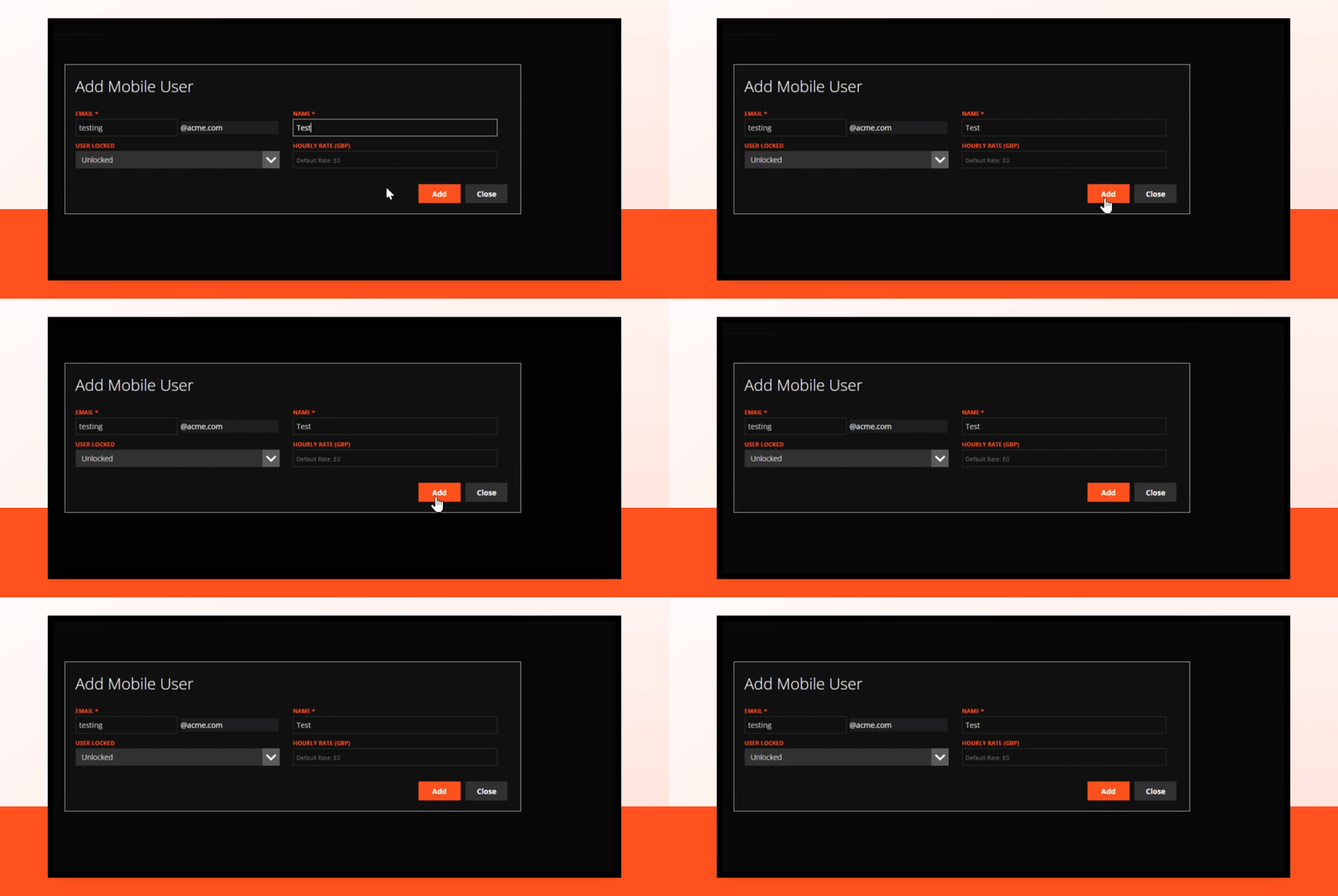
Step 5: Click the "add" button.
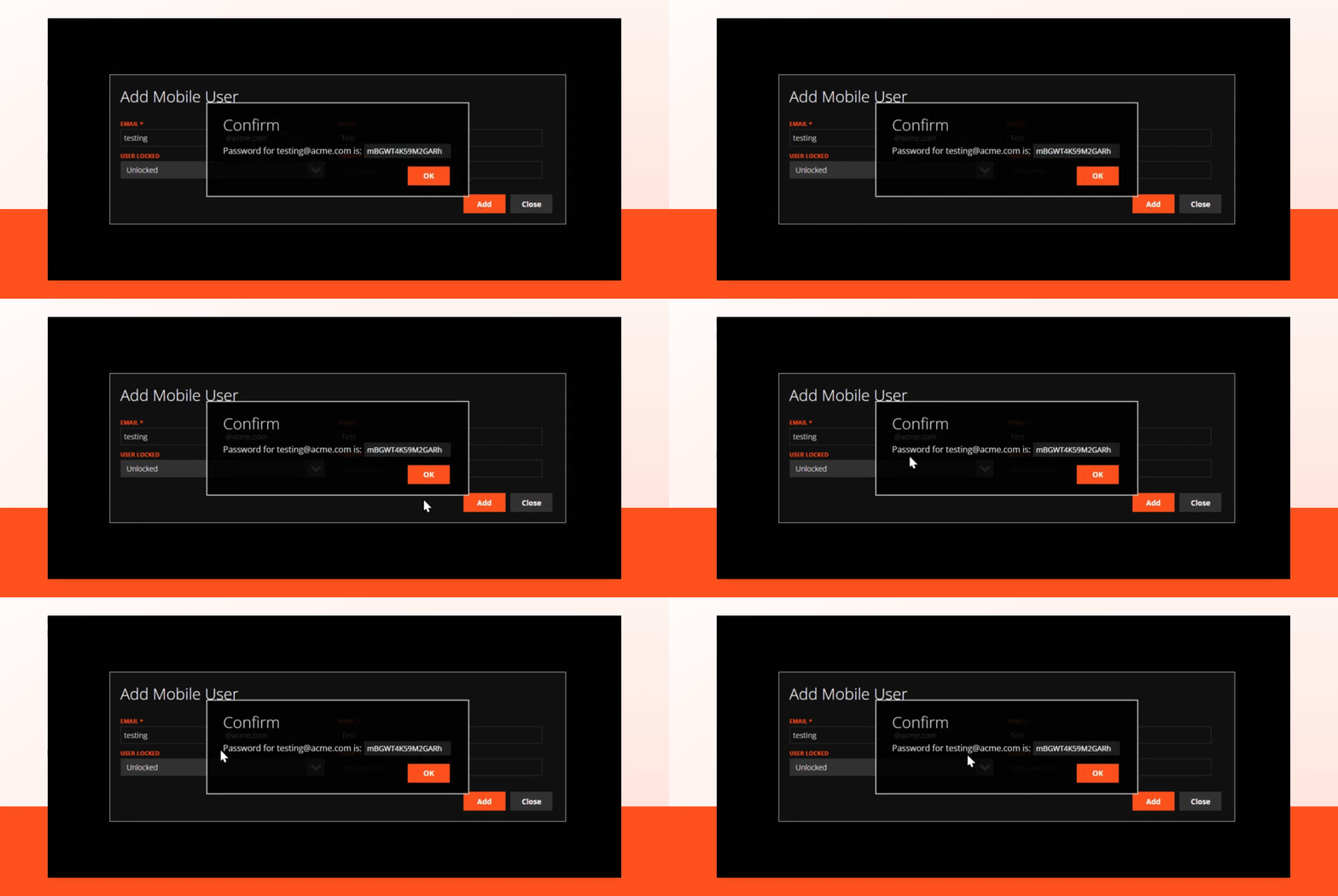
Step 6: Copy the password and send to your user.
You can now highlight and copy the password to send to your user.
How to edit your user.
Step 1: Click to highlight the user you need to edit.
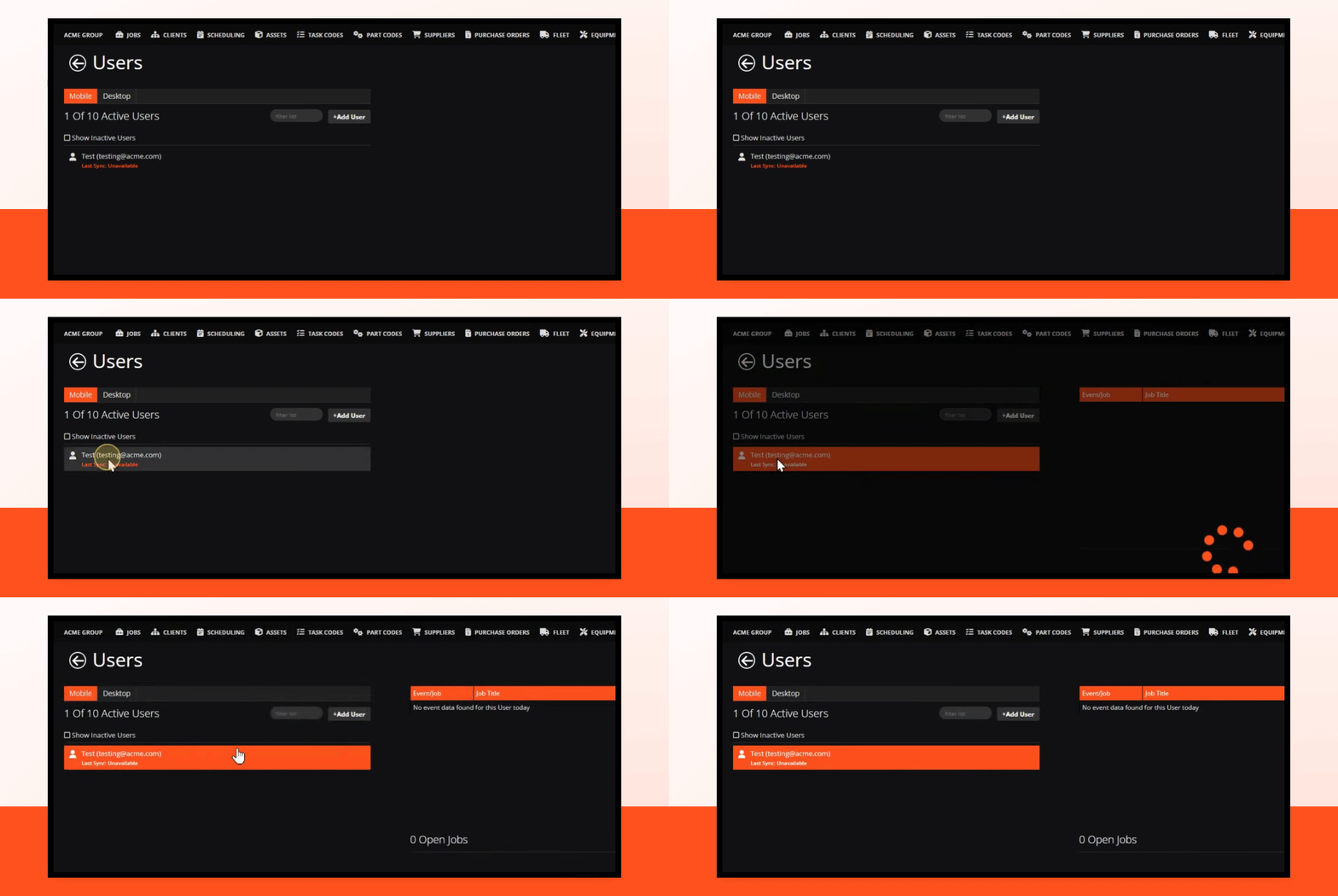
Step 2: Click the "edit user" button.
Click the edit user button in the bottom left corner of the screen
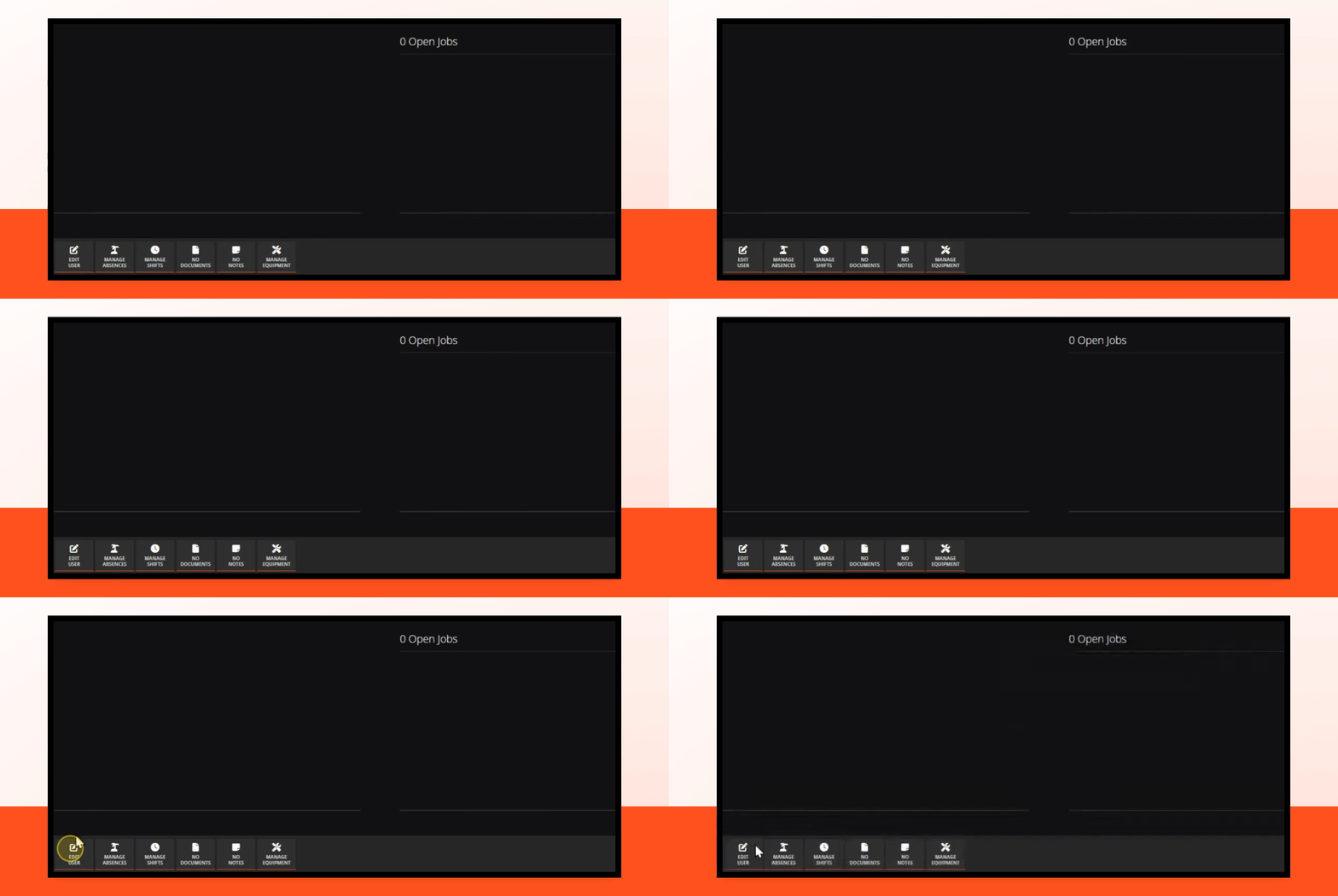
Step 3: You can now choose whether you want to make the user inactive, reset the password or "lock" the users account.