

There are various methods available for extracting your data from the WorkPal system to use elsewhere or for archiving reasons.
Exporting Job Files
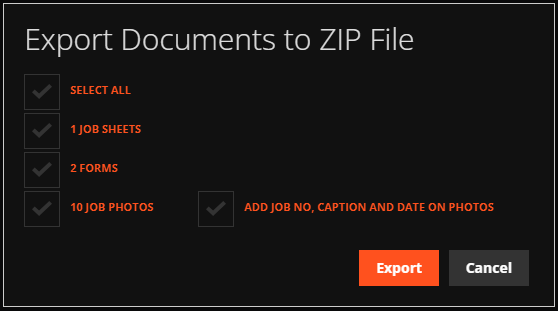
Jobs in WorkPal can be populated with a wealth of information in a range of different types of content. This may include Documents, Forms, Images and Job Sheets. When viewing a Job page, you have the option of exporting all of these materials in one download. Select the button shown below to open the Export Files dialog.

The Export Files Dialog shows options for which files you would like included in the download. If you would like information about each photo imprinted in the bottom corner of the photo images, you can tick the check-box marked "Add Job No, Caption and Date on Photos"
List Exports
For each list of items on WorkPal e.g. the Jobs list, you have the option to export this list as a Microsoft Excel spreadsheet. Exports can be created for lists of:
Assets
Forms
Invoices
Jobs
Purchase Orders
Quotes
By using the filters in the banner at the top of the list, you can include or exclude items based on certain criteria. Once you are happy with the list of items presented, click the "Export" button to download this list as an Excel file.

Full Data Export
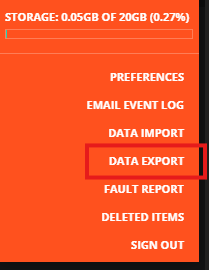
In the WorkPal Portal at the top right corner of the screen select the "WP" logo.

A dropdown menu will appear. Select "DATA EXPORT".
Select the data that you want to export and then select "Create".
You have the option to export all:
Assets
Clients
FE Codes
Fleet
Part Codes
Sites
Users
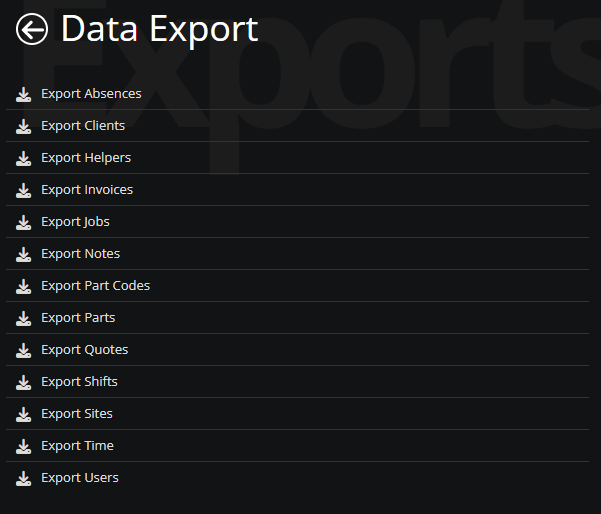
This will automatically create an Excel spreadsheet with the data exported.
Need a Hand?
If you're experiencing any issues exporting data from WorkPal, including generating exports, selecting export options, downloading files, or accessing exported information, our Support Team is here to help.
📞 028 9344 5660
📧 support@workpal.app
🌐 www.workpal.app