

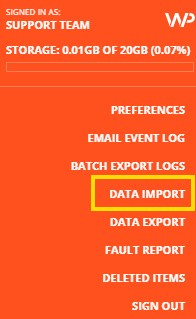
In the WorkPal Portal at the top right corner of the screen select the WP logo.
A drop down menu will appear. Select DATA IMPORT.
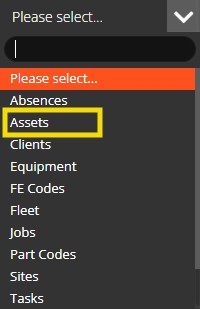
If you need to download an import template, select from the Download Import Template menu.

Select the Assets Template to start the download.
After downloading the Asset Codes Template, complete all required fields, indicated by an asterisk (*). The importer will not function if mandatory fields are left blank or contain incorrect information.

Ensure that the Site information matches the details on the system exactly. This is necessary for assets to be correctly assigned to their respective sites. (Note: The importer is not case-sensitive.)
Each asset must have a unique asset number (asset_no), which you will create. Duplicate asset numbers will prevent the importer from functioning properly.
If your system includes custom asset fields, they will appear as additional columns following asset_no.
Uploading the Completed Template:
1. Select Browse, locate the completed template file, and upload it.
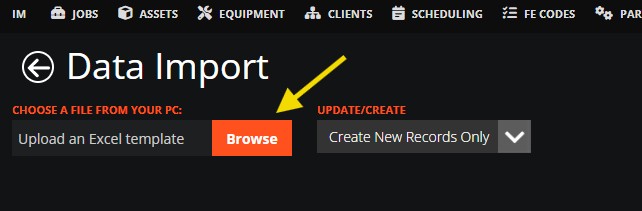
You can choose to Create New Records, Update Existing Records, or both. Ensure you review the data in the preview screen for errors. If you are satisfied, select the 'Import Data' button to begin the Asset import.
Following these steps will ensure a smooth and accurate asset import process.
You can choose to Create New Records, Update Existing Records, or both.
Need a Hand?
If you're experiencing any issues importing Assets into WorkPal, such as upload errors, data mapping problems, validation issues, or missing information after import, our Support Team is here to help.
📞 028 9344 5660
📧 support@workpal.app
🌐 www.workpal.app