

To ensure WorkPal runs flawlessly, you should perform these steps every week.
Missing an update means you may miss critical security patches and performance fixes from our fortnightly Thursday updates.
How to clear cache using an extension
The Clear Cache extension for Chrome enables you to instantly clear browsing data with a single click, eliminating the need to navigate through settings menus.
The tool is easily installed from the Chrome Web Store and configurable to selectively clear cache while preserving cookies to maintain user logins.
You can Install the extension via the Chrome web store, Simply click this link and you will be taken to the page in the screenshot below. Chrome Web Store. Simply use the search bar to search "clear cache"
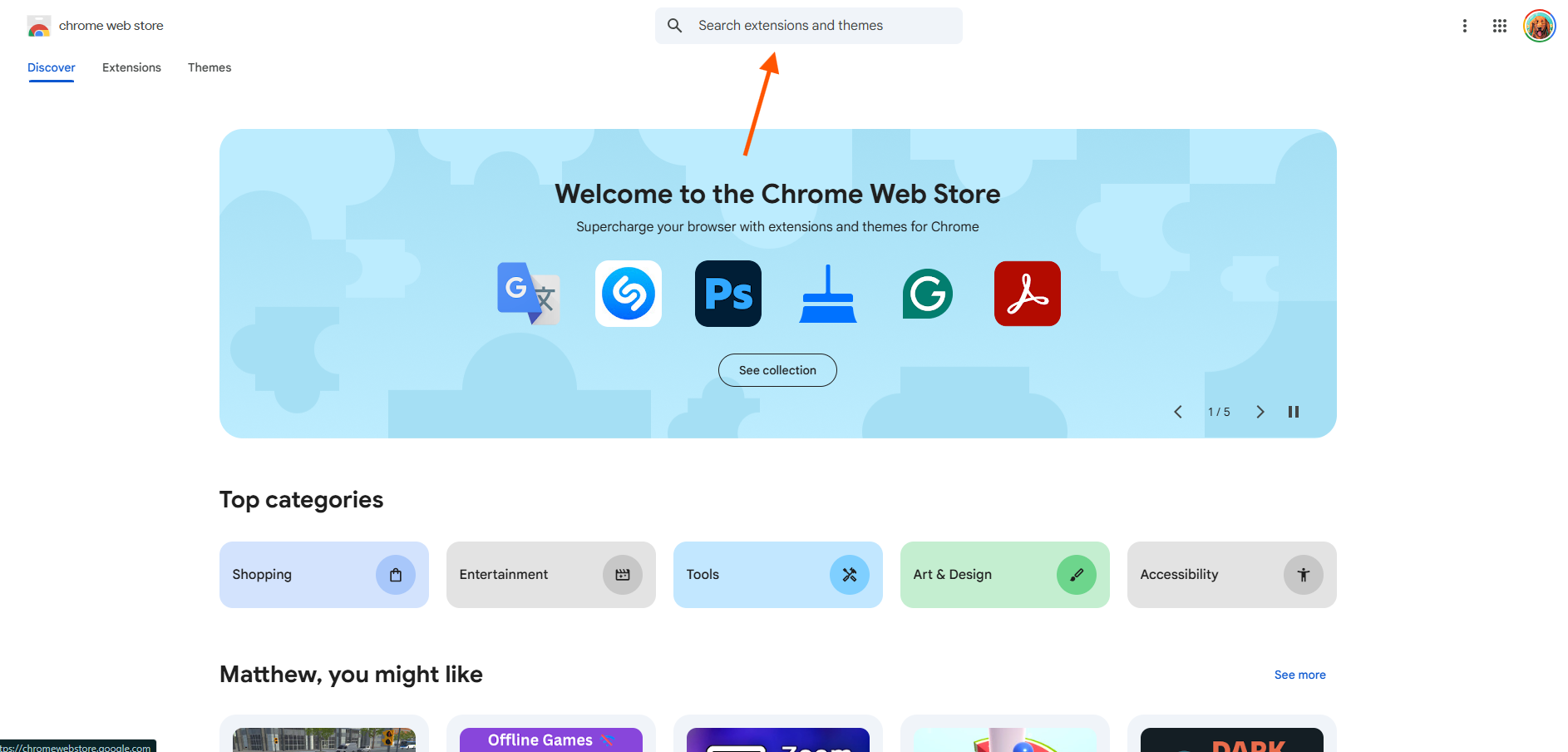
Once you have searched for the extension, you will want to install the one with the same logo as the screenshot below.

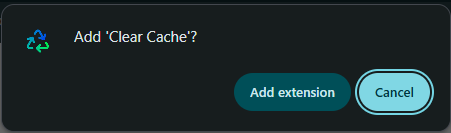
Select that and then you will get a pop up on your screen, simply click "add extension"
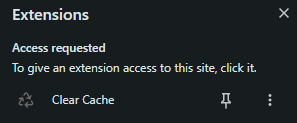
Once you have clicked that, you will then need to pin it. This can be done by clicking the "Pin" icon in as seen below.
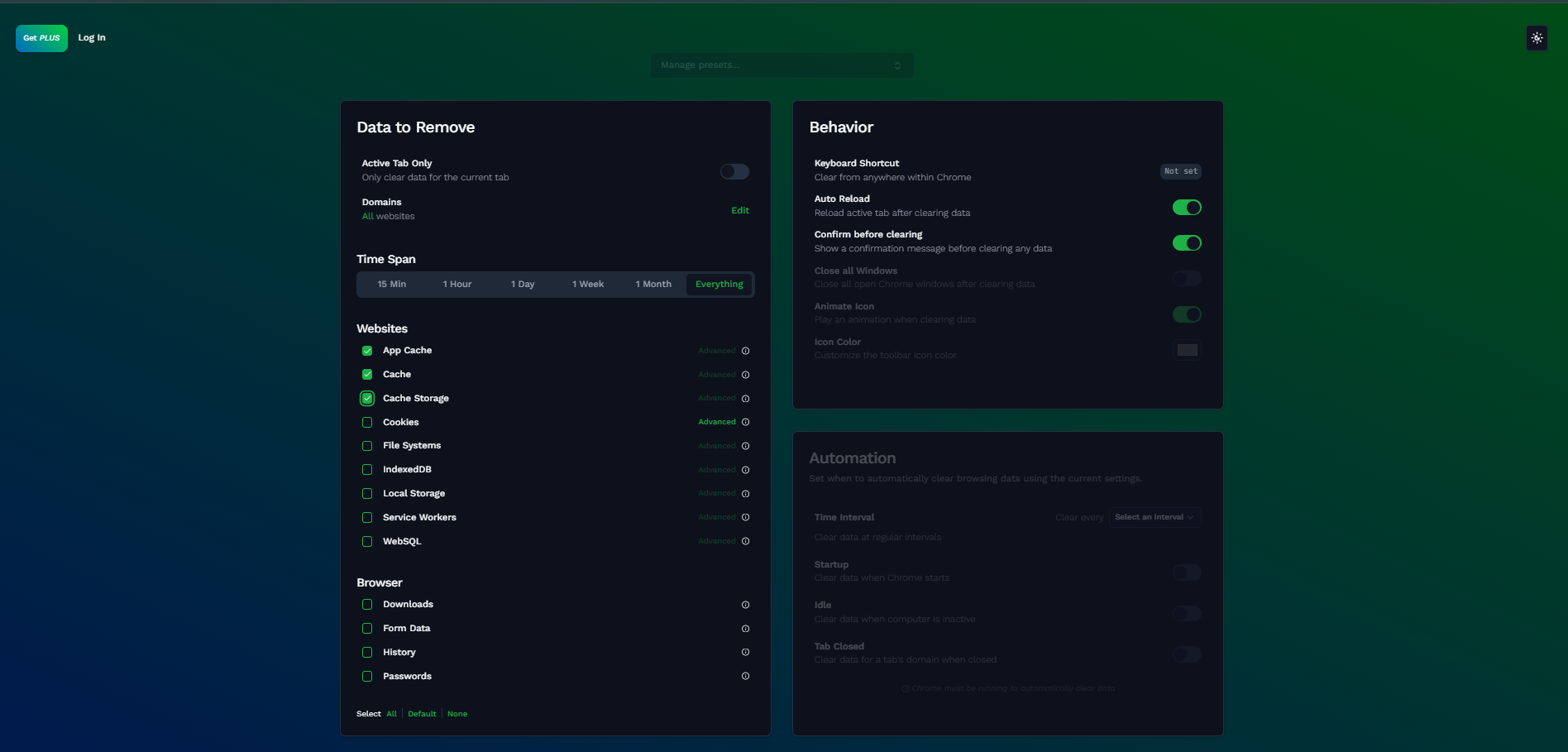
Once this has been done, a new page should open. Simply ensure you select the following options so your page looks like the below screenshot.
Set Time Span to "everything"
App Cache
Cache
Cache Storage
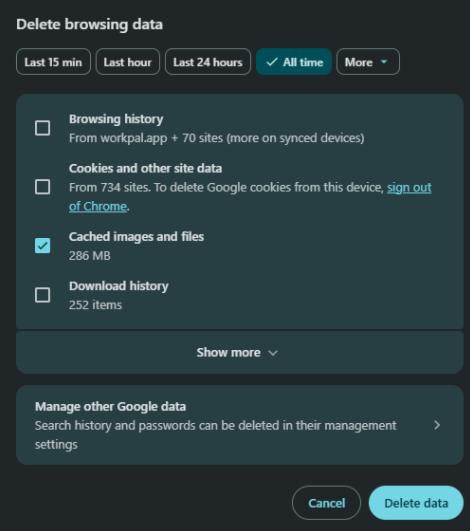
Steps to Manually Clear the Chrome Cache
Select the three dots (⋮) in the top-right corner of the browser.
Click Delete browsing data.
Change the Time range to All time.
Tick Cached images and files.
Select Delete data.
Close and reopen Chrome.
Log back into WorkPal and check whether the issue has been resolved.
Common WorkPal Issues Fixed by Clearing Cache
Clearing the browser cache may help resolve:
Pages not loading correctly
Missing buttons or menus
Features not responding as expected
Display issues
Slow loading screens
Problems accessing specific areas of WorkPal
Additional Notes
Clearing cached images and files will not remove your saved passwords.
Some websites may load slightly slower the first time you visit them after clearing the cache as fresh files are downloaded.
If the issue persists, Contact the support team and they can investigate further.
Need a Hand?
If you're experiencing any issues clearing your browser cache, accessing WorkPal after clearing cached data, or if pages are not loading as expected in Google Chrome, our Support Team is here to help.
📞 028 9344 5660
📧 support@workpal.app
🌐 www.workpal.app