To enable Stock Management, navigate to the preferences > features > switch on Stock Management > Update
On your homepage of the desktop, you will find a Stock Icon.
From the Preferences > Stock
You can create your 'Stock Locations'. Locations and shelves can only be created from the desktop.
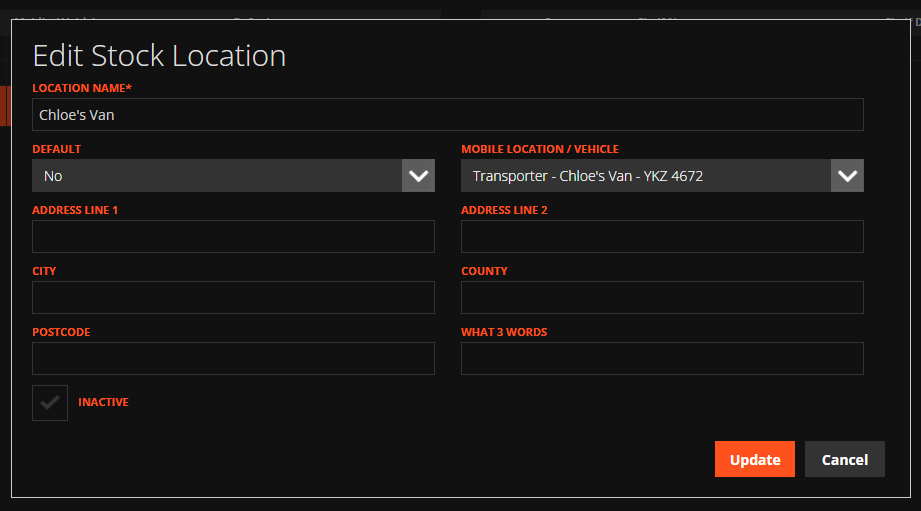
'Stock Locations' are physical locations where the company stores all of the Stock they want to keep track of. These can be buildings (storerooms/warehouses), or vehicles (Vans) from the Fleet.
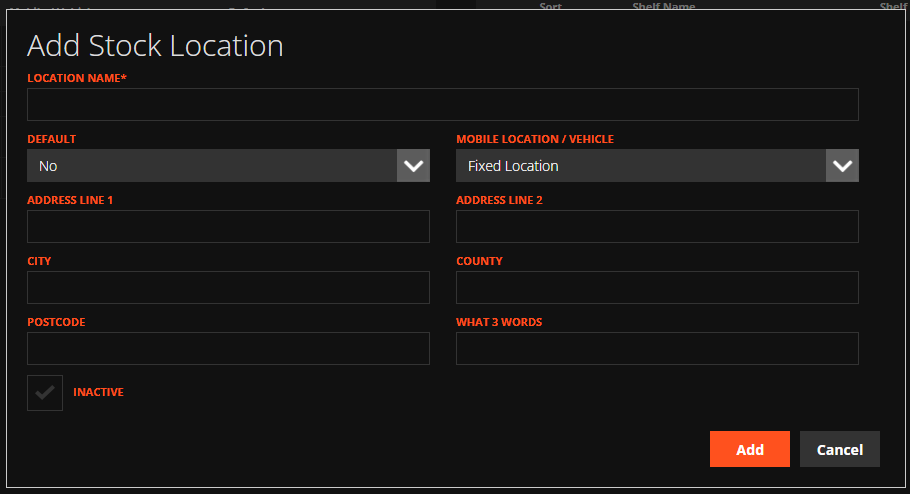
To add a new location ; WP > Preferences > Stock > Add
You can chose between a 'fixed location' or a vehicle from your fleet, as the stock location.
When a new location is added, a default shelf is also added. The default can be changed once over shelves are created.
You can navigate to the right of the location to manage shelves within a location.
To add a vehicle as a stock location, switch the 'fixed location' dropdown to the vehicle. The vehicle must first be set up as a vehicle in the fleet.