Introduction
This article introduces the nominal code feature in Workpal. Nominal codes help you organize and sync your financial data with your accounting package, making reporting and account management easier. You'll learn how to enable nominal codes, match them to your finance package, and apply them to quotes, invoices, and parts. Let's get started!
Step 1: Open Preferences
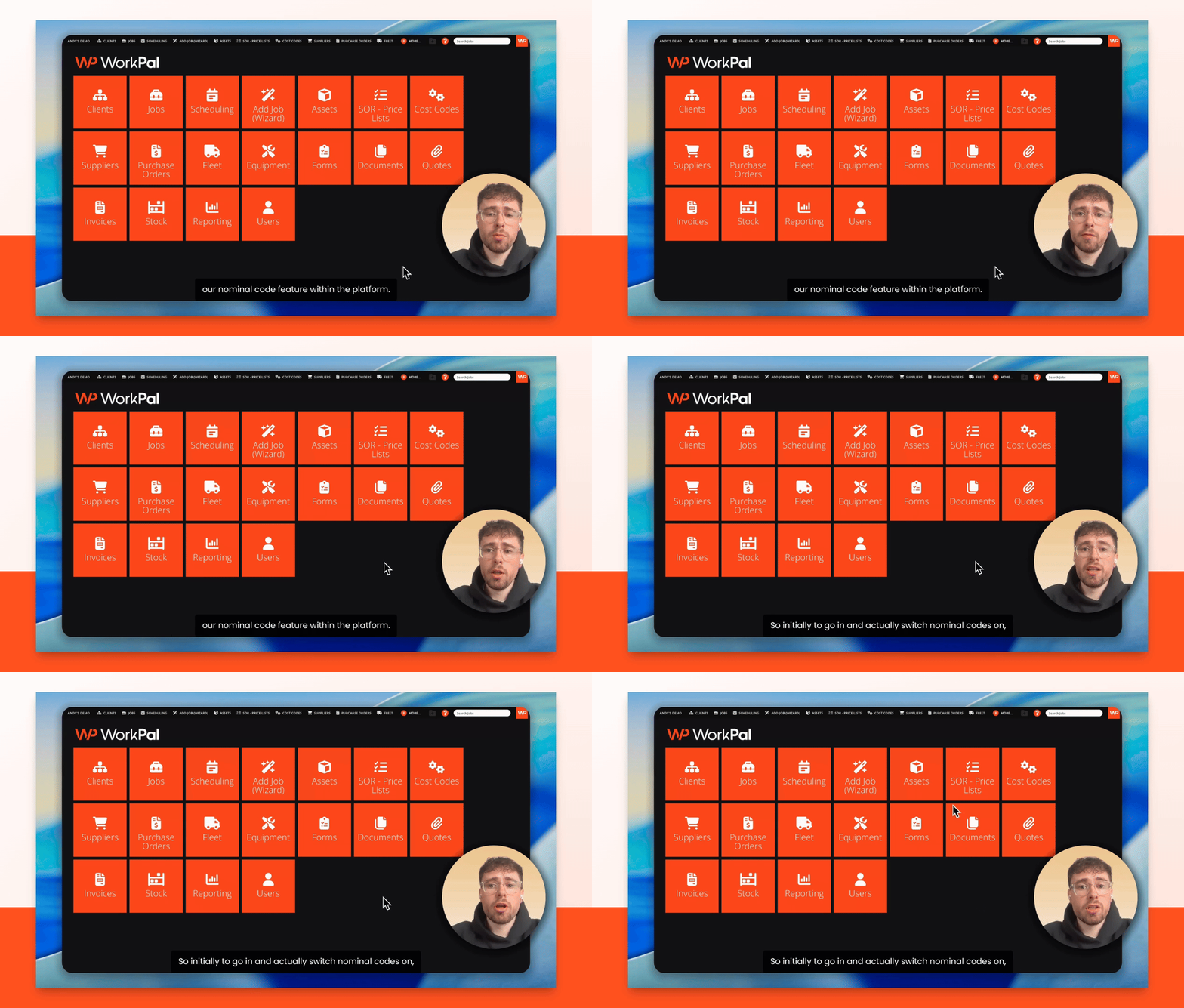
Go to Preferences in the Workpal platform to begin setting up nominal codes.
Step 2: Access Quotes and Invoices Tab
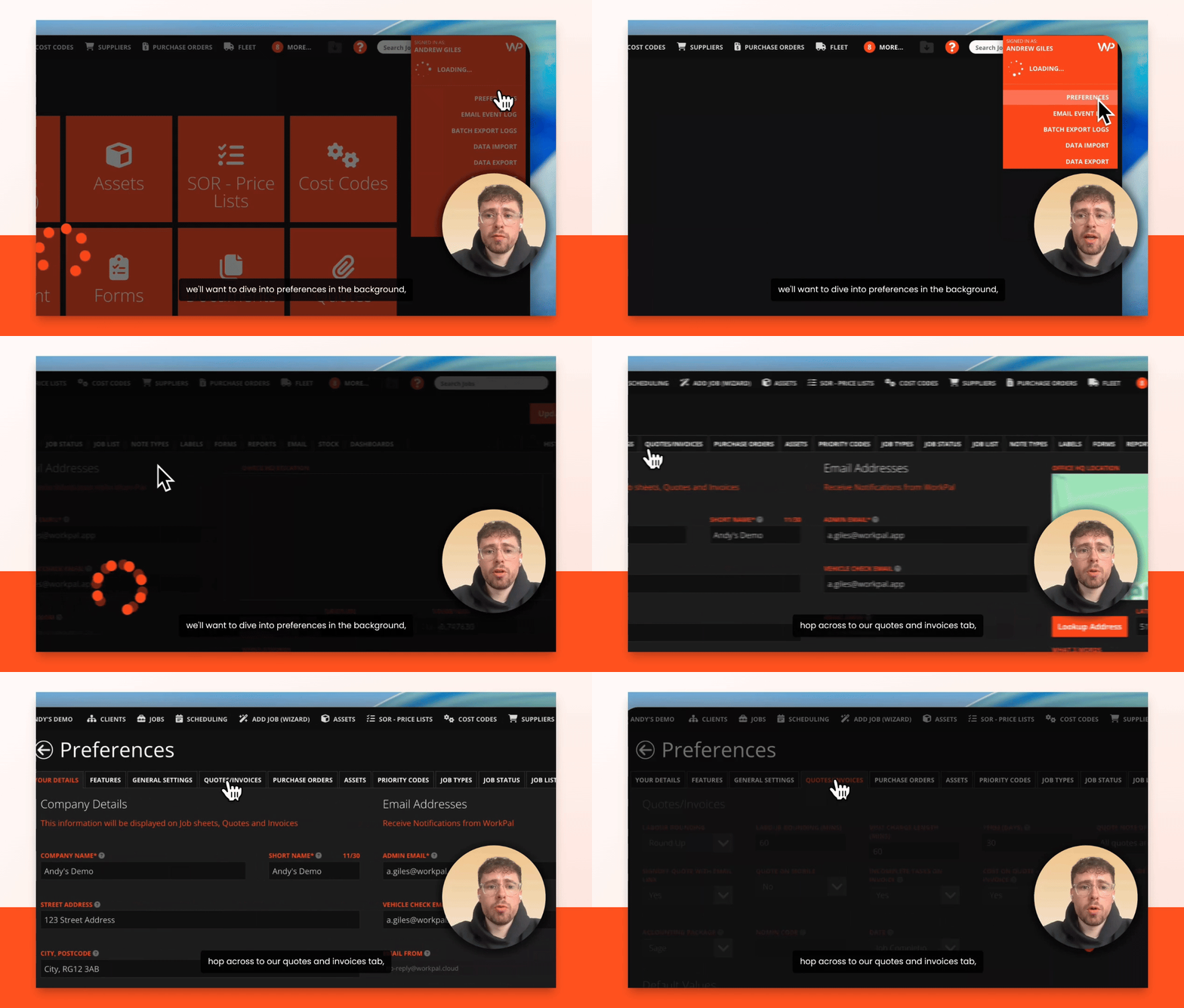
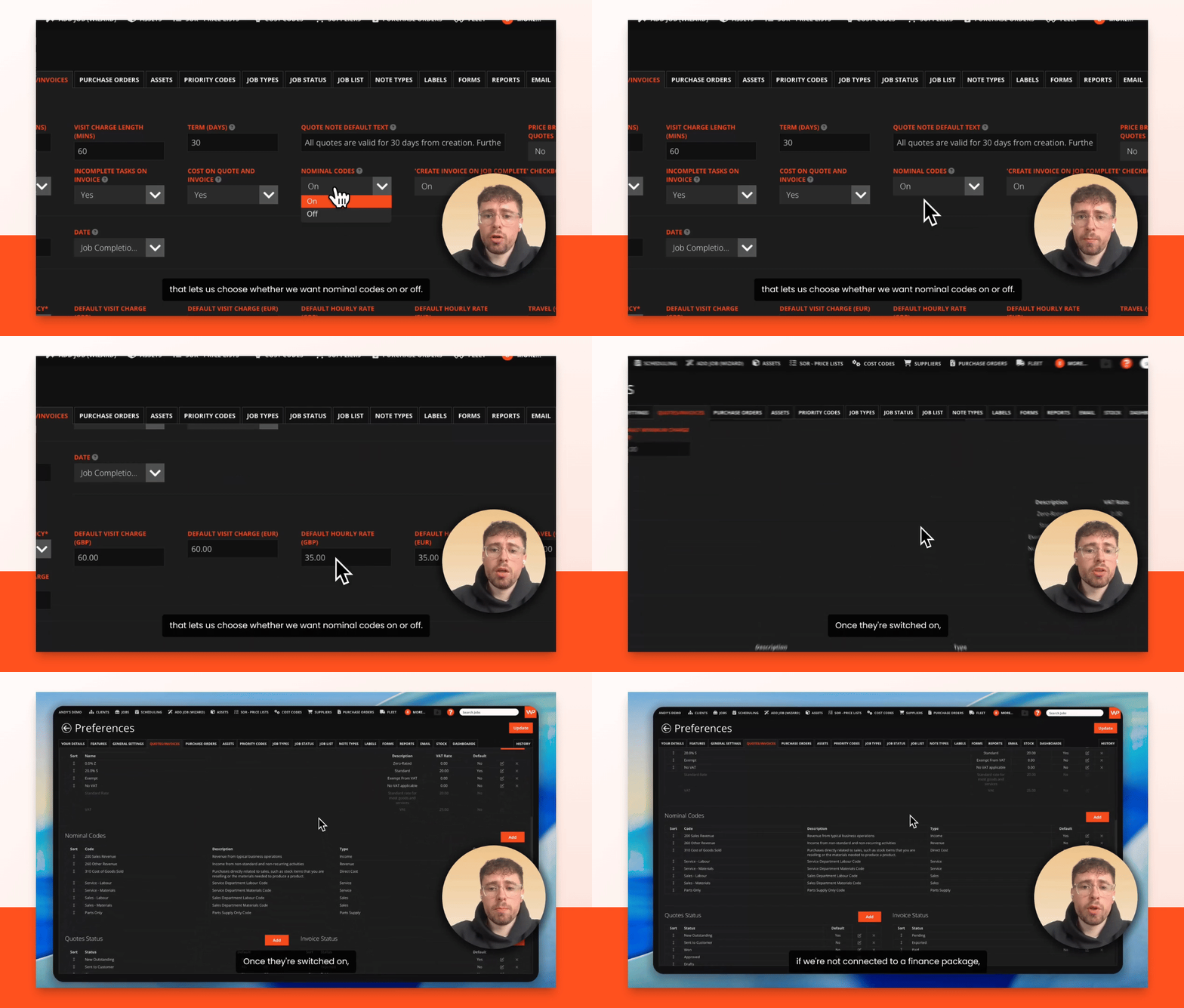
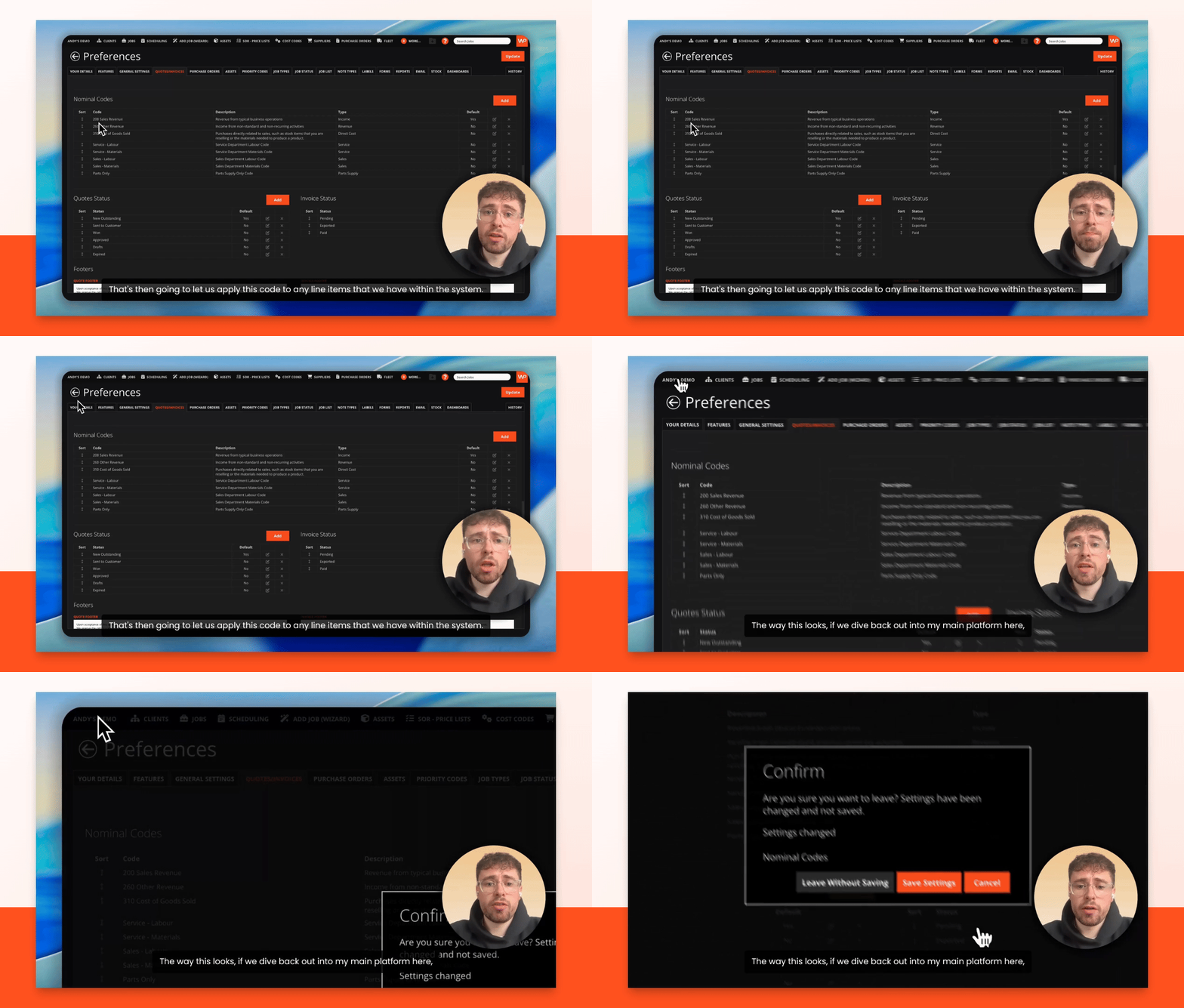
Navigate to the Quotes and Invoices tab. Here, you'll find a drop-down box to turn nominal codes on or off.
Step 3: Enable Nominal Codes
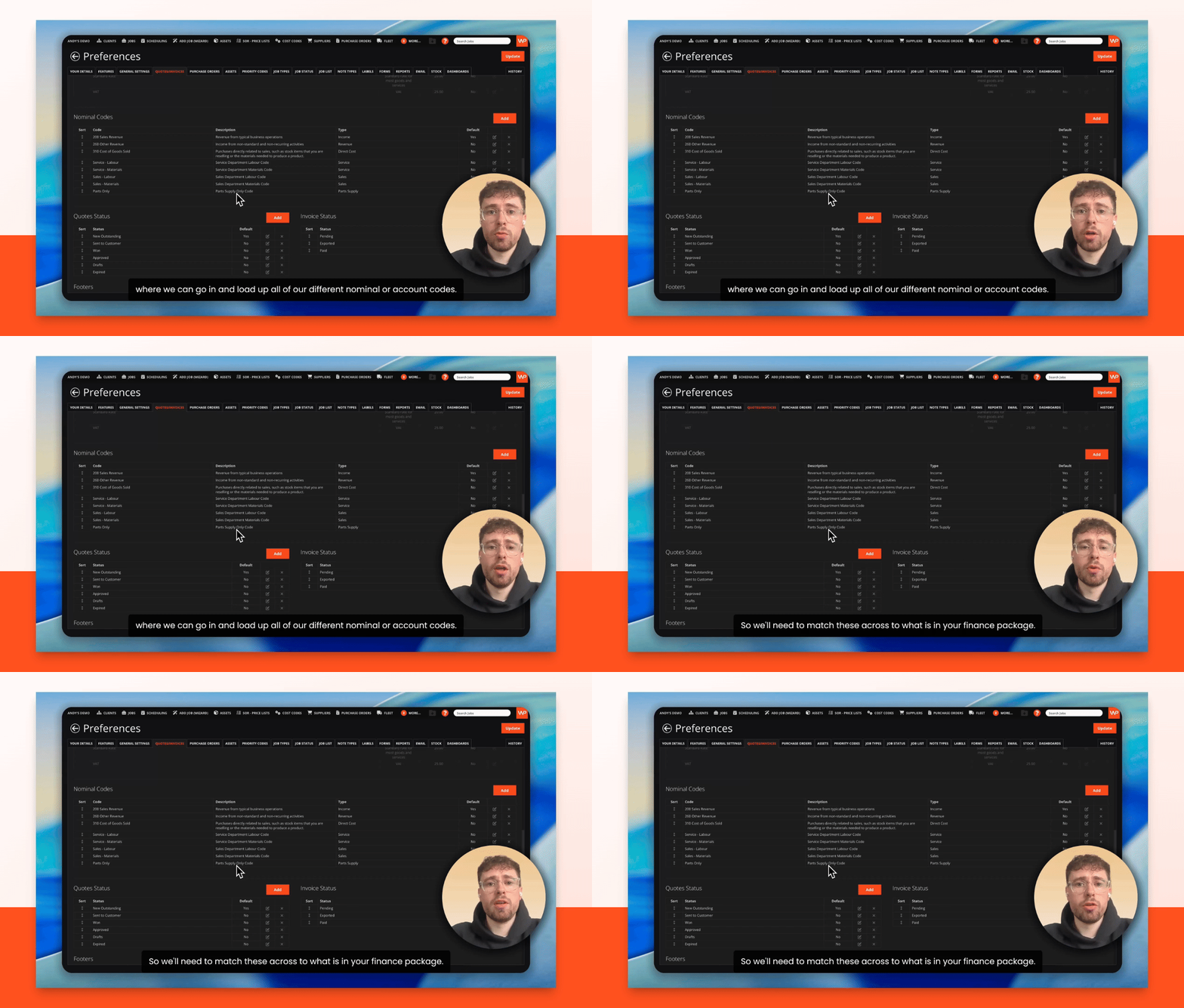
Switch nominal codes on. If you are not connected to a finance package, a new table will appear where you can load your nominal or account codes.
Step 4: Match Codes to Finance Package
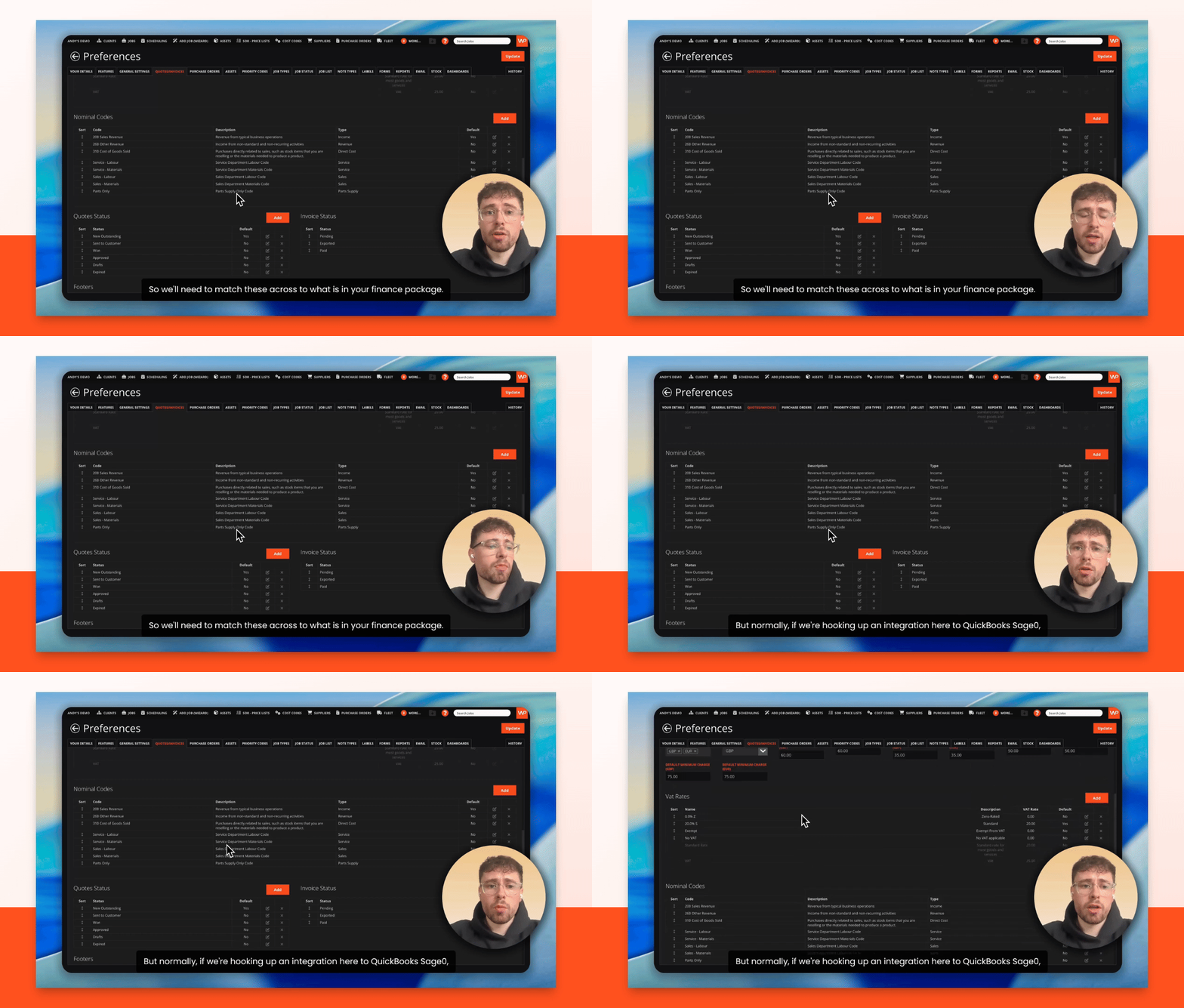
Match your nominal codes in Workpal to those in your finance package for accurate syncing.
Step 5: Integrate with Accounting Software
If you connect Workpal to QuickBooks, Sage, or Xero, Workpal will download and sync your account codes automatically.
Step 6: Review Nominal Code Table
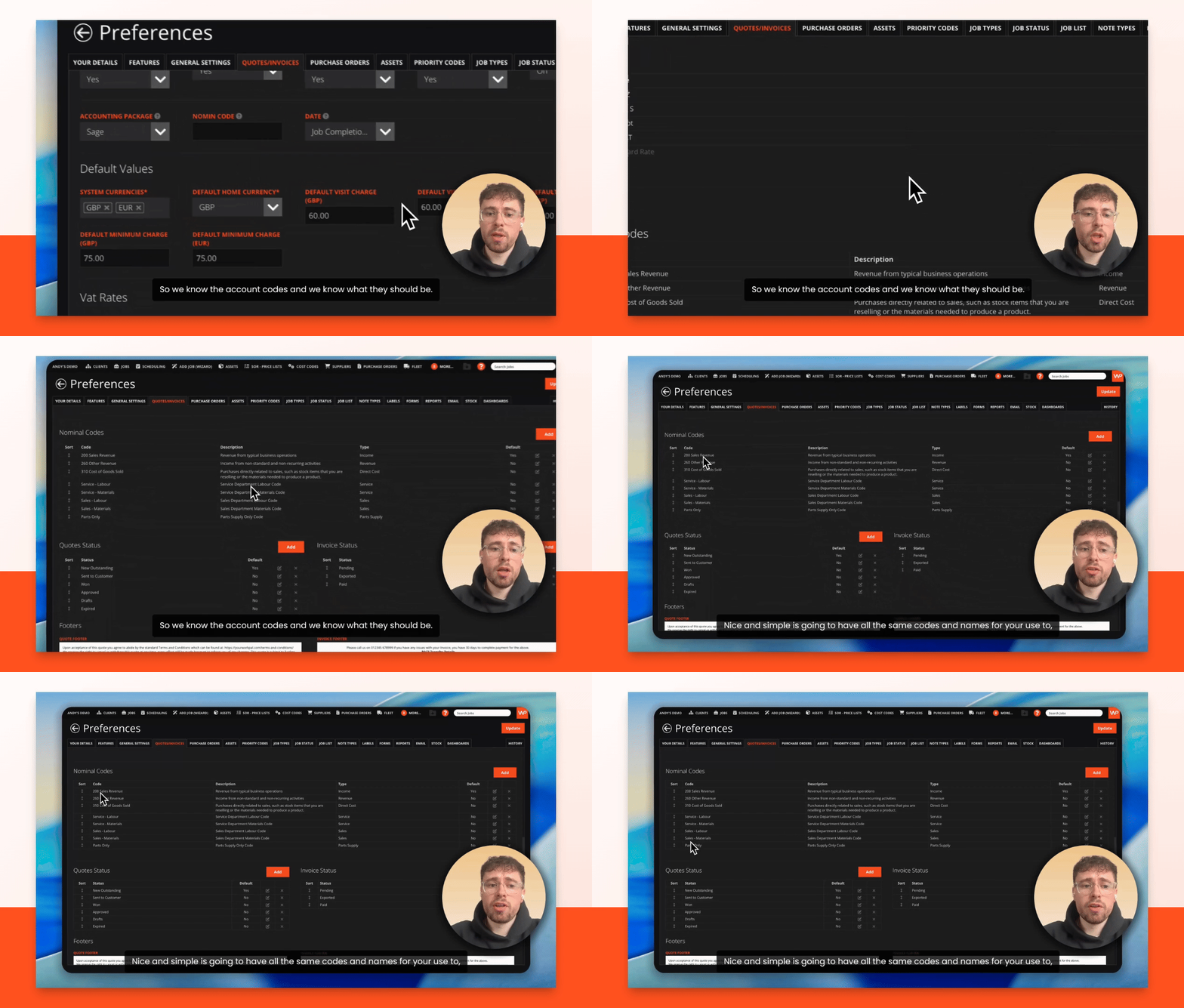
The nominal code table will display all your codes, names, types, and descriptions. You can also set a default code, such as Sales 200 in Xero, to apply to line items.
Step 7: Apply Nominal Codes to Quotes
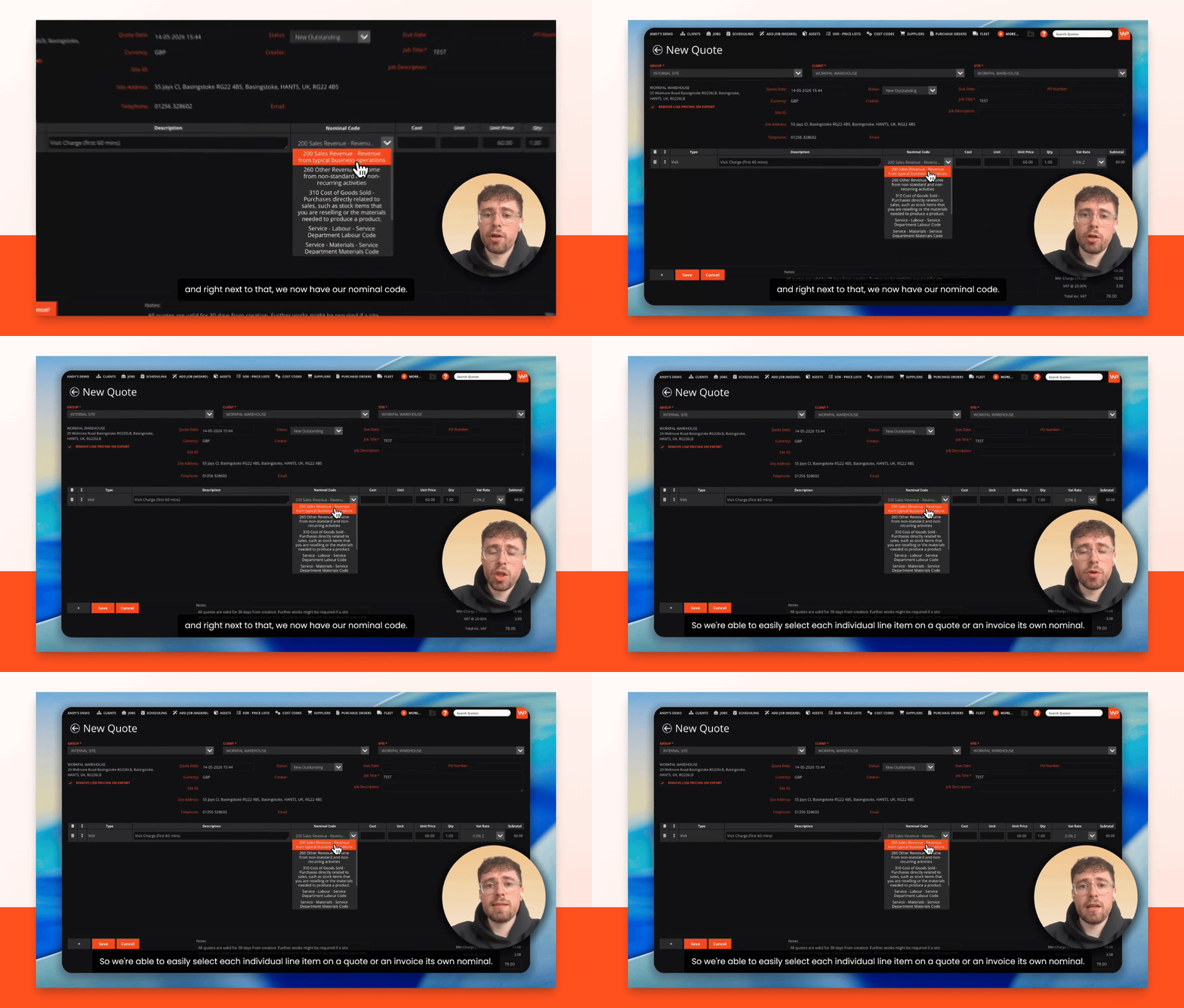
When creating a new quote, you can select a nominal code for each line item. For example, add a visit charge fee and assign the appropriate nominal code next to it.
Step 8: Assign Nominal Codes to Invoices and Fast Entry
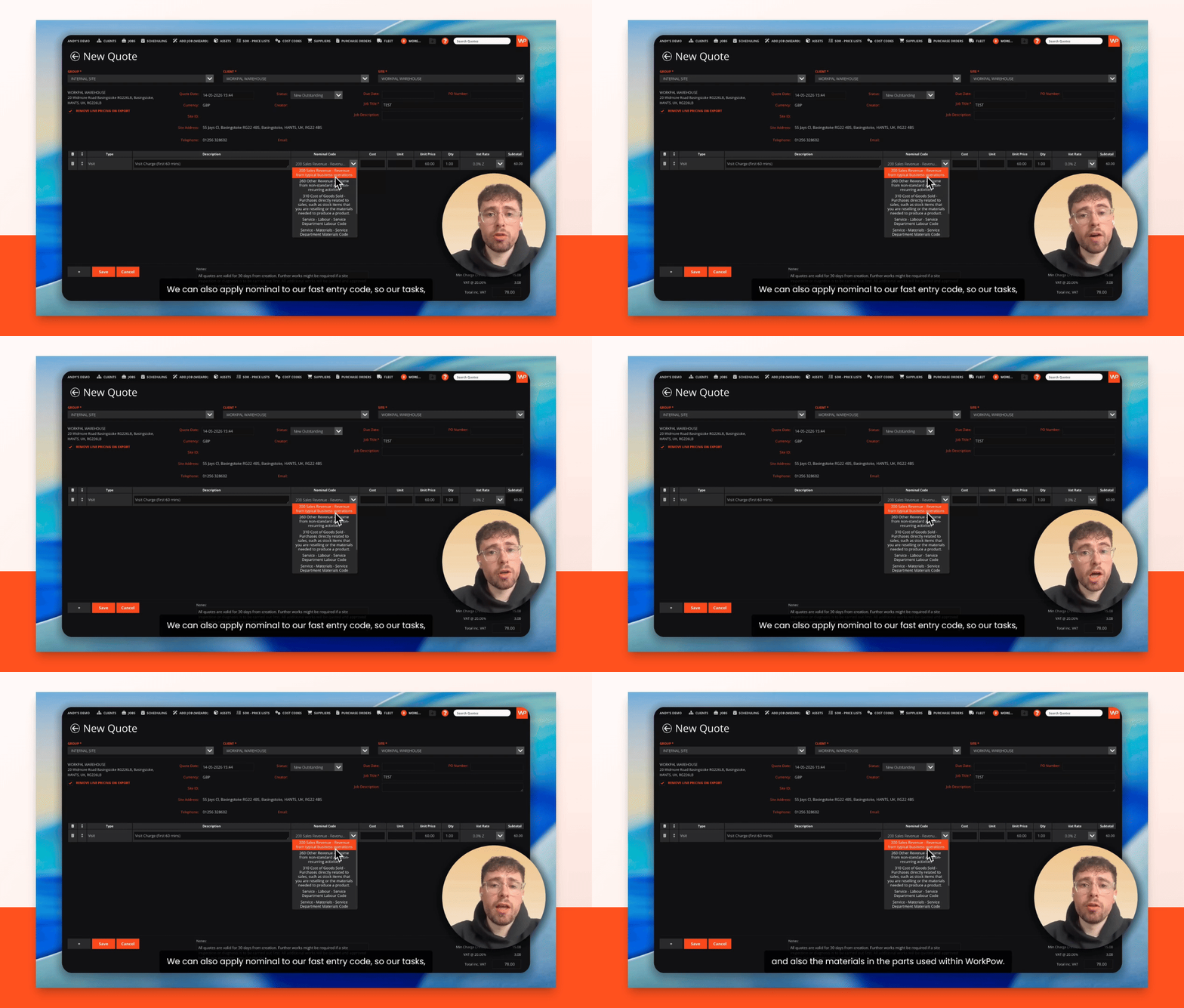
You can assign nominal codes to each line item on quotes or invoices, as well as to fast entry codes.
Step 9: Apply Nominal Codes to Tasks and Parts
Nominal codes can also be assigned to tasks, materials, and parts. Go to your parts list, select an item, and you'll see a nominal code box. For existing items, edit them to select the correct nominal code from the drop-down list.
Step 10: Verify Codes for Reporting
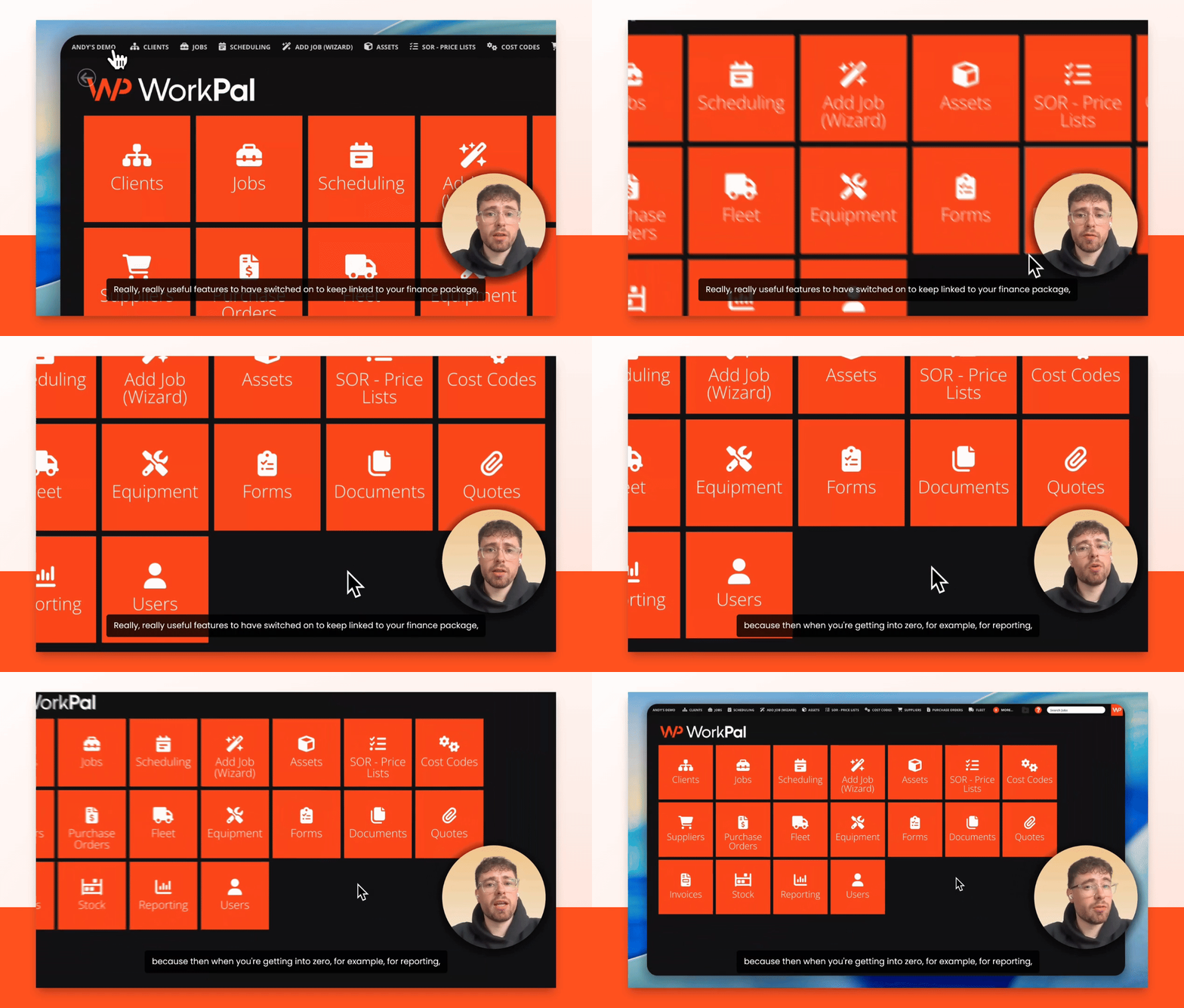
With nominal codes set up, your reports in Xero or other accounting packages will match your Workpal data.
Conclusion
You've learned how to enable and use nominal codes in Workpal, ensuring your financial data is organized and synced with your accounting software. For more details, check the guide in the help section. If you have any questions please feel free to reach out to us using the below channels!
Email - Support@workpal.app
Phone- 028 3027 1777
Web- www.workpal.app