

There are two ways that we can change this setting, The first option will change this Individually and the second option will change it in bulk.
In the WorkPal Portal go to Clients.

You can also use the CLIENTS tab in the top menu.

Select the Group from the list.
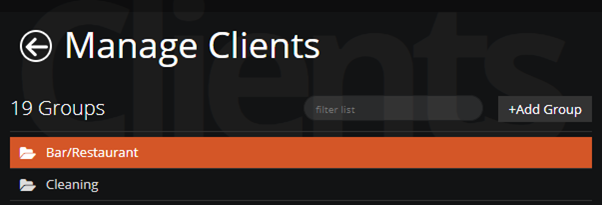
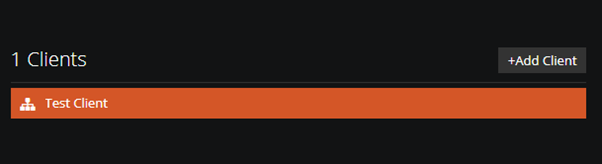
Select a Client.
At the bottom left corner of the screen tick ‘Create Invoice on Job complete’.

When a Job is completed, an Invoice will be generated automatically for that individual Job.
That is how we can choose to create invoice on job complete for 1 individual client. See below for details on how to change it in bulk.
You can export your clients by going to Data export, Selecting clients.
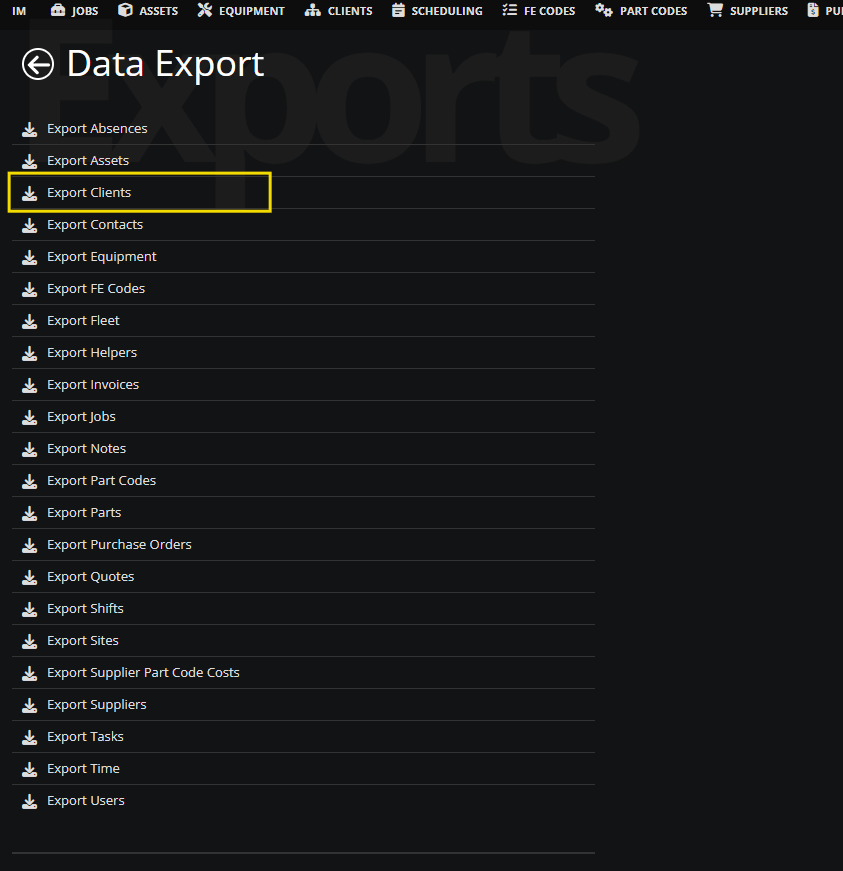
You should now look to the column labelled "create_invoice_on_job_complete and change this to yes. The same works when importing clients, go to Data import, and do the same as above.

For more options on Invoices, please see our guide on the Invoices Preferences
Need a Hand?
If you're experiencing any issues using the Invoice on Job Complete feature, such as automatically generating invoices, invoice creation settings, or managing invoices after a Job has been completed, our Support Team is here to help.
📞 028 9344 5660
📧 support@workpal.app
🌐 www.workpal.app