

If Client or Site address is changing or your Client has left, and you would like to keep the related historical data, you are best making the Client or Site ‘Inactive’.
To make a Client 'Inactive’, Select the Group and Client from the ‘Clients’ page.
Next, select the ‘Edit Client’ button:

Select the checkbox beside ‘Inactive’:
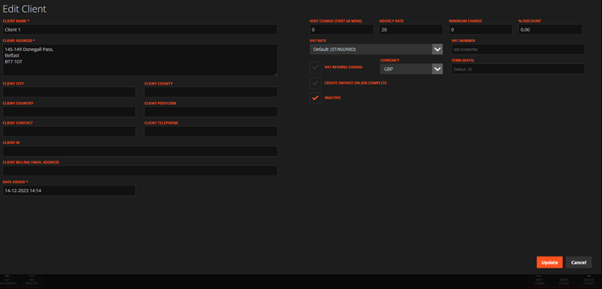
A warning message will appear if there are any active Sites under this Client and if those Sites have any currently open jobs as these Sites will also be made Inactive and their Jobs will be deleted.
The Client will show as greyed out while inactive:

It can be made active again by unselecting the ‘Inactive’ checkbox.
To make a Site 'Inactive’, Select the Group and Client and then Site from the ‘Sites’ page.
Next, select the ‘Edit Site’ button:

Select the checkbox beside ‘Inactive’:
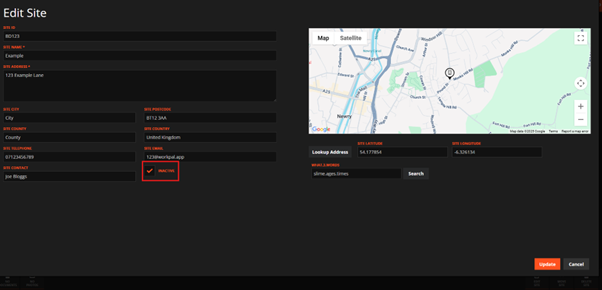
A warning message will appear if the Site has any currently open jobs as these will be deleted.
The Site will show as greyed out while inactive:

It can be made active again by unselecting the ‘Inactive’ checkbox.
Full Groups can also be set to ‘Inactive’ by editing the Group and selecting the ‘Inactive’ checkbox:

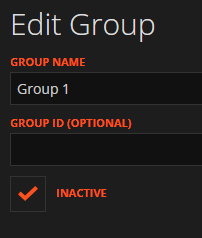
Making a Group Inactive will also make any Clients and Sites under that Group Inactive.