

Android
On Android devices, you’ll want to make sure both the phone itself and the WorkPal app are allowed to use your location. If someone sounds stressed or unsure, just reassure them you’ll guide them through each screen.
Turn on WorkPal location access
Open Settings.
Go to Apps
Select WorkPal.
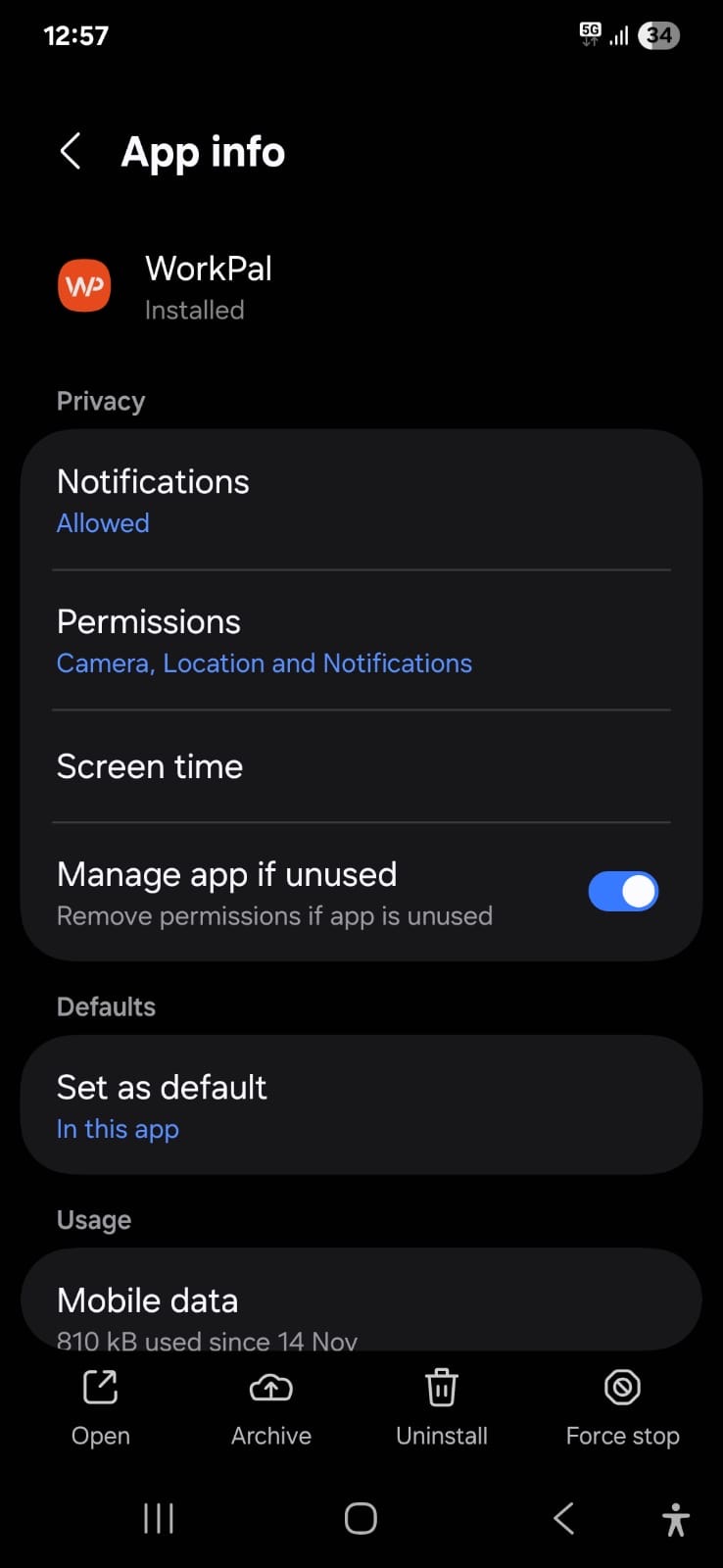
Tap Permissions.
Tap Location.
Choose "Allow all the time" if possible.
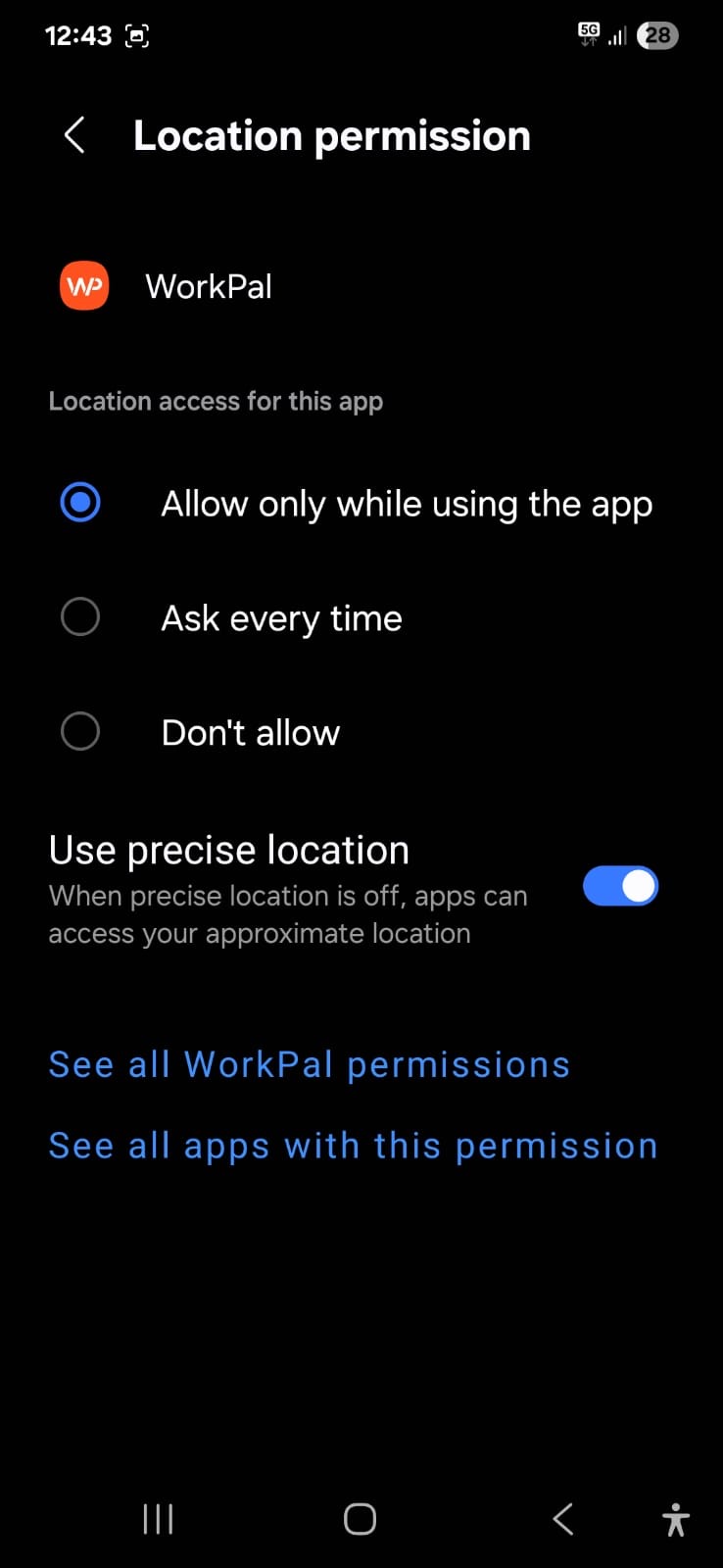
If you only see While using the app, this can happen on some phones and you’ll need to check the system settings next.
Turn on location for the device
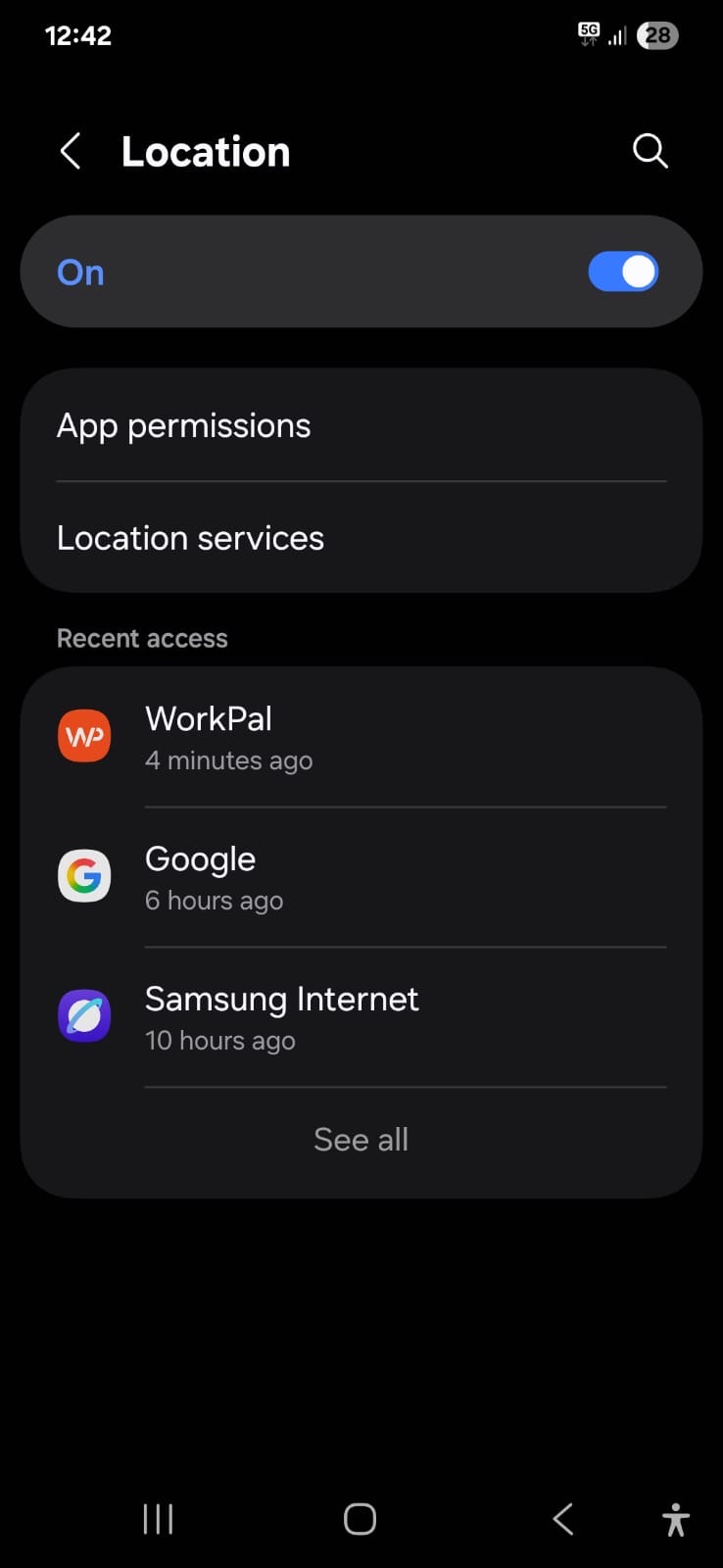
Open Settings.
Tap Location.
Make sure the main toggle is On.
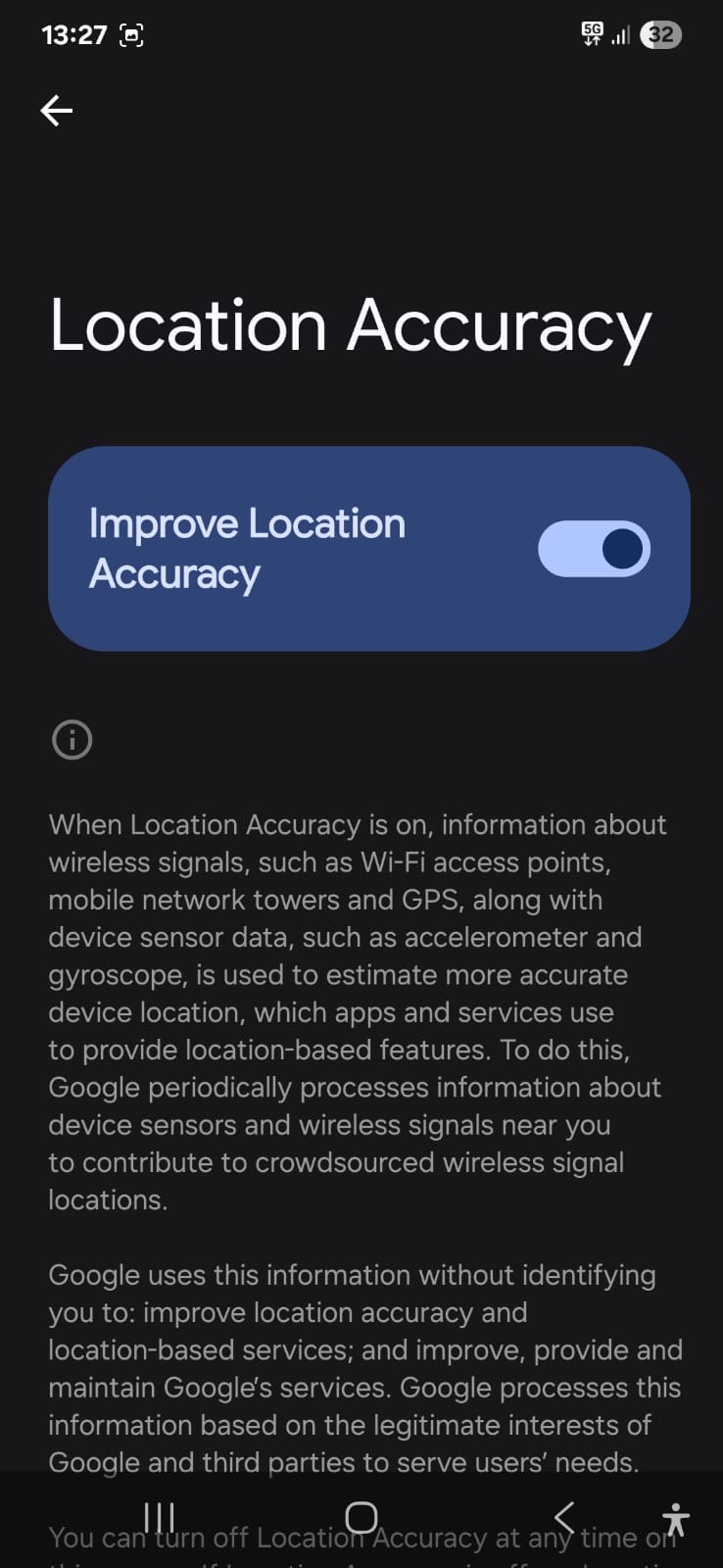
Go into Location services.
Turn on Google Location Accuracy.
iOS
iPhones keep all the settings in one place, so this part is usually quick and easy.
Turn on WorkPal location access
Open Settings.
Select Apps.
Scroll down and tap WorkPal.
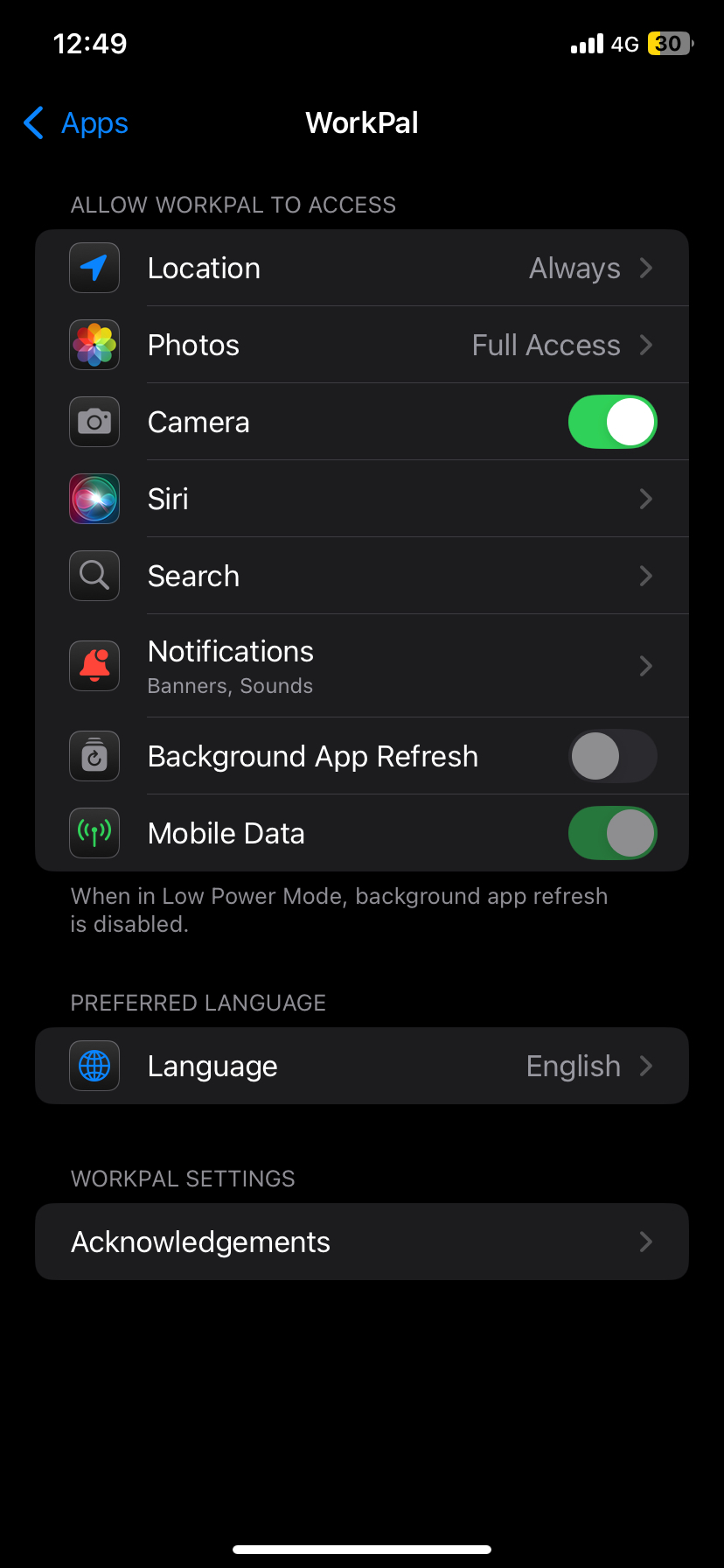
Tap Location.
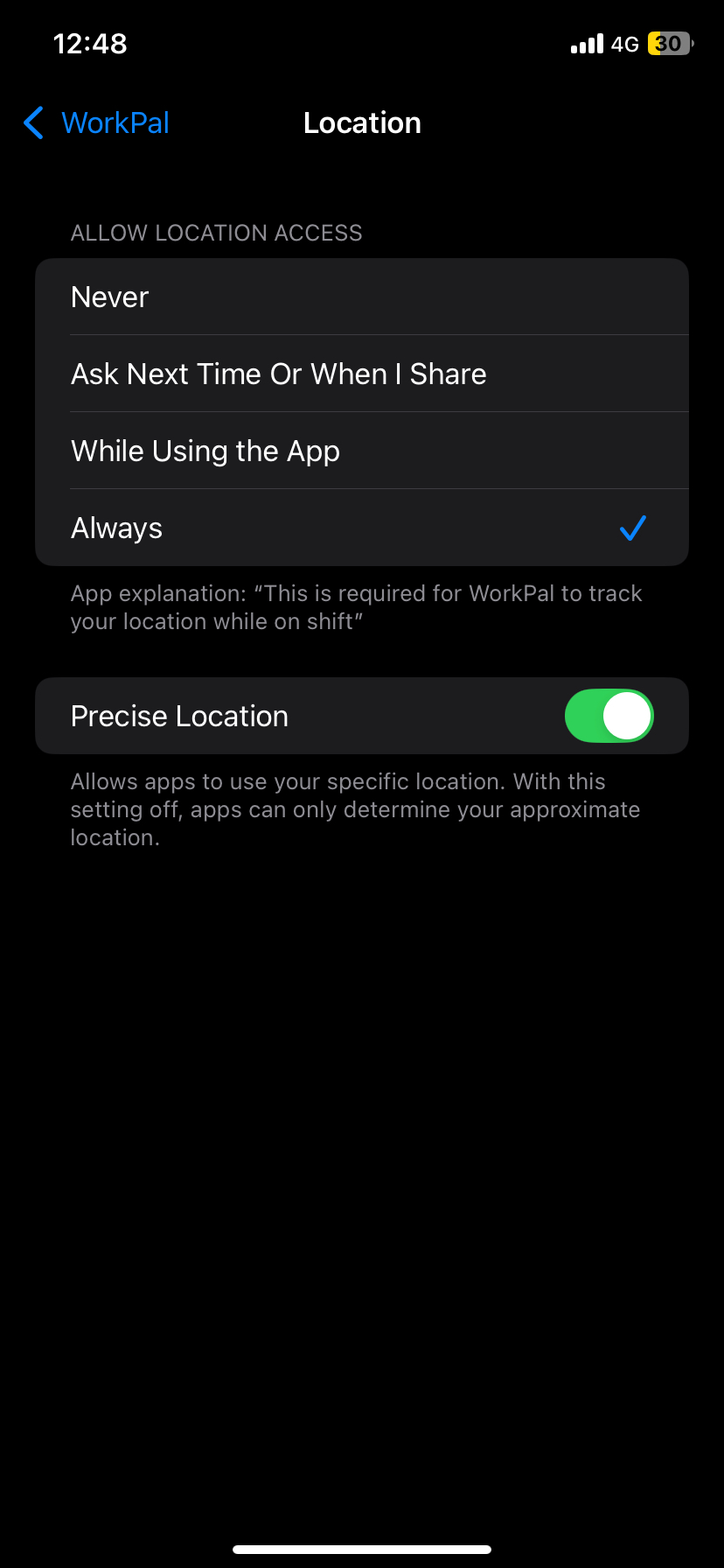
Make sure to select Always Allow.
Make sure Precise Location is on.
Check the device’s main location settings
Open Settings
Go to Privacy and Security
Tap Location Services
Make sure the main toggle is On
If the iPhone didn’t previously allow WorkPal to use location, it often helps to open the WorkPal app again after updating the settings so iOS recognises the change.
Confirming everything works
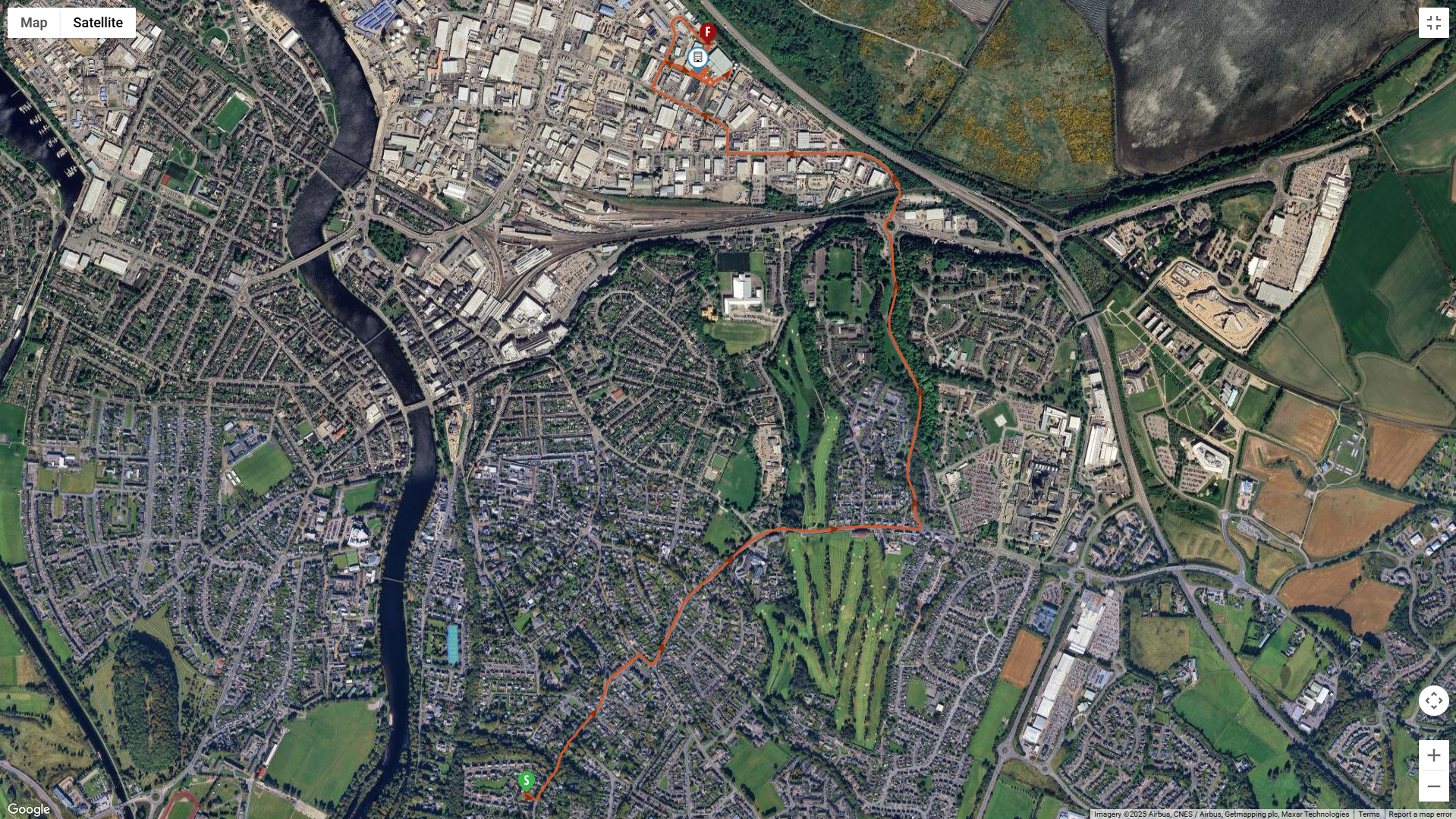
Once the settings are in place, open WorkPal and go into your tracking area. Select a job, Click on the map at the bottom right of the screen and you should see the tracking now. See screenshot below.
Need a Hand?
Location Services are essential for certain WorkPal features, including location tracking, attendance, mileage logging, and job updates. If you're experiencing issues after enabling location permissions, our Support Team will be happy to help.
📞 028 9344 5660
📧 support@workpal.com
🌐 www.workpal.com
Before contacting Support, please check:
✅ Location Services are enabled on your device
✅ WorkPal has permission to access your location
✅ Battery Saver or Low Power Mode is disabled, as this can restrict location services and background syncing
✅ You have a stable internet connection (Wi-Fi or mobile data)
Providing screenshots of your location permission settings can help us investigate and resolve your query more quickly.