

Where do I configure my Dashboards?
All dashboard configuration happens in Preferences.
This is where you:
See the default setup
Organise pages
Control which widgets are visible
Adjust wording for clarity
How to access dashboard configuration
Click the orange WP logo at the top right of your Desktop screen
Open Preferences
Select Dashboards
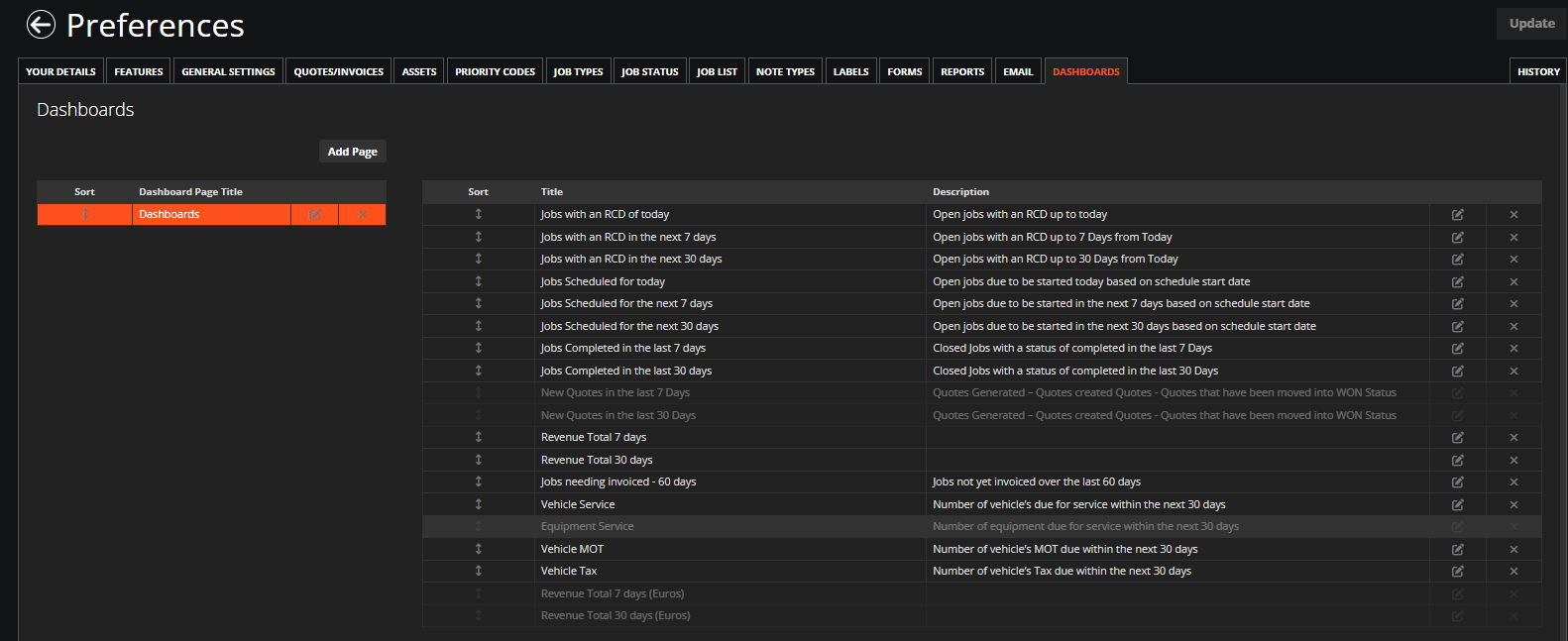
Default Configuration
Every system starts with:
One page
Named Dashboards
Containing all available widgets
This is the default dashboard configuration. All widgets are assigned to one page initially.
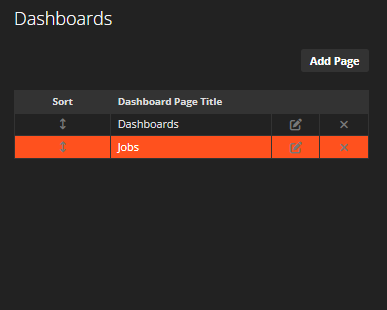
Dashboard Pages
A dashboard page is simply a container for widgets.
Pages:
Group widgets together
Do not affect data
Do not filter records
You can:
Rename pages
Add pages
Reorder pages
Deactivate pages
Deactivating a page does not delete widgets or data.
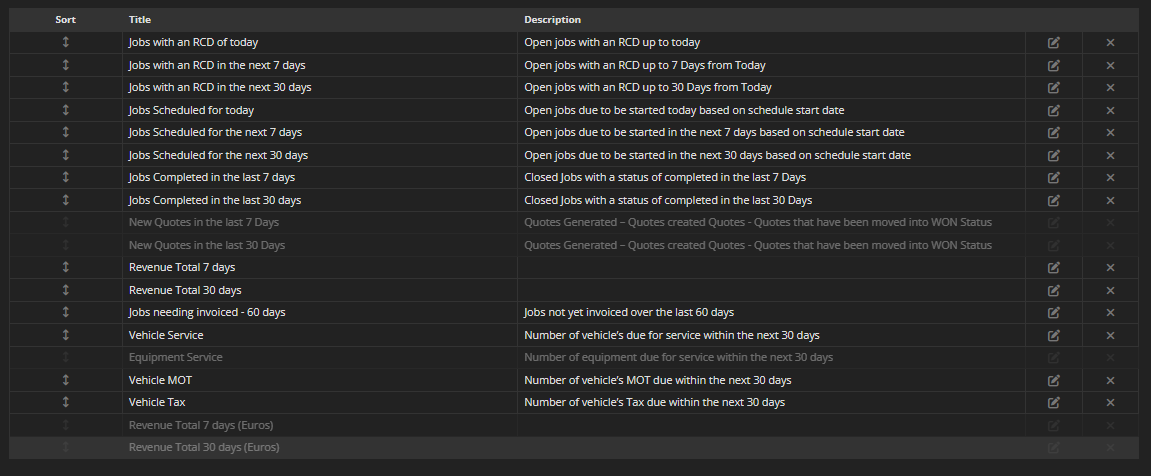
Widgets List
The right-hand panel shows all widgets assigned to the selected page.
For each widget you can see:
Title
Description
Edit option
Reorder arrows
Deactivate option
TV Dashboard Display
Keep your team aligned on your most critical daily metrics by utilising the free TV display license, which anchors your dashboard permanently to display the first tab only for constant, at-a-glance visibility. This enables Admins to be selective over the data displayed to the wider team.
Dashboard login details can be found within the users section.