

Understanding Assets in WorkPal
In field job management, staying organised keeps your business running smoothly. Assets are a core part of that organisation.
In WorkPal, an asset is any physical piece of equipment or item that your business installs, services, or maintains at a customer’s site.
Instead of just logging work against a general address, tracking work against specific assets gives you a crystal-clear look at service histories, upcoming maintenance, and how equipment performs over time.
What is an Asset?
An asset is a specific piece of equipment located at a customer's site that has its own unique profile in your system.
For example, instead of just recording that you visited a building, you can log that your engineer worked on:
A specific boiler
A water pump
A fire door
This level of detail helps your business keep accurate records and makes it easy to prove past service work to your clients.
Every asset is linked directly to a site location. This structure keeps your customer data clean and helps your engineers quickly find the right piece of kit when they arrive at a job.
Why Asset Management Is Important
Using assets within WorkPal improves operational efficiency and data accuracy.
Managing your equipment through WorkPal helps your office team and field engineers save time and avoid mistakes.
1. Clear Service Histories
Every job, safety check, or digital form filled out for an asset builds a lifetime history. This is vital for compliance, safety audits, and planning future maintenance visits.
2. Faster Work for Engineers
Engineers can look up equipment details instantly on their mobile app. They no longer have to dig through old paperwork or call the office to find out what was done previously.
3. Proof of Work
You can easily show your customers exactly what was fixed, when it was done, and which engineer did the work.
Adding Assets to the System
Important Rules for creating Assets
To keep your data accurate and stop duplicate items from being created, please follow these rules when adding an asset:
The Asset Number: The Asset Number field must only contain a number between 1 and 9000 for example. This is how the system finds and organises your assets. So keeping it numerical and without duplicates will ensure your data remains clean and organised.
Stopping Duplicates: Keeping this field strictly numerical allows the system to check your records and block duplicate entries automatically.
Other ID Numbers: If you need to record other details like manufacturer codes, Serial numbers etc you must enter them into a secondary field instead of the main asset number box.
Desktop Method
Administrators can add assets directly from the client’s site record. The process usually involves:
Navigating to the client site
Select the option to add a new asset
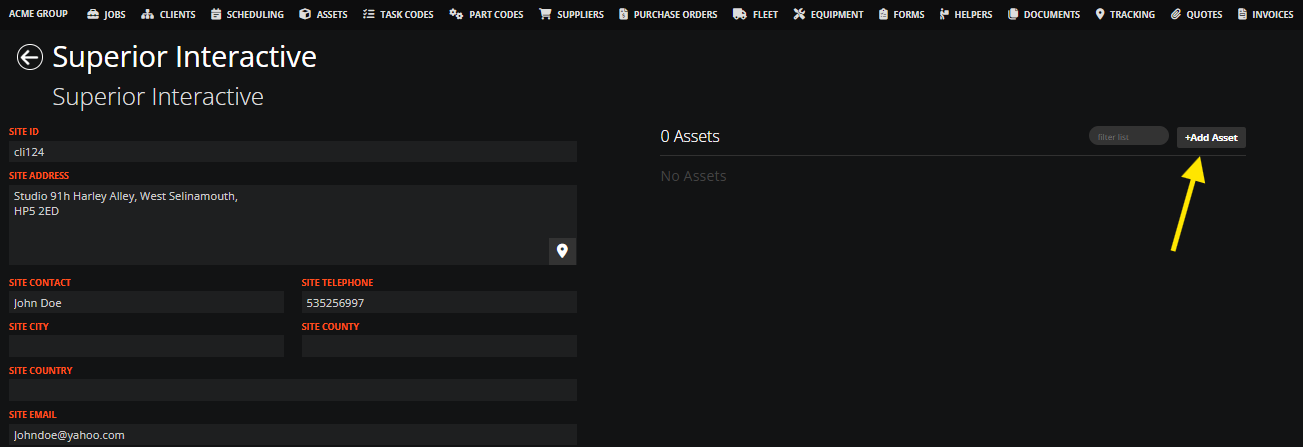
Enter the mandatory details such as serial number, manufacturer etc.
Click the "add button"
Mobile Method
Engineers can also add new equipment while working on-site. Engineers will see an option to create a new asset directly inside their assets tab on an active job screen.
This is perfect for times when an engineer installs a brand-new part or uncovers a piece of equipment that wasn't on the system yet.
Editing Asset Information
Information can change over time, such as serial numbers being updated, parts being replaced or additional details being added.
Users can update asset details by:
Opening the asset record
Selecting the edit option
Updating relevant fields
Saving changes
Keeping asset records up to date ensures reporting and service history remain reliable.
Asset Scanning With QR and Barcodes
WorkPal also supports barcode and QR code scanning to make asset management quicker in the field.
Engineers can scan labels attached to equipment using the mobile app. The system will then:
Open the asset record if it already exists.
Pre-fill some asset details if the barcode is new.
Scanning behaviour can be customised within the system preferences. Businesses can choose whether scanning should:
Display asset information.
Open service forms.
Mark assets as serviced.
This feature cuts down on manual typing and helps your team finish jobs much faster.