

Got an Error message While Exporting to Xero?
No need to worry! If this message pops up while sending an invoice to Xero, you can easily fix it by following the steps below.
Why Does This Happen?
The 200 Account Code is a default code Xero needs to make sure invoices export correctly. If it’s missing or set up incorrectly in your Chart of Accounts, you’ll see this error. But don’t worry — it’s a quick fix!
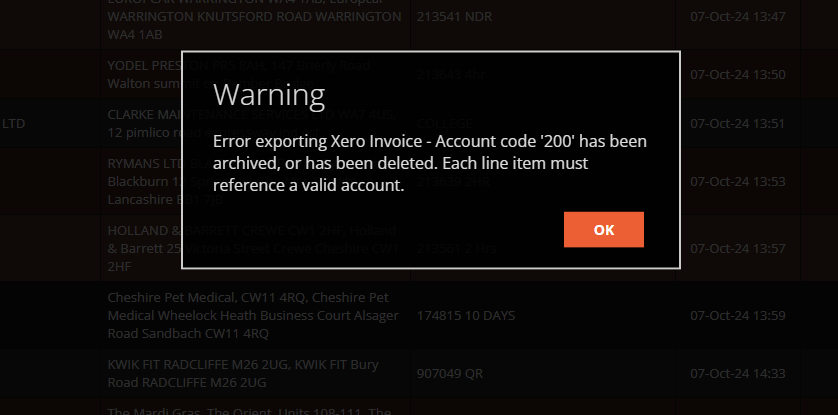
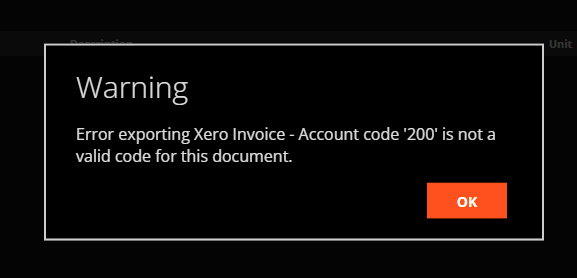
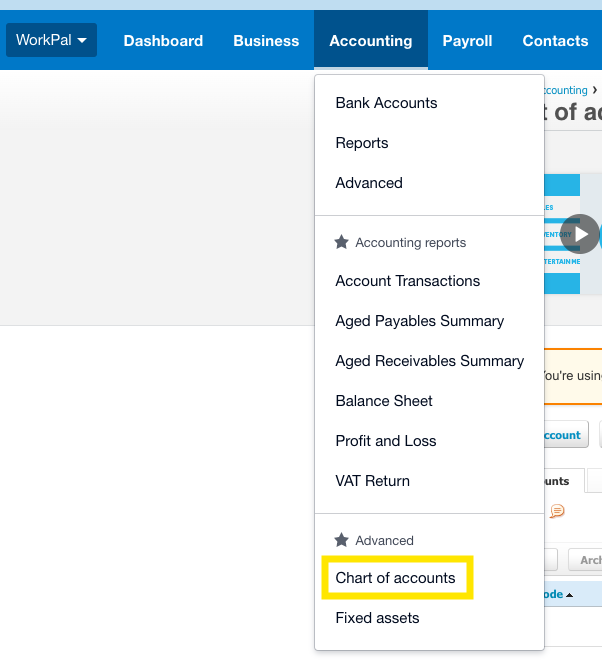
How to Fix It- On Xero, do the following: Go to Accounting > Chart of accounts
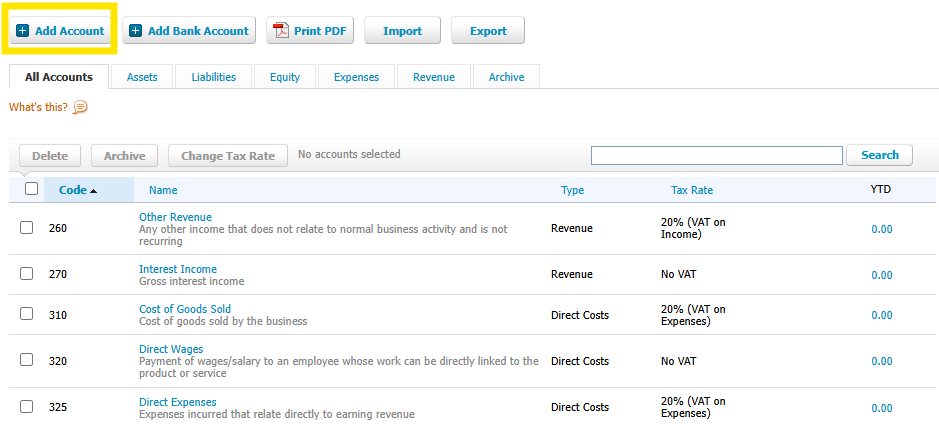
Then select Add Account and create a Sales account with a code of 200.
Fill in the details on the page that pops up.
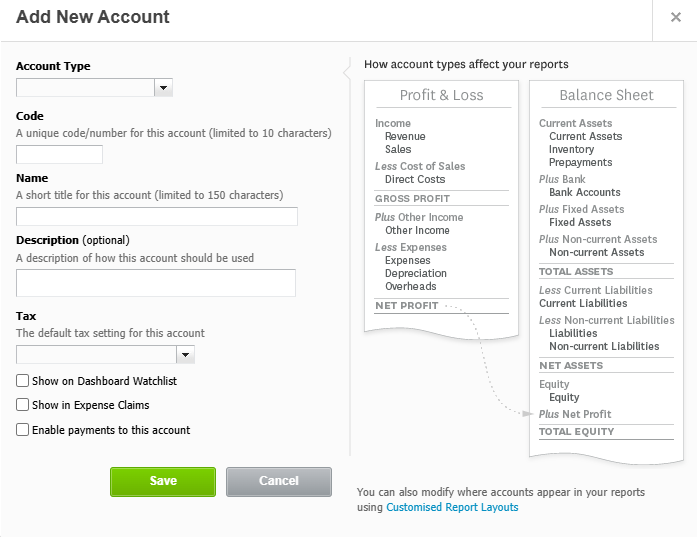
Once this has been done, Click save. You will now see the "new" nominal code in the list shown in the screenshot below.

Now that this has been done, You will need to go to Preferences→Quotes/Invoices and click the "Get VAT rates and nominal codes" button. Once the above has been done the issue will be resolved and you can try importing the invoice again!
If you have any trouble doing this or need some assistance please reach out to our support team either by phone at :02890271777 or Email at support@workpal.app