

Jobs widgets update approximately every 15 minutes. They are operational widgets, meaning the action button links you into filtered records where applicable. If you update job information related to the widget, the widget will be updated.
Before you read the job widgets: two date types to understand
Jobs widgets use two different “date types”:
SLA/RCD (Service Level Agreement/Required Completion Date):
The job’s due date.
Used to measure:
What is due
What is overdue
Drives SLA-style widgets
Schedule Start Date:
The date the job is planned to start.
Used to measure:
What is planned today
What work is scheduled in future
Drives scheduling widgets
Most confusion comes from mixing these up.
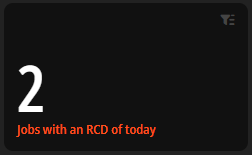
Jobs Due Today (Jobs with an SLA/RCD of today)
What this widget is for
This widget shows what you have set to be completed today.
It is the single most important operational widget.
If this number is not zero, there is work that is due today based on your agreed SLA/RCD logic.
What it shows: Open jobs due to be completed today, based on the SLA/RCD
Update frequency: approximately every 15 mins
Date range: Day (today only)

Common misunderstandings
“This job isn’t scheduled today”
→ That doesn’t matter. It is still set as due today.“We did the work already”
→ If the job is not marked as Completed, it will still appear.“Our customer said tomorrow is fine”
→ If the SLA/RCD was not updated, the dashboard is correct.
Jobs Due Next 7 Days (Jobs with an RCD in the next 7 days)
What this widget is for
This widget shows work that is coming due soon.
It is a short-term planning and risk indicator.
Widget details
Widget name: Jobs with an RCD in the Next 7 Days
Format: Number
Update frequency: Approximately every 15 minutes
Date range: Today + next 6 days
What this widget measures
It counts:
Jobs that are Open
With an RCD between today and 6 days from now
This does not mean:
Jobs that will be done in the next 7 days
Jobs that are scheduled
It strictly means due dates.
How to use this widget properly
High number → lots of work due soon
Low number → due dates are under control
Compare this with Scheduled Jobs Next 7 Days
If due is high but scheduled is low, work may not be planned yet.
Jobs Due Next 30 Days (Jobs with an RCD in the next 30 days)
What this widget is for
This widget provides forward visibility of upcoming due work.
It is not for daily action. It is for capacity awareness.
Widget details
Widget name: Jobs with an RCD in the Next 30 Days
Format: Number
Update frequency: Approximately every 15 minutes
Date range: Today + next 29 days
What this widget measures
It counts:
Open jobs
With an RCD within the next 30 days
This widget helps answer:
“How much is coming?”
“Are we stacking too much work into future weeks?”
Jobs Scheduled for Today
What this widget is for
This widget shows what is planned to start today, regardless of due date.
This is a scheduling view, not an SLA view.
Widget details
Widget name: Jobs Scheduled for Today
Format: Number
Update frequency: Approximately every 15 minutes
Date range: Today only
What this widget measures
It counts:
Open jobs
With a scheduled start date of today
It does not care:
Whether the job is due today
Whether it is overdue
Common misunderstandings
“This job isn’t due today”
→ Correct. This widget is about scheduling, not due dates.“Why isn’t this job here?”
→ If it has no scheduled start date, it will not appear.
What happens when you click it
Clicking opens the Scheduling view, filtered to today.
Jobs Scheduled for the Next 7 Days
What this widget is for
This widget shows planned workload for the coming week.
Widget details
Widget name: Jobs Scheduled for the Next 7 Days
Format: Number
Update frequency: Approximately every 15 minutes
Date range: Today + next 6 days
What this widget measures
It counts:
Open jobs
With a scheduled start date in the next 7 days
This is used to answer:
“How busy is next week?”
“Do we have enough work planned?”
Jobs Scheduled for the Next 30 Days
What this widget is for
This widget shows longer-term scheduling load.
It is high-level and informational.
Widget details
Widget name: Jobs Scheduled for the Next 30 Days
Format: Number
Update frequency: Approximately every 15 minutes
Date range: Next 30 days
Important note
This widget may not always provide a click-through view.
It is intended as a volume indicator, not a management screen.
Jobs Completed in the Last 7 Days
What this widget is for
This widget shows recent throughput.
It answers:
“How much work have we actually finished recently?”
Widget details
Widget name: Jobs Completed in the Last 7 Days
Format: Number
Update frequency: Approximately every 15 minutes
Date range: Last 7 days
What this widget measures
It counts:
Jobs whose status is Completed
Where completion happened within the last 7 days
If work is done but the job is not marked as Completed, it will not appear.
Jobs Completed in the Last 30 Days
What this widget is for
This widget provides a broader performance view.
It smooths out daily fluctuations.
Widget details
Widget name: Jobs Completed in the Last 30 Days
Format: Number
Update frequency: Approximately every 15 minutes
Date range: Last 30 days
How to interpret this widget
Use alongside revenue widgets
Use to assess overall productivity
Do not compare directly to scheduled or due widgets
They measure different things.
Final Sense Check
Jobs dashboards do exactly what they say.
If a job:
Appears unexpectedly → check its dates and status
Is missing → check whether the relevant date field exists
Feels wrong → click through and inspect one record
Dashboards do not guess.
They do not assume.
They reflect the data exactly as it exists.