

It's worth noting that we cannot reset passwords for you. If a password is required to be reset, please seek the assistance of another desktop user within your business to do this for you. If not, contact the support team for further advice.
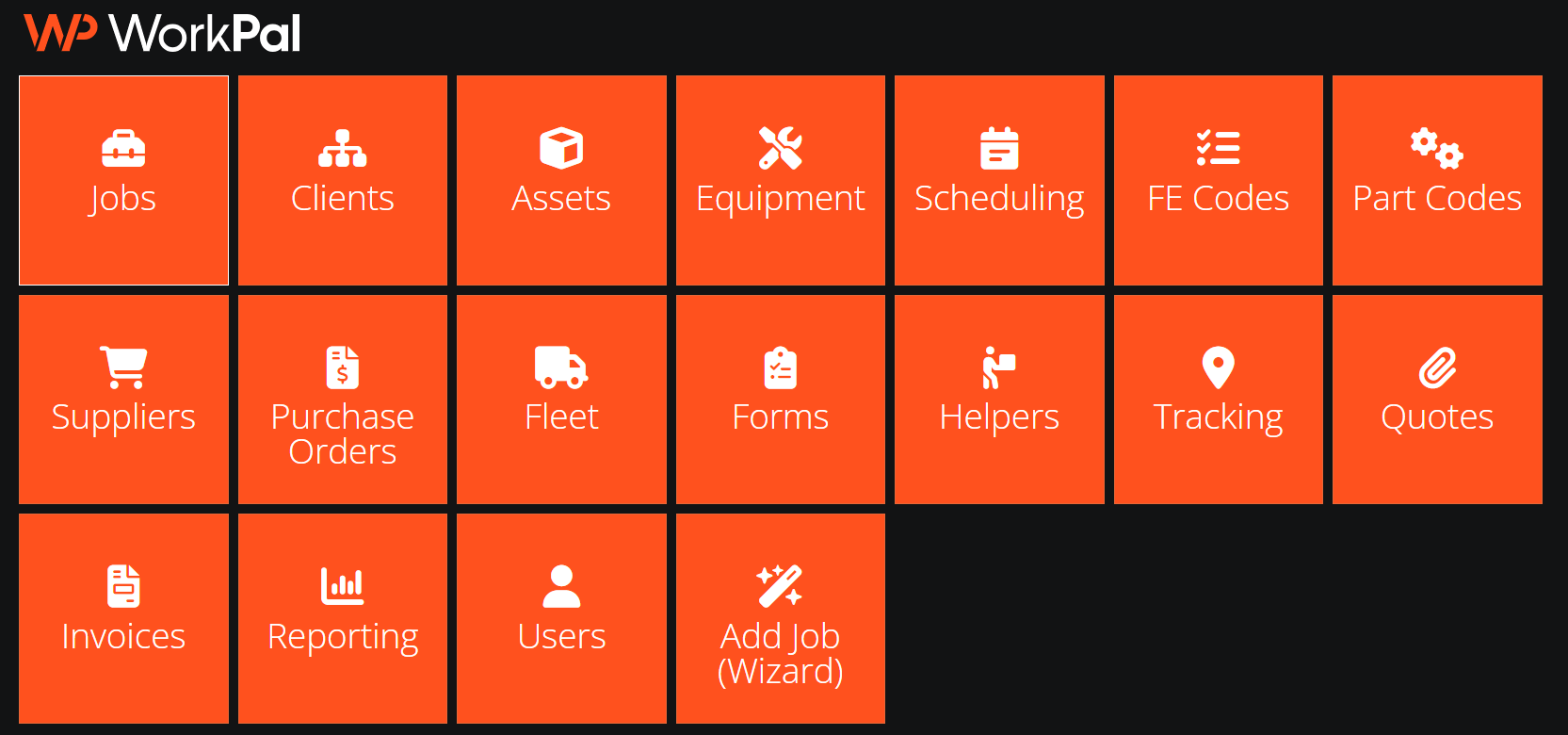
On the desktop version of WorkPal go to ‘Users’ to manage your users.
You can also use the ‘Users’ tab in the top menu.
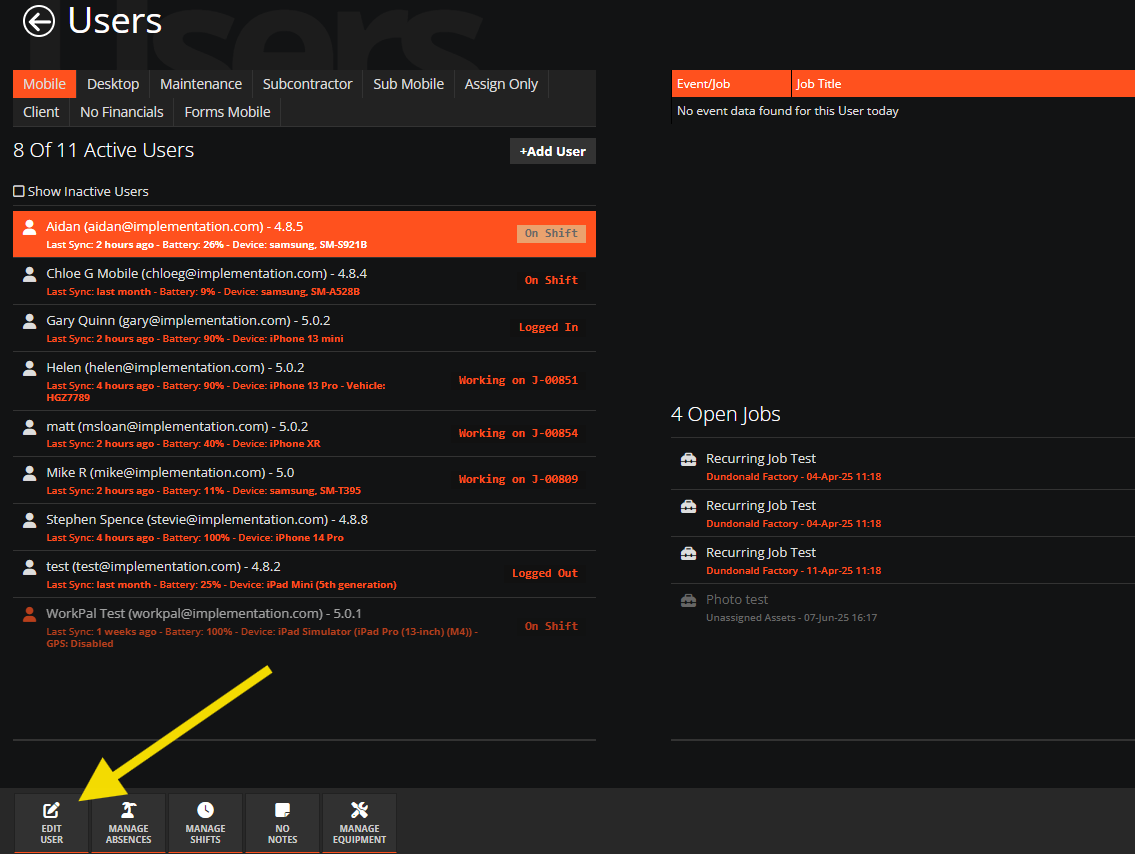
To edit a user, select which type of User you would like to edit, mobile, desktop etc.
Select your type using the tabs shown below and select a User.

Then click the ‘Edit User’ button along the bottom left of your screen.
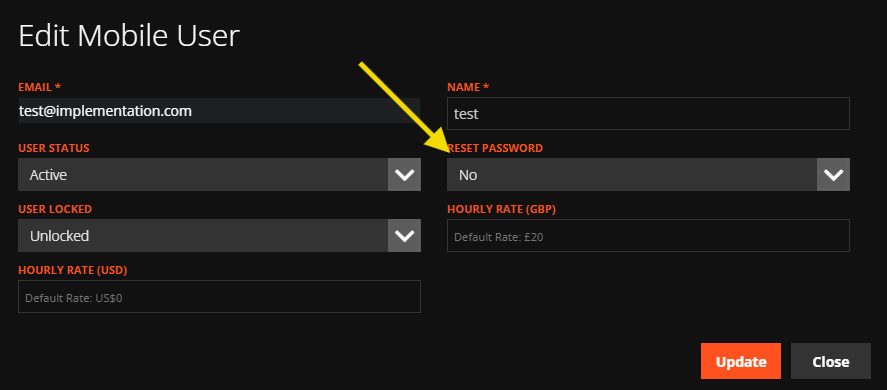
In the editing page you can reset the User’s password.
Click the dropdown box under ‘Reset Password’ and select ‘Yes’.
Then click the ‘Update’ button.
Save your new password in a safe location.
Take note of then new password generated.
We recommend you use this format:
Mobile – Joe Bloggs – joe.bloggs@demo.com - uqJx5NMG83e4VNF
Then click ‘OK’ to save.
Need a Hand?
If you're experiencing any issues resetting your password, accessing your account, or receiving password reset emails, our Support Team is here to help.
📞 028 9344 5660
📧 support@workpal.app
🌐 www.workpal.app