

Below are the individual steps for creating a quote on the desktop.
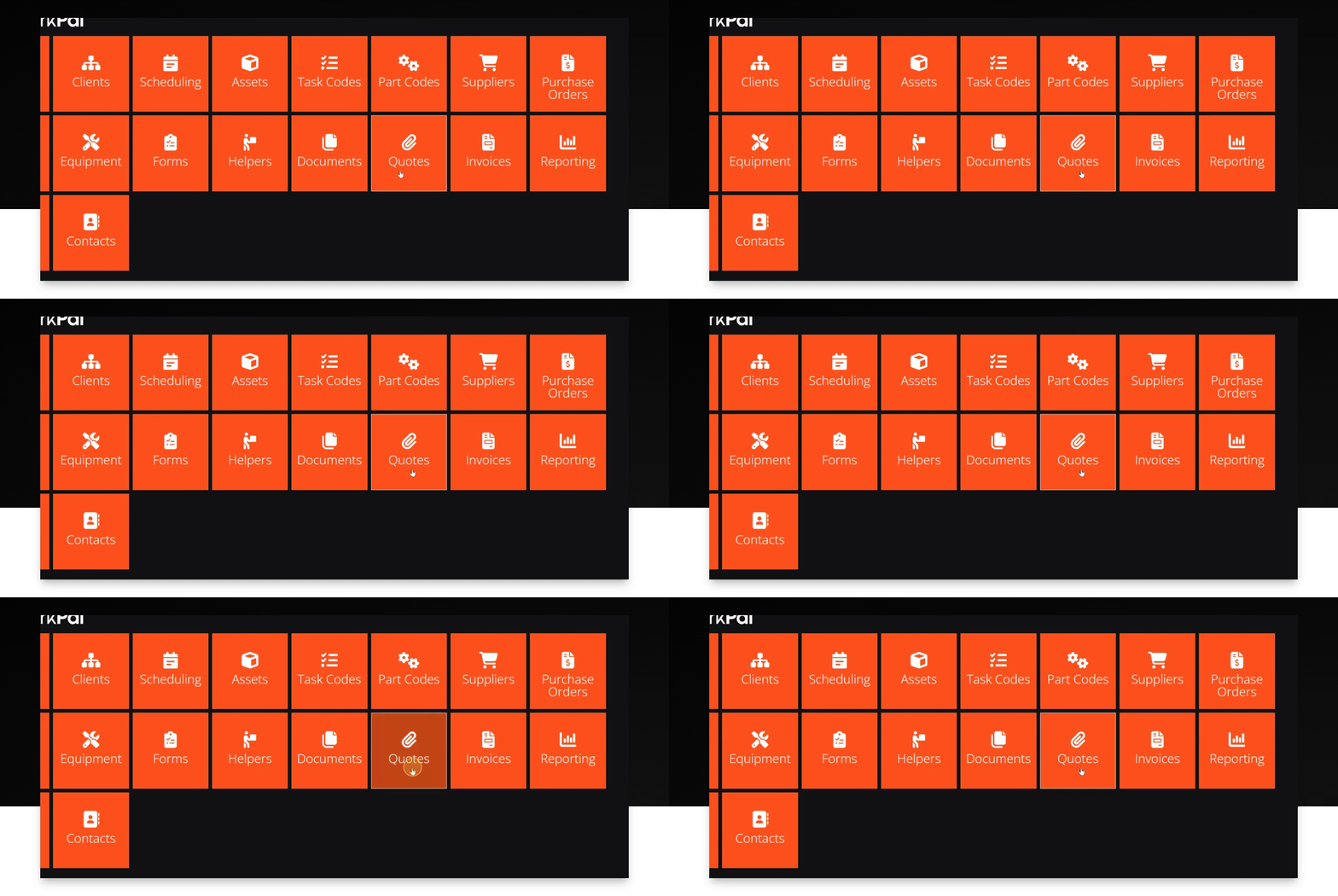
Step 1: Select the Quotes tile
This will bring you to the quotes page
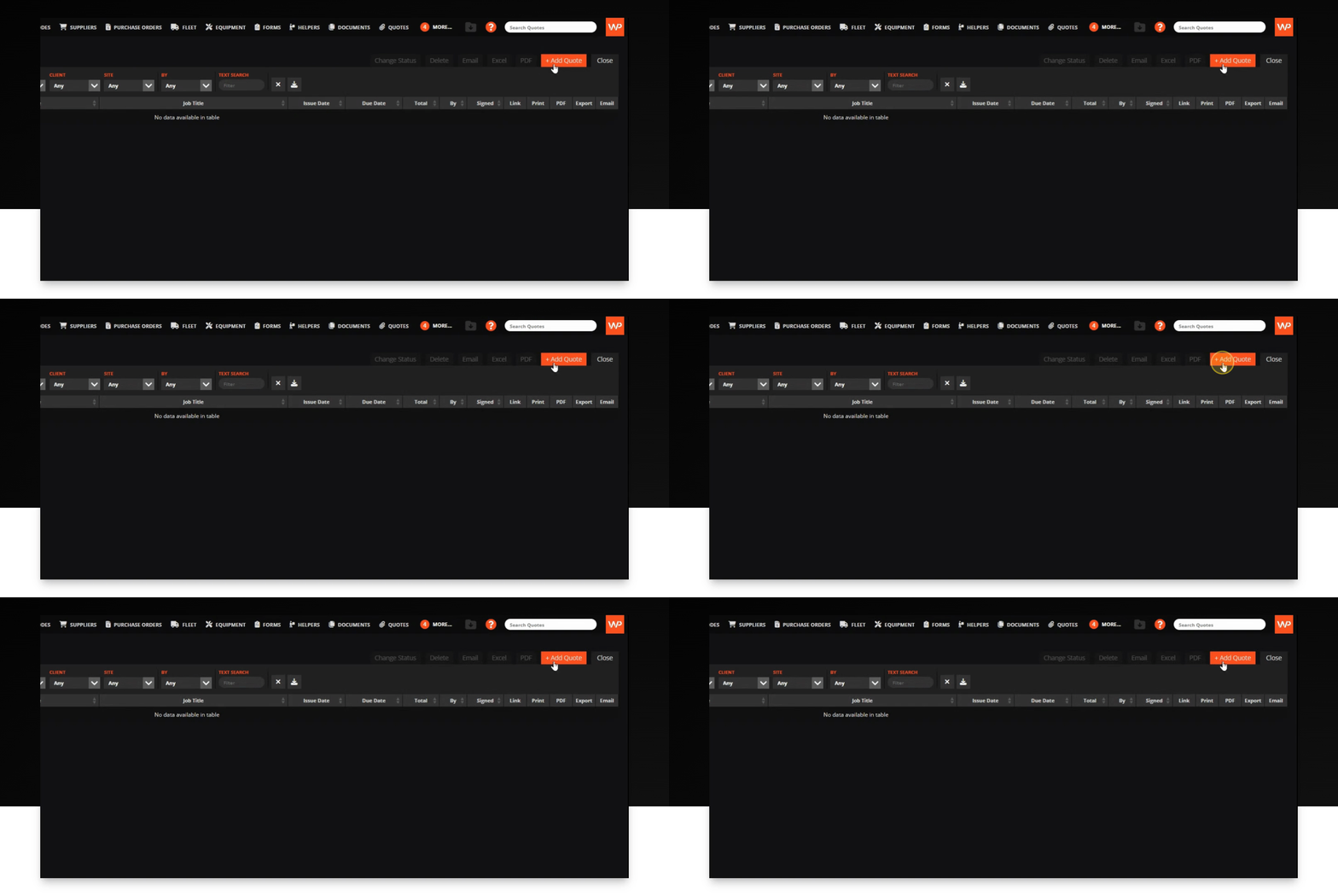
Step 2: Click the "add quote" button.
Select the "add quote" button in the top right corner of the page
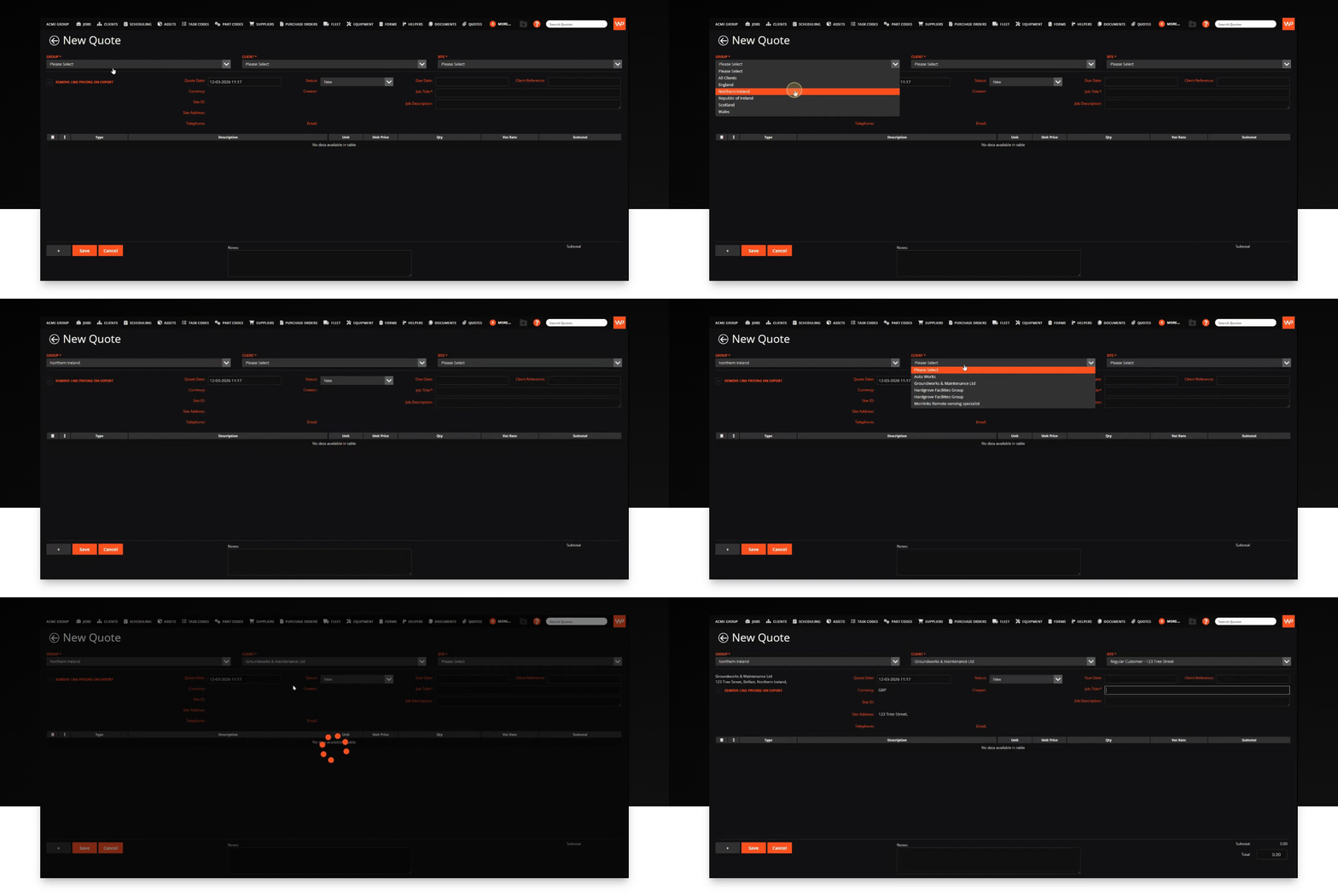
Step 3: Select the group, client and site for the quote.
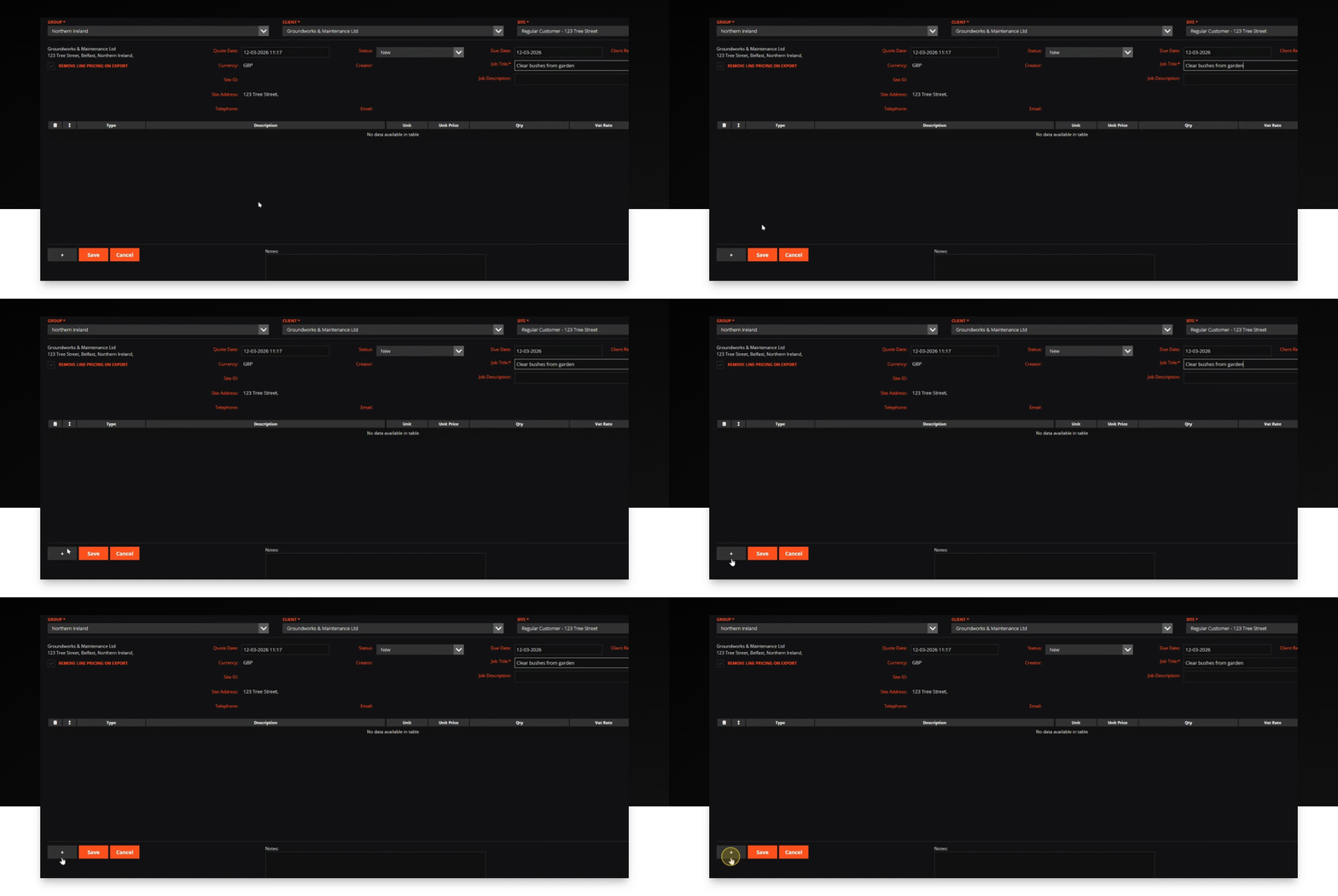
Step 4: Click the + button to add line items to the quote.
Choose which tasks or parts that will be on the quote.
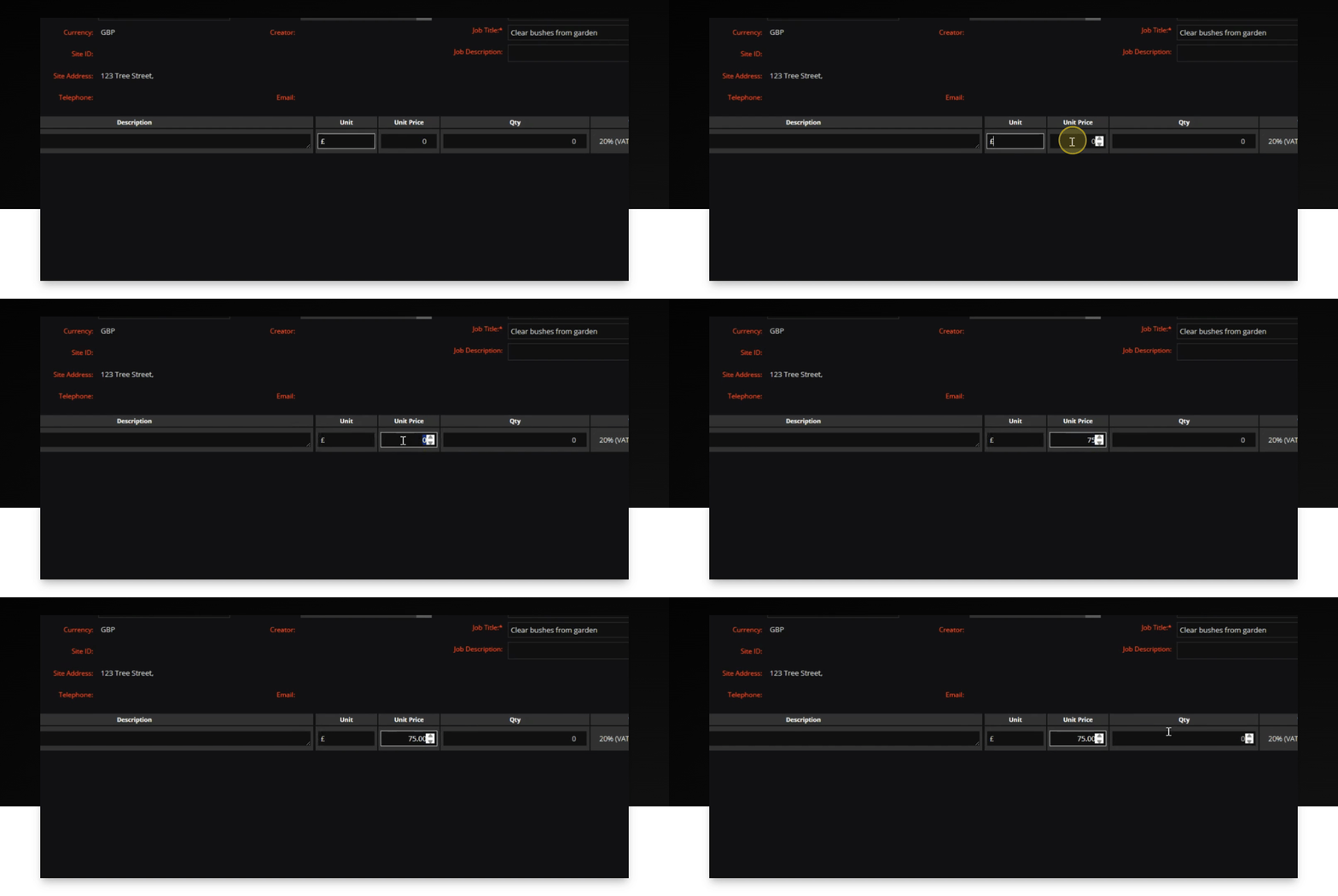
Step 5: Ensure that your prices are correct for each line item.
Update the unit price with your prices if they are incorrect or are different than the set amount.
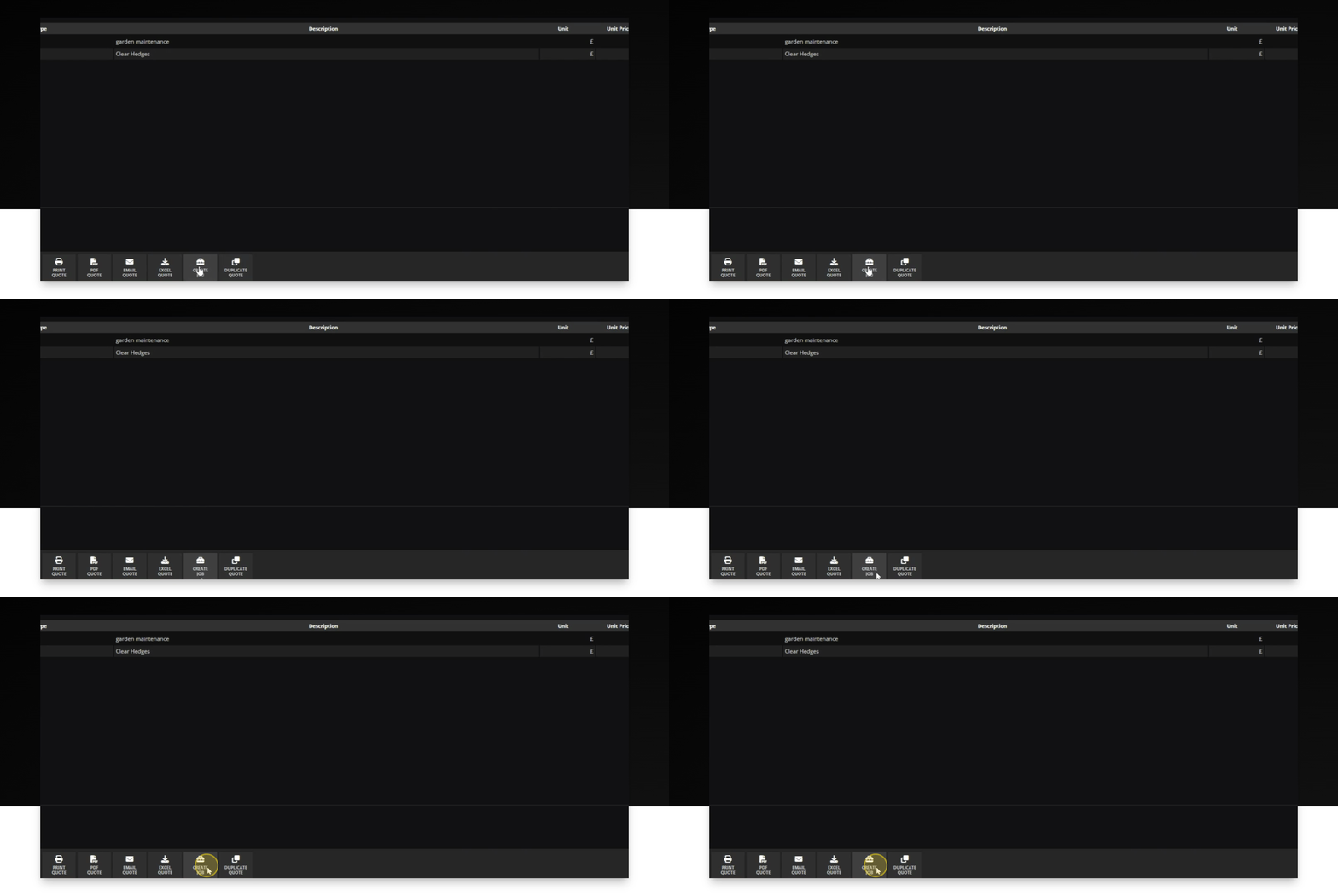
Step 6: Click the "create job" button.
This will use the information that was entered on the quote to create the job.
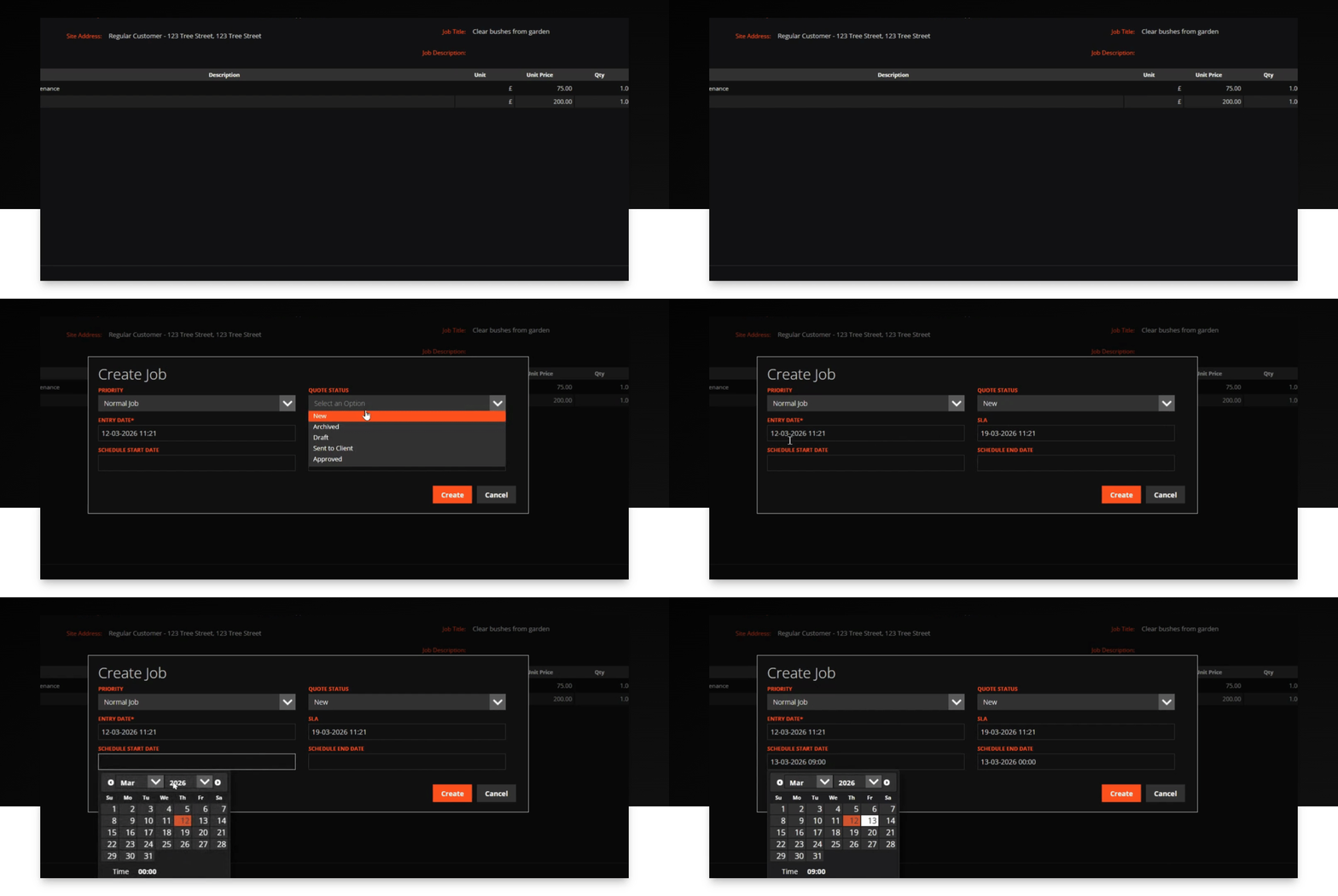
Step 7: Fill out the job details.
Select your quote status, Service Level Agreement (SLA) for the job, the priority and the scheduled start and end dates.
Step 8: Assign users to the job, add parts, notes or forms required for the job.
Ensure that all the details are correct and then assign your users for a smoother workflow.
If you have any questions please feel free to reach out to us using the below channels!
Support@workpal.app 02890271777 www.workpal.app,