

Using Validation in WorkPal’s Form Builder to Capture Better Data
WorkPal’s Form Builder gives you the flexibility to design clear, structured, and purpose-built forms tailored to your operational needs — whether for job sheets, inspections, audits, or more specialised workflows.
An often underused but highly valuable feature within the Form Builder is the ability to make fields mandatory, ensuring that key information is always captured and your data remains complete, consistent, and reliable across the business.
What Does “Validate” Mean in WorkPal?
In WorkPal, the term “Validate” simply means "make this field required".
By ticking the Validate checkbox on a field, you’re instructing the system to prevent form submission unless that field has been completed. It's a quick and effective way to enforce data entry standards without needing any custom logic or configuration.
This feature applies to most field types including textboxes, dropdowns, toggles, dates, photos, signatures, and more — helping ensure your team doesn’t skip over essential inputs during form completion.
Prompting Users with Custom Messages
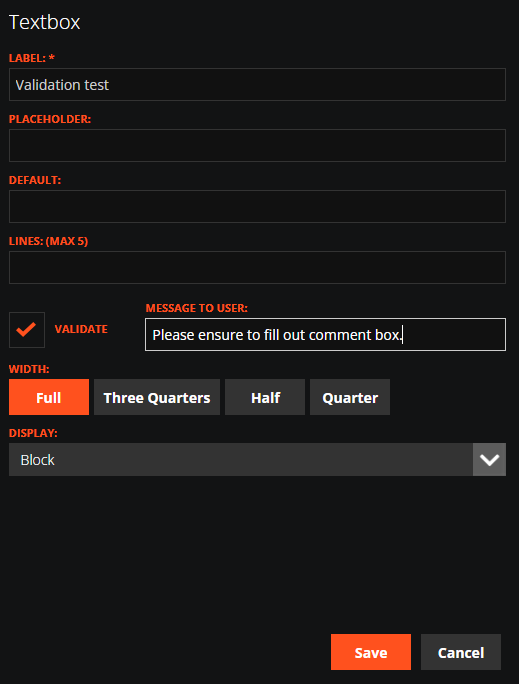
In addition to making fields mandatory, the Form Builder also includes a “Message to User” option. This lets you display a customised message when a required field is left blank.
For example, if a user attempts to submit a form without capturing a signature, you could display a reminder such as:
“Please ensure a signature is captured before submitting this form.”
This feature adds a helpful prompt to reduce user error and improve compliance, especially on mobile devices where mistakes can happen easily in the field.
(See screenshot below for where to configure this in your form.)
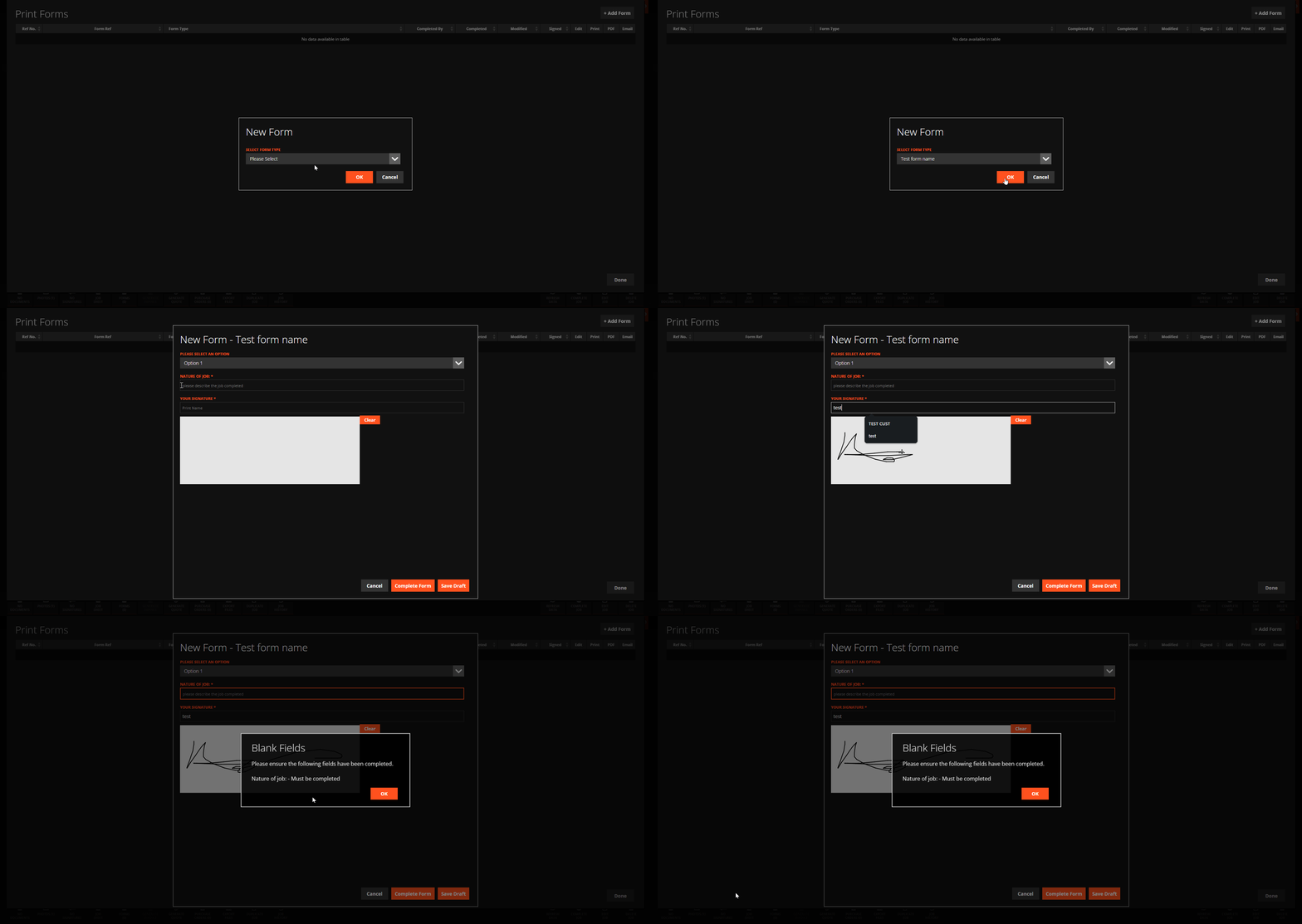
When a user is completing a form that contains mandatory (validated) fields, any field left blank will trigger a visual prompt — preventing the form from being submitted until the required information is entered.
You can see exactly how this appears in the demonstration video below.
In Summary
The Validate option in WorkPal’s Form Builder is a simple yet powerful tool for improving data integrity and operational efficiency. When used correctly, it:
Ensures all critical information is captured before submission
Reduces the risk of incomplete forms or follow-up admin
Helps maintain compliance and standardise data across teams
Supports better reporting and decision-making with cleaner inputs
For further guidance or support with setting up validation rules or optimising your forms, please contact the WorkPal support team either by email at support@workpal.app or by telephone on 02890271777