

How to Set Up a Form for Auto-Emailing in WorkPal
Setting up automatic email delivery for your completed forms is done entirely within the WorkPal Preferences menu. This process ensures your clients or staff instantly receive the form when it has been completed without any extra manual steps.
Accessing the Form Settings
To begin, you need to navigate to the specific settings for your forms:
Click the WP logo at the top right-hand side of the screen.
From the menu, click into Preferences, and then select Forms.
Configuring the Recipients
Once you're in the Forms list, find the form you want to set up for automatic emails.
Locate your desired form and click the Edit icon (the pencil icon, as shown in the screen recording).
From this screen, you will simply input the email address(es) you want the completed form to be sent to.
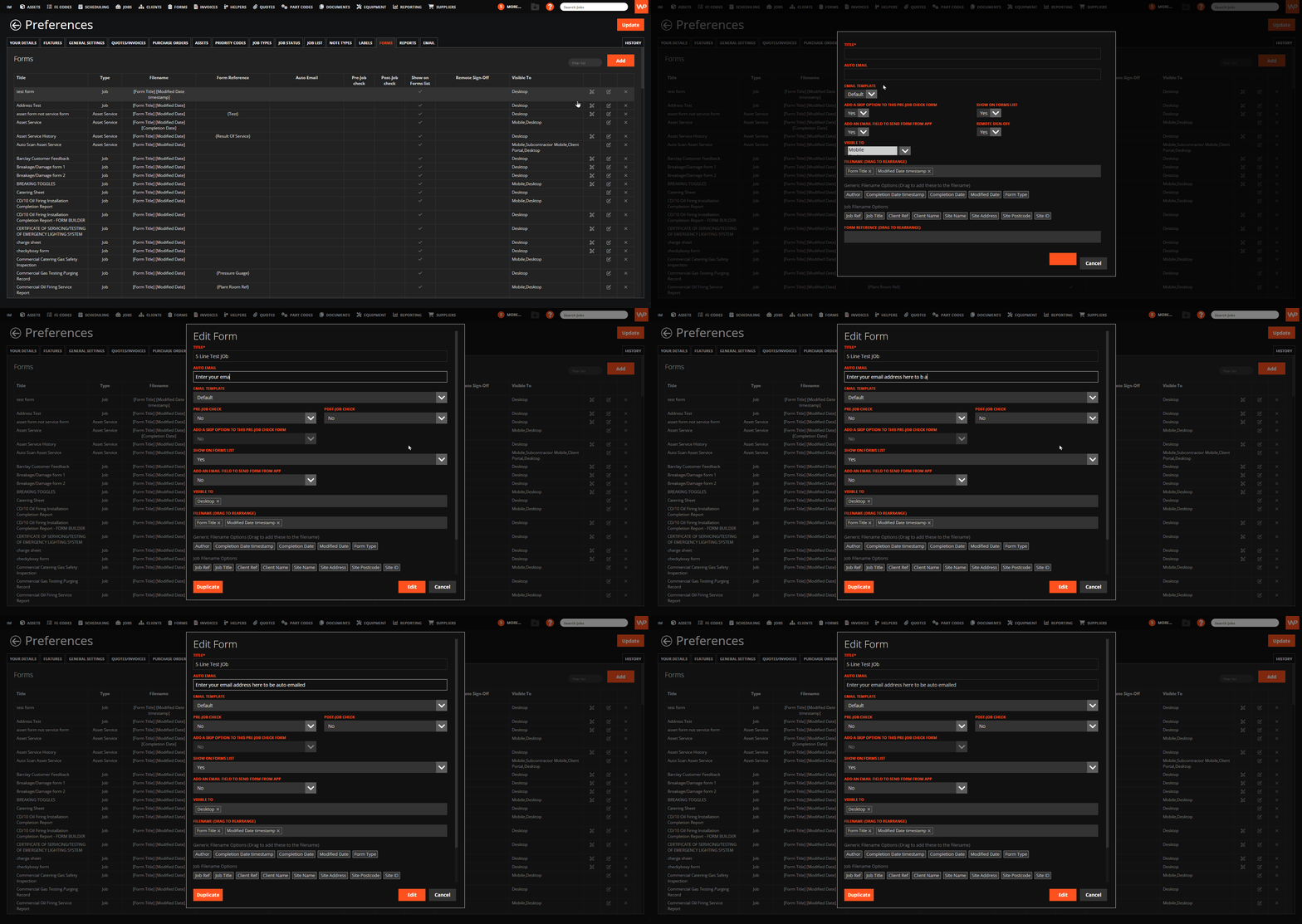
How to add an email field to send the form from the app.
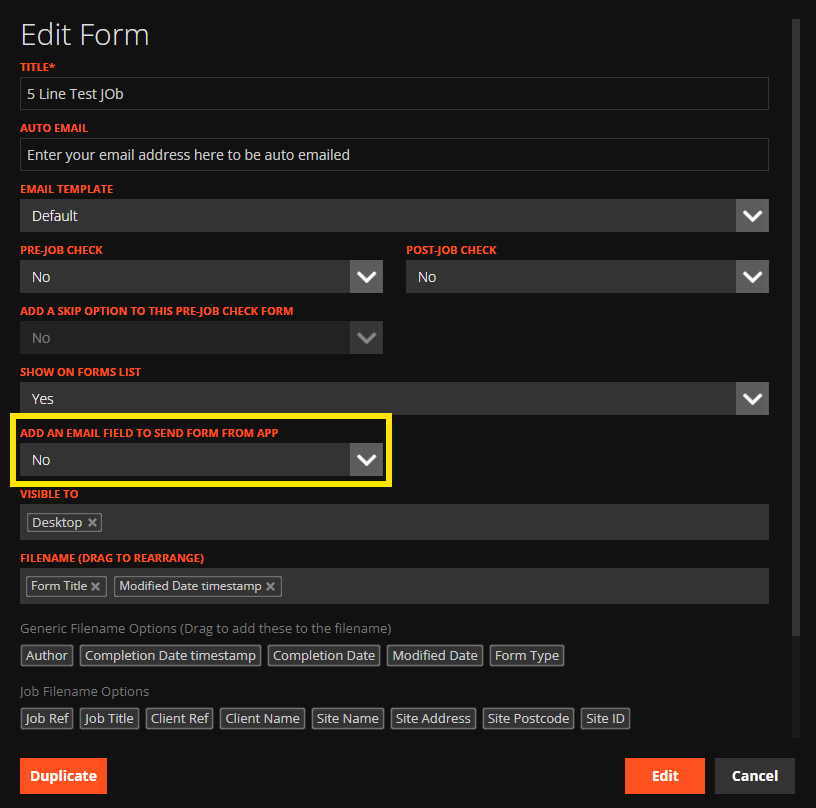
You also have the option to add an email field so that your mobile users can choose to email the form via the WorkPal mobile app. This gives your mobile users the flexibility to email certain forms as and when they need to. This is done in the same place as above and navigating to the highlighted field.
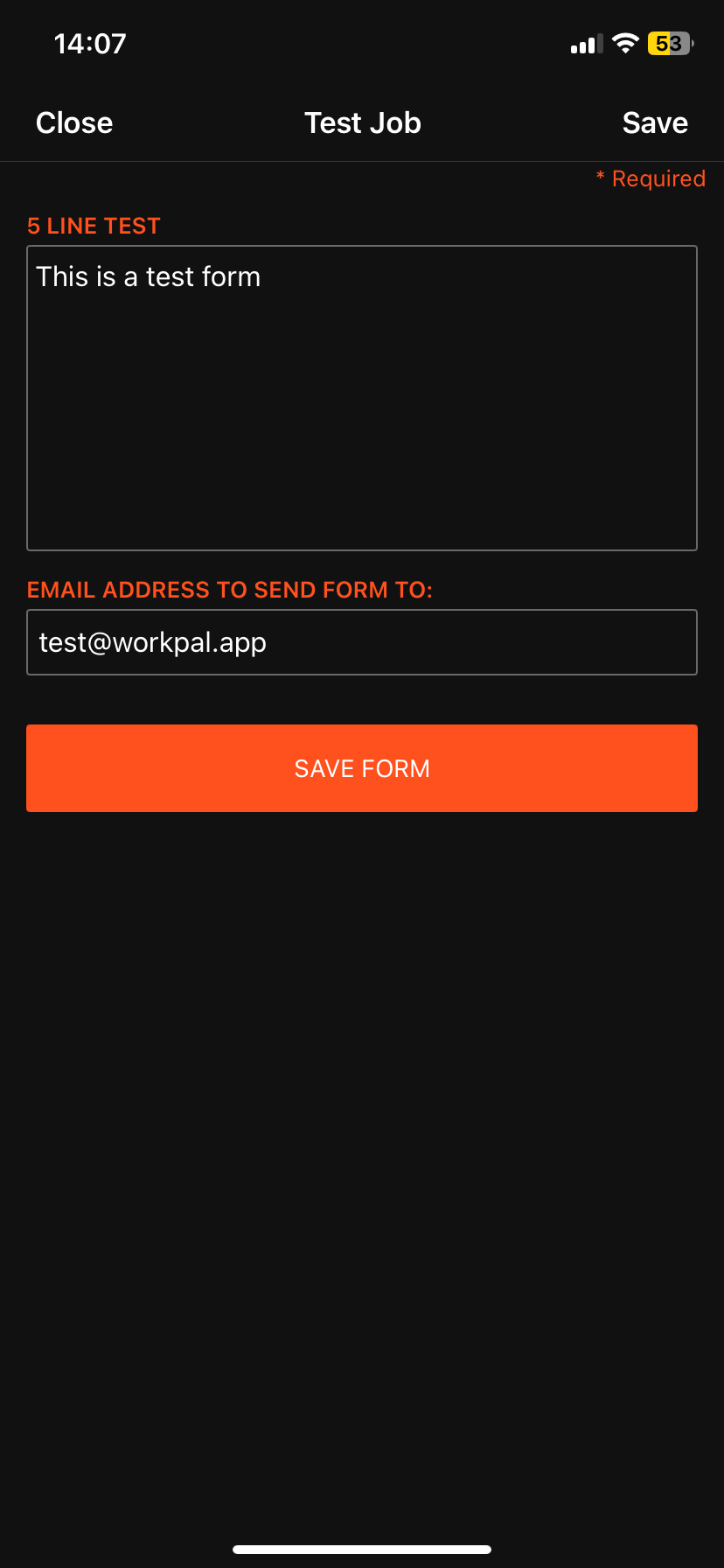
Once the mobile user is completing the form in question, they will see a field saying "email address to send form to:" and from there, can enter the email address they wish.
Pro Tip for Multiple Addresses: If you need to send the form to more than one person, make sure to separate them with a comma and no space. For example: test@workpal.com,testing@workpal.com.