

Your business may employ apprentices, temporary workers, or teams to assist with jobs, and they may not require a user account with Workpal. In such cases, they are categorised as "Helpers" within the Workpal app. This feature allows mobile users to add Helpers to a job, ensuring clear records of who contributed to the task and the time they spent on it.
When a User has started a Job, they have the option of adding a Helper.
Some points to note regarding Helpers:
The Helper is tied to the User that assigned them.
Only Job Time will be logged against the Helpers.
Helpers can be set as inactive on Desktop if they are unavailable for assignment.
Adding a Helper to WorkPal
In the WorkPal Portal, select the Helpers tile.
You can also use the HELPERS tab in the top menu.

Select the Group from the list.
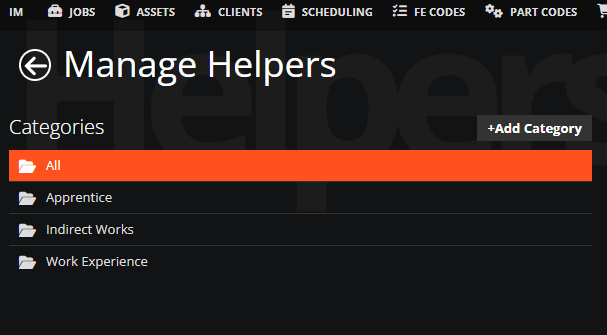
Select +Add Helper.

Fill in the details of your new Helper.
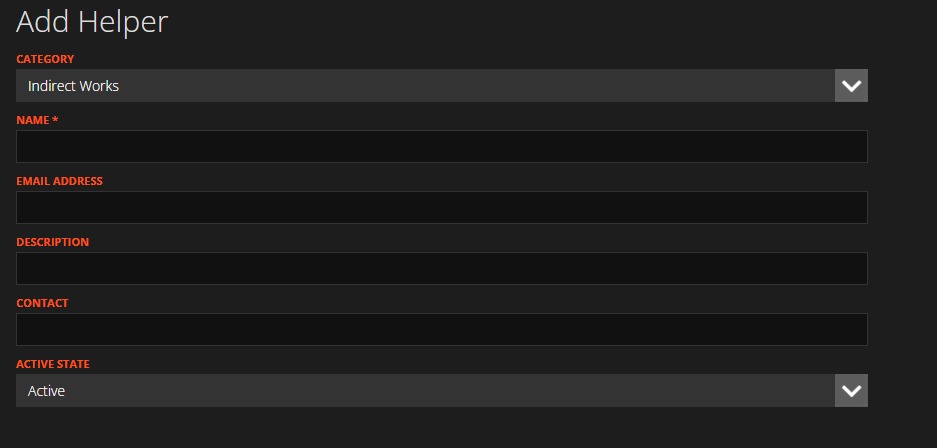
At the bottom right corner of the screen select Add.
If you exit this screen without selecting Add your new helper will not be saved.
Adding a Helper to a Job
When a Mobile User has started a Job, they can add a Helper by choosing the option on the Job Screen.
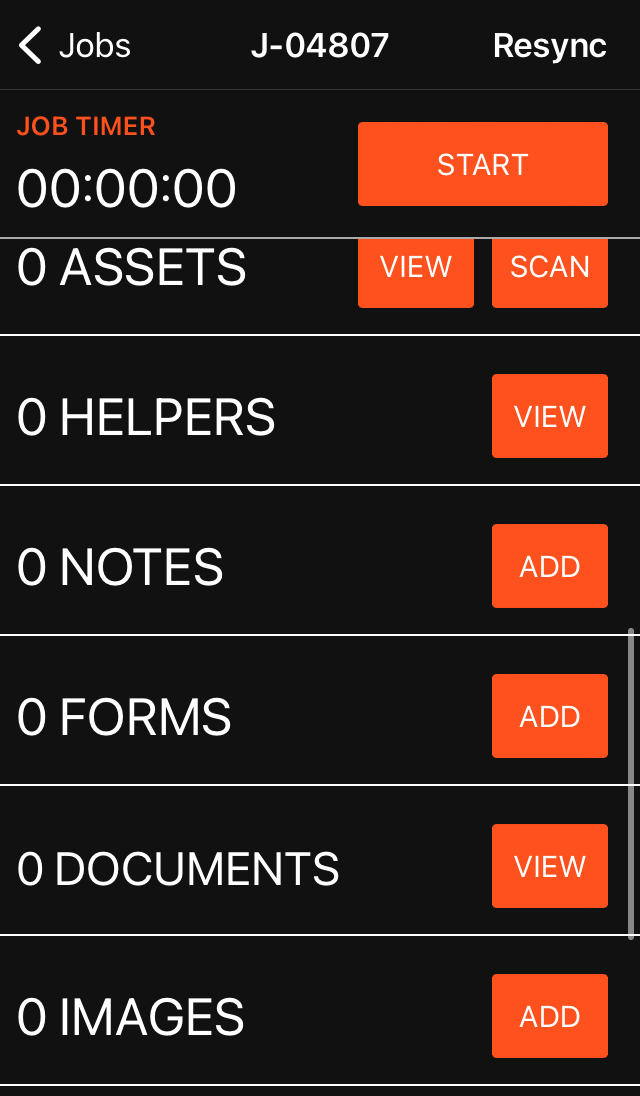
The list will show all Helpers currently active on your WorkPal system. Its important to note there is a distinction between a Helper being active on the system, and active on the Job.
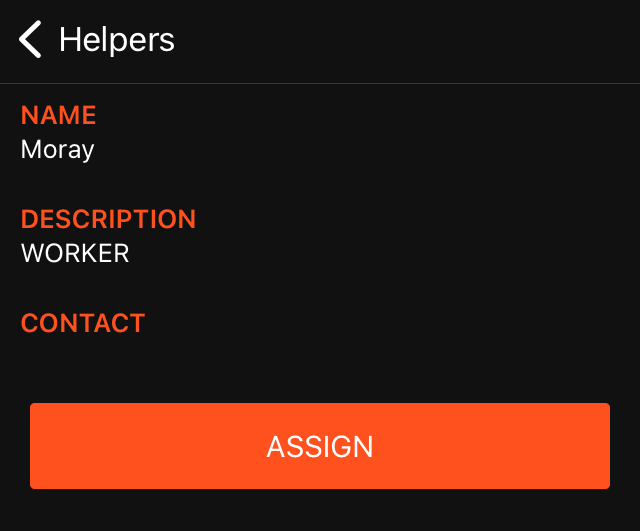
Selecting a Helper will allow you to Assign them to the Job. The Helper is required to enter their signature when assigned. When this has been completed, they will show as "Active" on the Job.
Need a Hand?
If you're experiencing any issues setting up, assigning, or using Helpers in WorkPal, our Support Team is here to help.
📞 028 9344 5660
📧 support@workpal.app
🌐 www.workpal.app