

Dashboards Overview
Dashboards give Desktop users a live snapshot of what is happening in WorkPal without needing to run reports or exports.
They surface:
Operational workload
Due and overdue work
Quote activity
Completed job revenue
Invoicing backlog
Compliance risks (vehicles and equipment)
Dashboards complement reports. They do not replace them.
Dashboards answer:
“What needs attention right now?”
Reports answer:
“Let’s analyse this properly.”
What Dashboards Do
Dashboards help you quickly see things like:
What jobs are due today
What work is overdue
What has been completed recently
What quotes have been won
What revenue has been generated from completed jobs
What still needs invoicing
What compliance deadlines are approaching
They support visibility and prioritisation.
Where Dashboard Data Comes From
Dashboards do not create new data.
Each widget pulls directly from areas such as:
Jobs and their statuses
SLA/RCD (Service Level Agreement/Required Completion Date)
Scheduled Start Date
Quotes and quote statuses
Completed job revenue and cost
Invoice generation status
Vehicle expiry dates
Equipment service dates
Revenue widgets are based on Completed jobs, not invoices.
If the underlying record changes, the dashboard will reflect it at the next refresh.
Refresh Timing
Dashboards update on scheduled intervals:
Jobs widgets → approximately every 15 minutes
Quotes, Revenue and Invoicing → approximately every hour
Vehicle and Equipment widgets → daily
They do not update instantly.
The Core Principle
Dashboards reflect your data exactly as it exists.
If a date or status is wrong in the record, the dashboard will show the wrong outcome accurately.
Dashboard View
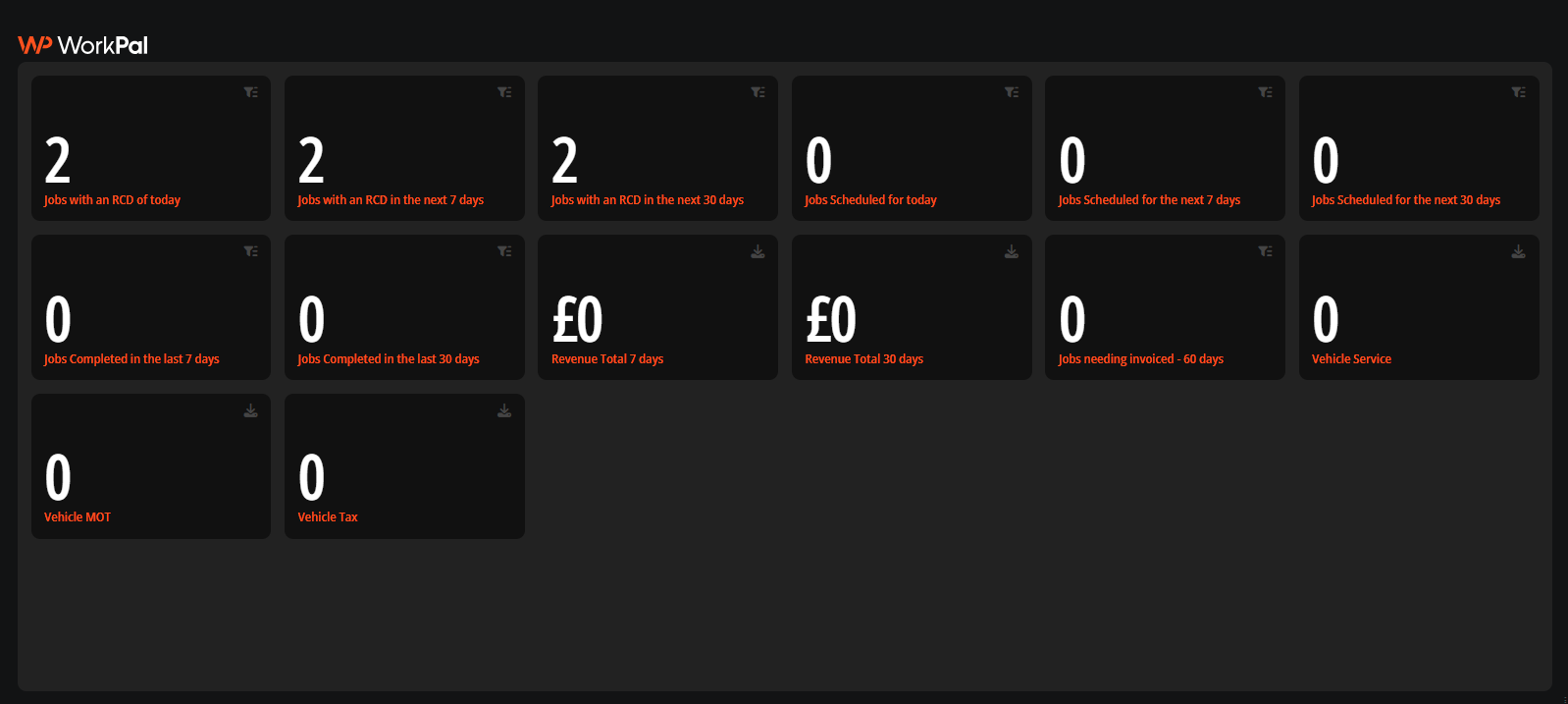
Dashboards show a page of widgets. Each widget displays live information pulled from your WorkPal records.
Each widget includes:
A clear title
A number or chart
An action button in the top-right
The action button behaves in one of two ways.
Filtered (Operational) Widgets
These open a filtered list inside WorkPal.
Examples include:
Jobs due today
Jobs overdue
Jobs needing invoiced
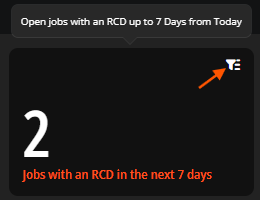
Clicking this button opens the records that make up the number.
Download (Summary) Widgets
These download a supporting report.
Examples include:
Revenue widgets
Quotes widgets
Vehicle compliance widgets
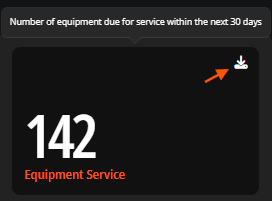
Clicking this button downloads the report behind the widget so totals can be validated.