

Refining Exported Reports Using Microsoft Excel
Once a report has been exported from WorkPal, it can be further refined using a spreadsheet program such as Microsoft Excel. This allows you to filter and analyse the data to suit your specific needs.
Example: Filtering the Absence Report by a Single User
If you’d like to view absences for just one employee, follow the steps below:
Open the exported report in Excel.
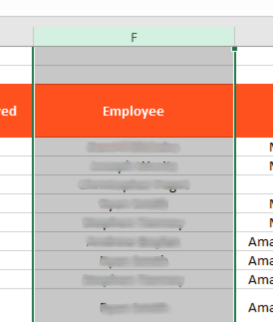
Locate the column containing the employee names.
In the Absence Report, this is typically Column F.
Click the letter at the top of the column (e.g. “F”) to select the entire column.
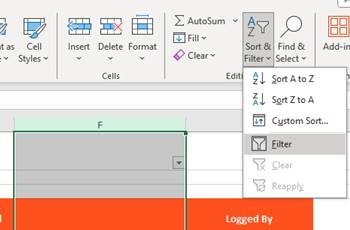
Apply a filter by going to the “Data” tab on the Excel ribbon and clicking “Filter”.
Click the drop-down arrow that appears in the column header and untick all names except the one you want to view.
The spreadsheet will now only display absences for the selected user.
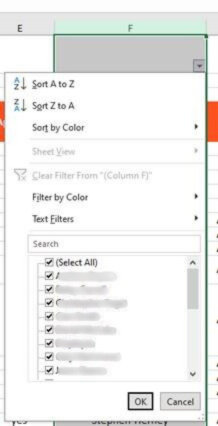
When clicking OK, the report will adjust to only show the applicable rows. The report can then be saved in this state.