

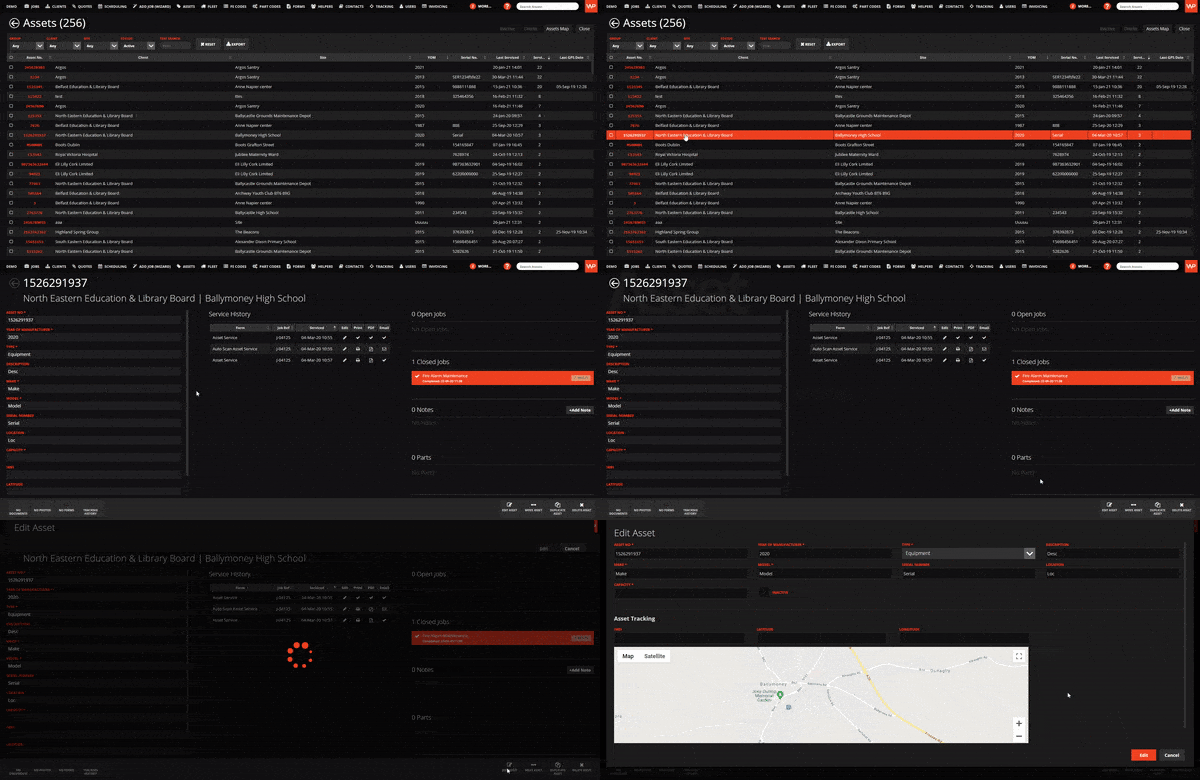
In the WorkPal Portal go to Assets to edit your assets. You can also use the Assets tab in the top menu.
Double click anywhere on the Asset that you wish to edit.
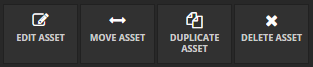
At the bottom right corner of the screen select Edit Asset. You can also move, duplicate and delete an Asset by selecting the respective buttons.
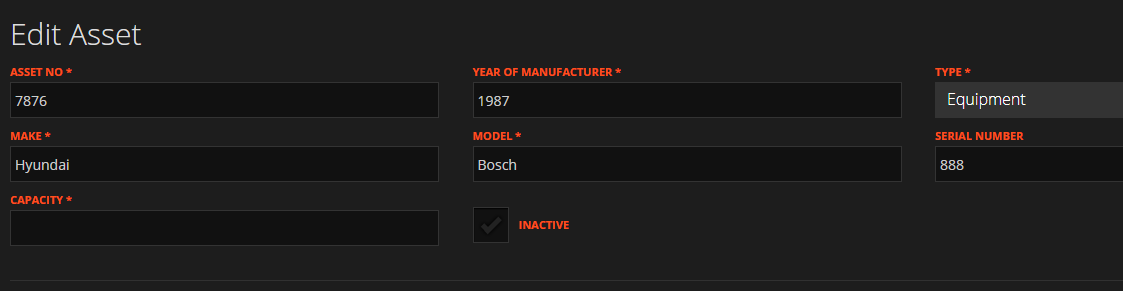
Edit and change the necessary asset fields. Note that fields marked with an asterisk (*) cannot be left blank.
Finally, click the Edit button to save your changes.
To learn how to batch import multiple Assets, please see our Asset Import guide
Editing an Asset on Mobile
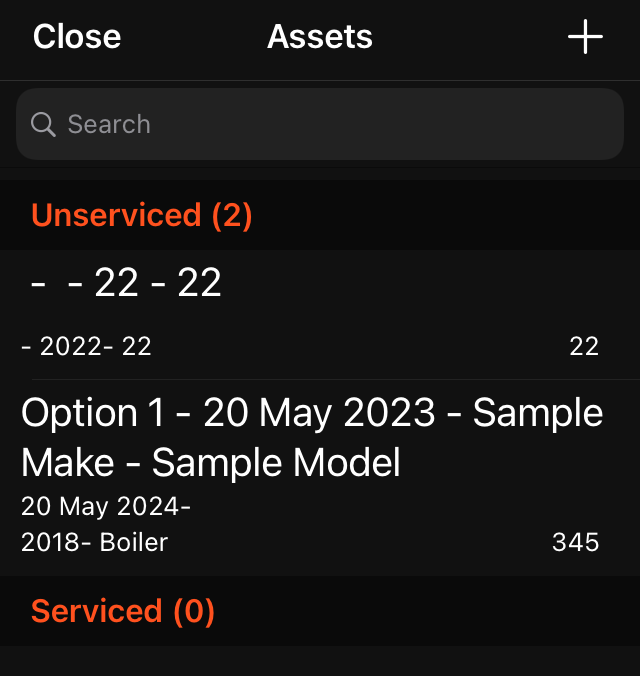
To edit an existing Asset's details on a Job, select the View button in the Assets section of the Job screen to show the list of Assets on the current Job:

Select the appropriate Asset from the list to show the Asset screen:
At the bottom of the Asset screen, select the Edit Asset button to allow you to change details of the Asset:

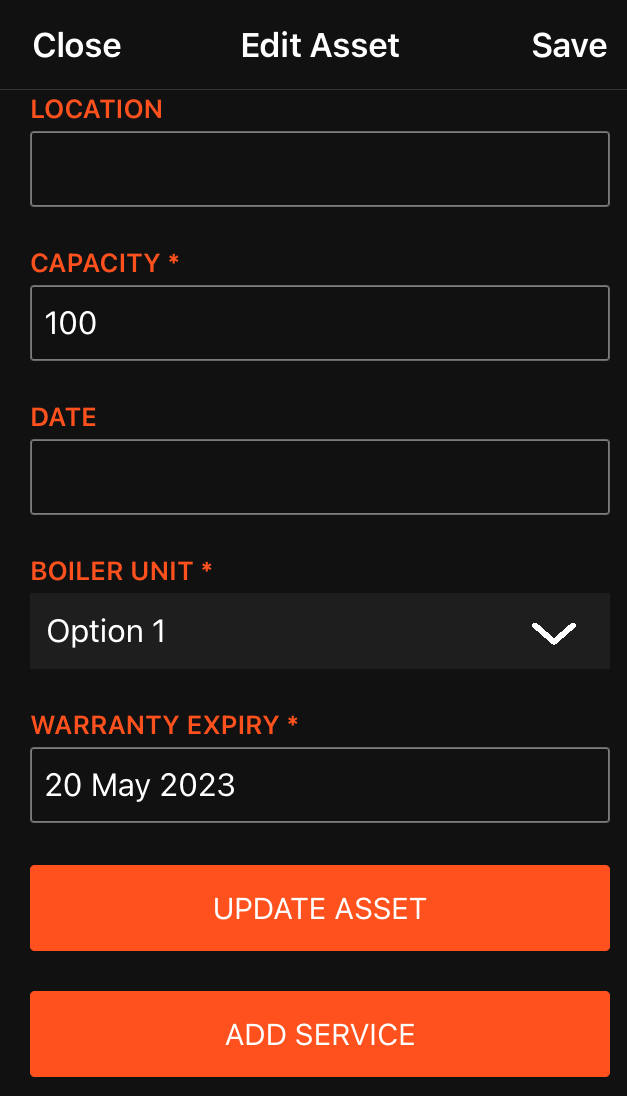
Note: The 'Save' bottom at the top right of this page on iOS has been implemented by Apple and does not correctly save and changes made on this page. Please use the orange 'Update Asset' button to save any changes.